Grade 11 Study Reference
A complete printable guide to Information Technology for Grade 11 - practical Delphi programming and theory.
Contents — Grade 11
- Practical
- 1D Arrays
- Text Files
- Procedures & Functions
- Databases in Delphi
- Theory
- Motherboard & Hardware
- Processing Techniques
- Database Management
- Networks & Protocols
- Mobile Technology
- Computer Management
- E-Communications
- Internet & Multimedia
- Internet Services
- Social Implications
- Term Planner
- Grade 11 - By Term
- Exam Resources
- Exam Extras (Out-of-CAPS)
1D Arrays Grade 11
Imagine you need to store 30 student marks. Without arrays you would need 30 separate variables — iMark1, iMark2, … iMark30. With an array, one name stores them all: arrMarks[1..30]. Arrays are a Grade 11 Term 1 topic.
Why Use Arrays?
What is a 1D Array?
A one-dimensional array is a structured data type that stores a fixed number of values of the same data type under a single variable name, with each individual value accessed using its own index (a whole number giving that value's position in the list).
Think of an array like a train: each carriage (box) holds one value and is numbered by its index — the index tells you exactly where to find that value.
Remember a single variable is one cup. An array is a whole matching dinner set — say 6 cups — that all share one name and are numbered: arrCups[1], arrCups[2] … arrCups[6]. Every item is the same type (all cups), just at a different index (place-setting number).
So instead of naming 30 separate cups cup1, cup2, …, you keep one name and pick the one you want by its number: arrMarks[7] is simply "the mark at place setting 7".
Declaring an Array
arrName : array [lowerIndex..upperIndex] of DataType;var
arrNames : array [1..30] of String;
arrMarks : array [1..30] of Integer;
arrPrices : array [0..9] of Real;Arrays of Unknown Length — use a constant
You don't always know in advance exactly how many items you will store. A common trick is to declare a constant for the maximum size, then use it as the upper index. If the size needs to change later, you only edit one line.
The constant must be declared above the array declaration (it can go just above type in the interface section), otherwise Delphi won't know what Max means yet.
const
  Max = 100;                          // maximum possible learners
var
  arrNames : array [1..Max] of String;
  iCount   : Integer;                  // how many are ACTUALLY used
Keep a separate counter (iCount) for how many elements are really in use, and loop 1 to iCount instead of 1 to Max.
Dynamic Arrays
A dynamic array has no fixed size when declared — you set (and can later change) its length while the program runs with SetLength. This is perfect when the number of items is only known at runtime (e.g. after reading a file).
Unlike array[1..30], a dynamic array is always 0-based. If you SetLength(arr, 5) the valid indexes are 0,1,2,3,4. Use Low(arr) for the first index (0) and High(arr) for the last (length − 1).
| Routine | Purpose |
|---|---|
SetLength(arr, n) | Sets (or changes) the array to hold n elements |
Length(arr) | Returns the current number of elements |
Low(arr) | First valid index (always 0 for dynamic arrays) |
High(arr) | Last valid index (Length − 1) |
var
  arrNum : array of Integer;   // note: NO index range given
  i : Integer;
begin
  SetLength(arrNum, 5);          // now holds 5 ints, index 0..4

  for i := Low(arrNum) to High(arrNum) do
    arrNum[i] := i * 2;           // 0, 2, 4, 6, 8

  SetLength(arrNum, 8);          // grow to 8 — existing values are kept
end;
Populating an Array
Method 1: Fixed values
arrNames[1] := 'Alice';
arrNames[2] := 'Bob';
arrNames[3] := 'Callie';
Method 2: Constant array (known at compile time)
const
  arrDays : array [1..7] of String =
    ('Mon', 'Tue', 'Wed', 'Thu', 'Fri', 'Sat', 'Sun');
Method 3: User input with a loop
for i := 1 to 30 do
  arrNames[i] := InputBox('Name', 'Enter name:', '');
Displaying & Calculating
// Display all
for i := 1 to Length(arrMarks) do
  memOut.Lines.Add(IntToStr(arrMarks[i]));

// Sum and average
iTotal := 0;
for i := 1 to Length(arrMarks) do
  iTotal := iTotal + arrMarks[i];
rAvg := iTotal / Length(arrMarks);
Shortcut: the Math Unit
Writing your own loop to total or average an array works, but Delphi's Math unit already has ready-made functions that do the same job in one line.
| Function | Returns |
|---|---|
Sum(arr) | Total of every element |
Mean(arr) | Average of every element |
MaxValue(arr) | The largest value in the array |
MinValue(arr) | The smallest value in the array |
uses Math;   // add this to the uses clause first

rAvg     := Mean(arrPrices);
rTotal   := Sum(arrPrices);
rHighest := MaxValue(arrPrices);
rLowest := MinValue(arrPrices);These four functions only accept an array whose elements are declared as Double — not Integer, and not the general-purpose Real. If your array holds integers, either redeclare it as array[1..n] of Double, or stick to your own loop.
Arrays with Meaningful Indices
Every index used so far has just meant "the Nth item in the list" — arrNames[3] is simply whoever happens to be third. Sometimes, though, it's more useful to let the index itself carry meaning. If arrVotes[4] always holds the vote count for competitor number 4, the index is the competitor number, not just a position in a queue.
Using a Char as the Index
An index isn't limited to whole numbers — any ordinal type can be used, including Char. This is handy whenever the letter itself is what you want to look values up by, e.g. tallying how many learners scored each grade symbol (A to F) in a test:
var
  arrSymbolCount : array ['A'..'F'] of Integer;
  cGrade : Char;
begin
  cGrade := 'A';
  while cGrade <= 'F' do
  begin
    arrSymbolCount[cGrade] := 0;   // reset every element to zero first
    cGrade := succ(cGrade);         // moves 'A' to 'B', 'B' to 'C', and so on
  end;

  // later, whenever a learner's symbol is worked out:
Inc(arrSymbolCount[cLearnerSymbol]);succ(cGrade) gives the character that comes after cGrade in the alphabet; pred(cGrade) gives the one before it. They work like +1/-1 for any ordinal type, including Char, where plain arithmetic isn't allowed.
Matching a RadioGroup's ItemIndex to an Array
A RadioGroup's ItemIndex always starts counting from 0 for its first button — but an array you declare yourself might start at 1. When you use ItemIndex to pick an element to update (for example, tallying votes for a menu option), you need to decide which convention your array follows and stay consistent:
Array declared [0..4] | Array declared [1..5] |
|---|---|
iChoice := rgpMenu.ItemIndex;Inc(arrVotes[iChoice]); |
iChoice := rgpMenu.ItemIndex + 1;Inc(arrVotes[iChoice]); |
With the [1..5] version, the array index is always one more than ItemIndex, because ItemIndex itself never moves off its 0-based counting — only your array's lower bound changes.
Delphi will happily compile arrNames[50] even if arrNames was declared as [1..30] — the mistake only surfaces while the program is running, as a range-check/IndexOutOfBounds error the moment that line executes. Whenever an index comes from user input or from a component like ItemIndex, validate it against the array's real bounds before using it.
Linear Search
bFound := False;
for i := 1 to Length(arrNames) do
  if arrNames[i] = sSearch then
  begin
    ShowMessage('Found at position ' + IntToStr(i));
    bFound := True;
    Break;
  end;
if not bFound then
ShowMessage('Not found');The code above stops the loop with Break as soon as one match turns up — correct when you only expect a single match (e.g. one learner's ID number). If instead you needed every occurrence (e.g. every learner who chose "Physics"), you would drop the flag and Break, and simply let the loop run to the end, adding each match found along the way. Once the array is sorted, binary search (below) beats both approaches for speed.
Binary Search (sorted array)
Binary search is much faster than linear — it halves the search range each step. The array must be sorted first. We are searching for 23 in the array [2, 5, 8, 12, 16, 23, 38, 56, 72, 91].
iLow := 1;
iHigh := Length(arrNums);
bFound := False;
while (iLow <= iHigh) and not bFound do
begin
  iMid := (iLow + iHigh) div 2;
  if arrNums[iMid] = iTarget then
    bFound := True
  else if arrNums[iMid] < iTarget then
    iLow := iMid + 1
  else
    iHigh := iMid - 1;
end;
if bFound then
  ShowMessage('Found at position ' + IntToStr(iMid));
How String Comparison Works
Sorting a string array with > and < only makes sense once you know what Delphi is actually comparing. It never looks at "the alphabet" directly — it walks each string letter by letter and compares the underlying ASCII value of each character, stopping at the first pair of letters that differ.
| Comparison | Result | Why |
|---|---|---|
'Alice' = 'alice' | False | 'A' is ASCII 65, 'a' is ASCII 97 — string comparison is case-sensitive. |
'Bob' < 'Eve' | True | First letters differ straight away: 'B' (66) is less than 'E' (69). |
'Farai' < 'Farm' | True | The first three letters ('F','a','r') match, so the 4th letter decides: 'a' (97) is less than 'm' (109). |
'Gio' > 'Gi' | True | Delphi pads the shorter string with trailing spaces to compare them — so 'Gi' becomes 'Gi ', and 'o' (111) beats a space (32). |
Because every uppercase letter has a lower ASCII value than every lowercase letter, an unsorted mix of cases will group all the capitalised words before any lowercase word once sorted — not what most people expect from "alphabetical order". If that matters, convert both sides to the same case (e.g. with UpperCase()) before comparing or sorting.
Bubble Sort — Pass by Pass
Bubble sort compares adjacent elements and swaps them if they are in the wrong order. After each full pass, the largest unsorted value "bubbles" to its correct position at the end. Array: [5, 3, 8, 1, 9] — sorting ascending.
for i := Length(arrNums) - 1 downto 1 do
  for j := 1 to i do
    if arrNums[j] > arrNums[j + 1] then
    begin
      iTemp := arrNums[j];
      arrNums[j] := arrNums[j + 1];
      arrNums[j + 1] := iTemp;
end;The version above always completes every single pass, even once the array is already sorted. A smarter bubble sort keeps a Boolean flag and quits the moment a whole pass goes by with no swaps at all — because that can only happen when the array is fully sorted:
iEndCounter := Length(arrNums) - 1;
repeat
  bSwapped := False;
  for j := 1 to iEndCounter do
    if arrNums[j] > arrNums[j + 1] then
    begin
      iTemp := arrNums[j];
      arrNums[j] := arrNums[j + 1];
      arrNums[j + 1] := iTemp;
      bSwapped := True;
    end;
  Dec(iEndCounter);            // the tail end is sorted, so search one less item next time
until not bSwapped;         // no swaps this pass = fully sorted, stop looping
Selection Sort — Pass by Pass
Selection sort finds the smallest remaining element and swaps it into its correct position. Same array: [5, 3, 8, 1, 9].
for i := 1 to Length(arrNums) - 1 do
begin
  iMin := i;
  for j := i + 1 to Length(arrNums) do
    if arrNums[j] < arrNums[iMin] then
      iMin := j;
  if iMin <> i then
  begin
    iTemp := arrNums[i];
    arrNums[i] := arrNums[iMin];
    arrNums[iMin] := iTemp;
  end;
end;
Parallel Arrays
Two arrays are parallel when the same index refers to the same "record" — e.g. arrNames[3] and arrMarks[3] both belong to the same student. When you sort one, you must sort both to keep them in sync.
At a table, each person has their own cup, plate and bowl — three parallel dinner sets, where place setting [3] in each belongs to the same person. If that person moves to a different seat, they take all three of their things with them — you never leave their cup behind while their plate moves.
Sorting parallel arrays works exactly the same way: whenever the sort swaps two items in arrNames, you must swap the same two indexes in arrMarks (and every other parallel array) — so each student keeps their own name and their own mark together.
for i := 1 to Length(arrNames) - 1 do
  for j := i + 1 to Length(arrNames) do
    if arrNames[i] > arrNames[j] then
    begin
      // Swap both arrays at the same time
      sTemp := arrNames[i]; arrNames[i] := arrNames[j]; arrNames[j] := sTemp;
      iTemp := arrMarks[i]; arrMarks[i] := arrMarks[j]; arrMarks[j] := iTemp;
    end;
Date Methods (Grade 11)
Delphi has built-in functions for working with dates — required for Grade 11 Term 1.
IsLeapYear, YearOf, MonthOf and DayOf live in the DateUtils unit. Add uses DateUtils; near the top of your unit, or Delphi will report "undeclared identifier" when you try to use them.
| Function | Returns | Example & Output |
|---|---|---|
Now | Current date & time (TDateTime) | lblDate.Caption := DateToStr(Now) → '2025/05/30' |
DateToStr(d) | Date as formatted string | DateToStr(dtpBirth.Date) → '2008/03/15' |
TimeToStr(t) | Time as formatted string | TimeToStr(Now) → '14:32:07' |
StrToDate(s) | String → TDateTime | StrToDate('2024/05/01') |
IsLeapYear(y) | Boolean (True/False) | IsLeapYear(2024) → True |
YearOf(d) | Integer year | YearOf(dtpDate.Date) → 2025 |
MonthOf(d) | Integer month (1–12) | MonthOf(Now) → 5 |
DayOf(d) | Integer day (1–31) | DayOf(Now) → 30 |
// Display today's date
lblToday.Caption := DateToStr(Now);         // '2025/05/30'

// Calculate age in years
iAge := YearOf(Now) - YearOf(dtpBirth.Date); // e.g. 17

// Check leap year
if IsLeapYear(YearOf(Now)) then
  ShowMessage('This is a leap year')
else
ShowMessage('Not a leap year');Text Files Grade 11
Text files allow your Delphi program to save and load data that persists between runs. Learn the four operations: reading, writing, appending, and checking existence.
What Is a Text File?
A text file is a file that stores plain, readable characters with no special formatting — just letters, numbers and line breaks, exactly as you would type them into Notepad. There are no fonts, colours, or hidden layout codes like you would find in a Word document; it is simply text, one line after another.
Think of a text file as a plain notepad. You can open it, read what is written, add a new line at the bottom, or tear out the page and start fresh. There is nothing fancy inside — just the words you wrote.
Why Do We Use Files?
The variables in your program only live in memory (RAM) while the program is running. The moment you close the program, everything in those variables is gone. A file gives your data persistence — it is saved onto the disk so that it survives after the program closes and is still there the next time you run it.
Example: a marks program that lets a teacher capture results is useless if every mark vanishes when she closes it. By writing the marks to a text file, the data is safely stored and can be read back tomorrow.
Physical vs Logical Filename
When working with files in Delphi there are two "names" to keep straight:
- Physical filename – the real name of the file as it exists on the disk, for example
'Data.txt'. This is what you would see in File Explorer. - Logical filename – the file variable inside your program (of type
TextFile), for exampleF. Your code talks to this variable, not directly to the disk.
The AssignFile command is what links the two together — it tells Delphi "whenever I use the logical variable F, I really mean the physical file Data.txt on the disk".
Think of a postbox. The physical filename is the actual postbox standing in the street with a real street address. The logical filename is the label F you stick on your desk that says "this drawer represents that postbox". AssignFile is the act of writing the street address onto your label so the two are connected.
What Each File Command Does
Before looking at the table, here is each command explained in plain words:
- AssignFile(F, 'file.txt') – links your file variable to the real file on disk. Always the very first step.
- Reset(F) – opens an existing file so you can read from it, starting at the very beginning.
- Rewrite(F) – creates a brand-new empty file for writing. If the file already exists, its old contents are wiped out, so use it with care.
- Append(F) – opens an existing file and moves to the very end, so new lines are added without destroying what is already there.
- ReadLn(F, S) – reads one whole line from the file into the variable
S, then moves on to the next line. - WriteLn(F, S) – writes the contents of
Sinto the file as one line. - CloseFile(F) – saves and properly closes the file. Like shutting and locking the postbox so nothing is lost.
- EOF(F) – short for "End Of File". Returns
Trueonce you have read the last line, so your loop knows when to stop.
Key Procedures and Functions
| Command | Purpose |
|---|---|
AssignFile(F, 'file.txt') | Links the file variable F to a file on disk |
Reset(F) | Opens existing file for reading (from beginning) |
Rewrite(F) | Creates/overwrites a file for writing |
Append(F) | Opens existing file for writing — adds to end |
CloseFile(F) | Saves and closes the file |
ReadLn(F, S) | Reads one line from file into variable S |
WriteLn(F, S) | Writes variable S as one line to the file |
EOF(F) | Returns True when the end of the file is reached |
FileExists('file.txt') | Returns True if the file exists on disk |
Reading a Text File
var
  F: TextFile;
  S: string;
begin
  if FileExists('Data.txt') then
  begin
    AssignFile(F, 'Data.txt');
    Reset(F);                          // open for reading
    while not EOF(F) do
    begin
      ReadLn(F, S);
      memOut.Lines.Add(S);             // process each line
    end;
    CloseFile(F);
  end
  else
    ShowMessage('File not found!');
end;
LoadFromFile and SaveToFile — Not Usable in Exams or PAT
A Memo or RichEdit's Lines property has two built-in methods, LoadFromFile and SaveToFile, that dump a whole text file onto the screen (or the screen into a file) in a single line, skipping AssignFile/Reset/ReadLn/EOF entirely.
memOutput.Lines.Clear;
memOutput.Lines.LoadFromFile('Data.txt');   // reads the whole file into the Memo

// ... later, to save the Memo's content back to a file:
memOutput.Lines.SaveToFile('Output.txt'); // writes every line in the Memo to a fileLoadFromFile and SaveToFile cannot be assessed in exams or PAT tasks and must not be used in your practical work at all — not even as a shortcut for the parts of a task that just display or save a file as-is. Every file operation, from the simplest read to the most complex report, must be written from first principles using AssignFile, Reset/Rewrite/Append, ReadLn/WriteLn, EOF and CloseFile — the technique shown earlier on this page. This example is here only so you recognise the shortcut and know to avoid it, not to use it.
EOF vs Eoln — Reading Multiple Values on One Line
EOF(F) checks whether you have reached the end of the whole file. But what if a single line holds several values you need to read one at a time, and you don't know in advance how many there are? Delphi has a matching function for exactly this: Eoln(F) — short for "End Of Line" — which returns True once you have read everything on the current line, even though the file itself is not finished yet.
| Function | Returns True when… | Used to control… |
|---|---|---|
EOF(F) | There are no lines left to read in the whole file | The outer loop — moves from one line to the next |
Eoln(F) | You have reached the end of the current line (the file still has more lines after this one) | The inner loop — moves from one value to the next value on the same line |
Consider a file where each line holds an unknown number of test scores separated by spaces:
85 72 90 61
78 88
Because every line has a different number of values, ReadLn on its own cannot pull them out one at a time. The fix is to nest a value-by-value loop (controlled by Eoln) inside the line-by-line loop (controlled by EOF):
var
  F: TextFile;
  iScore, iTotal, iCount: Integer;
begin
  iTotal := 0;
  iCount := 0;
  AssignFile(F, 'Data.txt');
  Reset(F);
  while not EOF(F) do          // outer loop: one line at a time
  begin
    while not Eoln(F) do       // inner loop: one value at a time on this line
    begin
      Read(F, iScore);              // Read (not ReadLn) leaves the cursor on the same line
      iTotal := iTotal + iScore;
      iCount := iCount + 1;
    end;
    ReadLn(F);                      // step past the end-of-line marker onto the next line
  end;
  CloseFile(F);
  ShowMessage('Average: ' + FloatToStr(iTotal / iCount));
end;Inside the Eoln loop you must use Read, not ReadLn. Read takes just the next value and leaves the file cursor exactly where it stopped, ready for the next Read. ReadLn would jump straight to the next line, throwing away any values still waiting on the current one. The lone ReadLn(F); after the inner loop ends is what actually steps the cursor past the invisible end-of-line marker, so the outer EOF loop can correctly move on to the next line.
Checking a File Exists with try..except
Using FileExists is the simplest way to avoid a crash. A second method is to try to open the file and catch the error if it is missing. A try..except block runs the risky code in the try part; if an exception happens (for example the file does not exist, so Reset fails), control jumps straight to the except part instead of crashing the program.
var
  F: TextFile;
  S: string;
begin
  AssignFile(F, 'Data.txt');
  try
    Reset(F);                          // raises an error if the file is missing
    while not EOF(F) do
    begin
      ReadLn(F, S);
      memOut.Lines.Add(S);
    end;
    CloseFile(F);
  except
    on E: EInOutError do
      ShowMessage('Could not open the file: ' + E.Message);
  end;
end;
FileExists checks before opening and lets you avoid the problem; try..except reacts after an error occurs. try..except also catches other I/O problems (e.g. a corrupt or locked file), so the two are often combined: test with FileExists, then wrap the file operations in try..except as a safety net. The exception type for file errors is EInOutError.
Writing to a Text File (Overwrite)
var
  F: TextFile;
begin
  AssignFile(F, 'Output.txt');
  Rewrite(F);                          // creates or overwrites
  WriteLn(F, sName + ',' + sSurname + ',' + IntToStr(iAge));
  CloseFile(F);
end;
Appending to a Text File
var
  F: TextFile;
begin
  AssignFile(F, 'Data.txt');
  Append(F);                           // adds to existing file
  WriteLn(F, 'New data line');
  CloseFile(F);
end;
Reading CSV Data into Arrays
var
  F: TextFile;
  sLine, sName: string;
  iMark, iCount, iPos: Integer;
begin
  iCount := 0;
  AssignFile(F, 'marks.txt');
  Reset(F);
  while not EOF(F) do
  begin
    ReadLn(F, sLine);
    iPos := Pos(',', sLine);
    Inc(iCount);
    arrNames[iCount] := Copy(sLine, 1, iPos - 1);
    arrMarks[iCount] := StrToInt(Copy(sLine, iPos + 1, Length(sLine)));
  end;
  CloseFile(F);
end;Forgetting CloseFile(F) means the file remains locked and data may not be saved properly.
Worked Example — Putting It All Together
Exam questions rarely test one skill on its own. A typical Paper 1 question gives you a text file, asks you to extract and manipulate each line, store the parts in parallel arrays, and then process them. Here is that whole pattern in one example.
A text file marks.txt stores one learner per line as Surname,Name,Mark:
Coetzee,Mari,72
Naidoo,Priya,88
Botha,Jan,64
Khumalo,Sipho,91
Task: read the file into parallel arrays, then (a) display each learner as M. Coetzee: 72%, (b) show the class average, and (c) find the top learner.
Step 0 — Declare the parallel arrays
const
  Max = 100;                 // most learners the arrays can hold
var
  arrSurname : array[1..MAX] of string;
  arrName    : array[1..MAX] of string;
  arrMark    : array[1..MAX] of integer;
  iCount     : integer;          // how many learners were actually read
The three arrays are parallel: index [2] in each one belongs to the same learner (Priya Naidoo, 88).
Step 1 — Read the file & split each line
Read one line at a time. Use Pos to find each comma, then Copy and Delete to chop the line into its three fields.
var
  F     : TextFile;
  sLine : string;
  iPos  : integer;
begin
  iCount := 0;
  if not FileExists('marks.txt') then
  begin
    ShowMessage('File not found!');
    Exit;
  end;
  AssignFile(F, 'marks.txt');
  Reset(F);
  while not EOF(F) do
  begin
    ReadLn(F, sLine);                      // e.g. 'Coetzee,Mari,72'
    Inc(iCount);
    // field 1 - surname (up to the first comma)
    iPos := Pos(',', sLine);
    arrSurname[iCount] := Copy(sLine, 1, iPos - 1);   // 'Coetzee'
    Delete(sLine, 1, iPos);                          // -> 'Mari,72'
    // field 2 - first name (up to the next comma)
    iPos := Pos(',', sLine);
    arrName[iCount] := Copy(sLine, 1, iPos - 1);      // 'Mari'
    Delete(sLine, 1, iPos);                          // -> '72'
    // field 3 - whatever remains is the mark
    arrMark[iCount] := StrToInt(sLine);                // 72
  end;
  CloseFile(F);
end;
Step 2 — Manipulate the strings for display
Build the initial from the first letter of the first name with Copy(name, 1, 1).
var
  i        : integer;
  sInitial : string;
begin
  for i := 1 to iCount do
  begin
    sInitial := Copy(arrName[i], 1, 1);            // 'M'
    memOut.Lines.Add(sInitial + '. ' + arrSurname[i]
                     + ': ' + IntToStr(arrMark[i]) + '%');
  end;
end;
Output: M. Coetzee: 72%, P. Naidoo: 88%, J. Botha: 64%, S. Khumalo: 91%
Step 3 — Class average
(Assume iTotal : integer and rAverage : real are declared.)
iTotal := 0;
for i := 1 to iCount do
  iTotal := iTotal + arrMark[i];
rAverage := iTotal / iCount;
ShowMessage('Class average: ' +
            FloatToStrF(rAverage, ffFixed, 4, 1) + '%');
Step 4 — Find the top learner
Search arrMark for the highest value, remembering its index. Because the arrays are parallel, that same index gives you the winner's name and surname too.
iTopPos := 1;
for i := 2 to iCount do
  if arrMark[i] > arrMark[iTopPos] then
    iTopPos := i;
ShowMessage('Top learner: ' + arrName[iTopPos] + ' ' + arrSurname[iTopPos]
+ ' (' + IntToStr(arrMark[iTopPos]) + '%)');In a single question you have used text file handling (FileExists, Reset, ReadLn, EOF, CloseFile), string manipulation (Pos, Copy, Delete), parallel arrays (three arrays sharing one index), and processing (an aggregate and finding a maximum). Remember the dinner-set rule: the winning index carries the name, surname and mark together.
And back out — writing the results to a new file
Often the last step is to write your processed results to a new text file. Use Rewrite to create it, WriteLn to add each line, and CloseFile to save. Here we write a pass/fail report from the arrays built above.
var
  Fout    : TextFile;
  i       : integer;
  sResult : string;
begin
  AssignFile(Fout, 'report.txt');
  Rewrite(Fout);                         // creates (or overwrites) the file
  for i := 1 to iCount do
  begin
    if arrMark[i] >= 50 then
      sResult := 'PASS'
    else
      sResult := 'FAIL';
    WriteLn(Fout, arrSurname[i] + ',' + IntToStr(arrMark[i]) + ',' + sResult);
  end;
  CloseFile(Fout);                       // saves and closes the file
end;
That completes the full read → process → write cycle: read the data in, work with it in arrays, then save the results back out to a new file.
Working with More Than One Text File at a Time
A practical question will sometimes ask you to read from one existing file and, in the same pass, sort its lines into two or more new files depending on a condition. Reusing the marks.txt file from the worked example above, here is a program that reads it once and writes each learner's surname into either Pass.txt or Fail.txt depending on their mark. The file being read only ever needs Reset; every file being created or overwritten needs its own Rewrite call, and all three files stay open together inside a single while not EOF loop.
var
  Fin, FPass, FFail : TextFile;
  sLine, sSurname     : string;
  iPos, iMark          : integer;
begin
  AssignFile(Fin, 'marks.txt');
  AssignFile(FPass, 'Pass.txt');
  AssignFile(FFail, 'Fail.txt');
  try
    Reset(Fin);                           // only the file being read needs a try..except
  except
    ShowMessage('marks.txt could not be opened');
    Exit;
  end;
  Rewrite(FPass);                         // creates/overwrites the two output files
  Rewrite(FFail);

  while not EOF(Fin) do
  begin
    ReadLn(Fin, sLine);                   // e.g. 'Coetzee,Mari,72'
    iPos := Pos(',', sLine);
    sSurname := Copy(sLine, 1, iPos - 1);
    Delete(sLine, 1, iPos);
    iPos := Pos(',', sLine);
    Delete(sLine, 1, iPos);           // discard the first name, keep the mark
    iMark := StrToInt(sLine);
    if iMark >= 50 then
      WriteLn(FPass, sSurname)
    else
      WriteLn(FFail, sSurname);
  end;
  CloseFile(Fin);
  CloseFile(FPass);
  CloseFile(FFail);
end;If a file with that name already exists, Rewrite does not simply open it — it empties it first. So if Pass.txt already held data from a previous run, that data is gone the instant Rewrite(FPass) executes. Point Rewrite only at the files you genuinely intend to (re)create; call it on the wrong variable by mistake and there is no way to get the lost data back. The file you are reading from should only ever be opened with Reset.
A physical filename does not have to be a fixed string — it can be assembled from user input or a variable, which is useful when every record needs its own file. If the user types a computer number into edtNumber, for example, build the filename before linking it with AssignFile:
sFilename := 'Computer' + edtNumber.Text + '.txt';   // e.g. 'Computer34.txt'
AssignFile(tCompFile, sFilename);
Writing Data to a Text File in Neat Columns
A field width indicator reserves a fixed number of character positions for a value and right-justifies it inside them, which is what makes data on separate lines line up into columns. Add a colon and a number straight after the value inside a WriteLn statement.
sSurname := 'Pillay';
WriteLn(tFile, sSurname:10);   // 'Pillay' padded with 4 leading spaces to fill 10 positions
A field width on its own only right-justifies. To left-align a value instead, pad an empty string out to whatever width is still needed (using Length) and write that padding before the next field:
sName := 'Ayesha';
sSurname := 'Pillay';
WriteLn(tFile, sName, ' ':10 - Length(sName), sSurname);   // surname always starts at column 11
To align decimal values so the decimal points line up under each other, use the Format function to first convert the number into a fixed-width string, then write that string with WriteLn.
| Format code | Meaning |
|---|---|
% | Marks the start of a formatting instruction (not normal text) |
10 | The final string must be 10 characters wide |
2 | Show 2 digits after the decimal point |
f | The value is a floating-point (real) number |
m | Same as f, but also adds a currency symbol (e.g. R) |
WriteLn(tFile, Format('%10.2f', [rValue]));    // e.g. '     84.41'
WriteLn(tFile, Format('%12.2m', [rPrice])); // e.g. ' R14.60'Proportional fonts (like Arial) give each character a different width, so columns that line up perfectly in your code can look uneven when displayed. Set the output component's font to a fixed-width font such as Courier New so every character takes up exactly the same space and your columns line up visually.
Procedures & Functions Grade 11
User-defined procedures and functions let you break code into reusable, named blocks. This makes programs easier to read, maintain and debug.
What Is a Method?
A method is a named block of code that performs a specific task. Instead of writing the same instructions over and over inside your event handlers, you write them once, give that block a name, and then simply call that name whenever you need the task done. In Delphi we build methods in two forms: procedures and functions.
Think of a method like a recipe card in a cookbook. The recipe is written down once. Whenever you want that dish, you don't rewrite the steps from scratch — you just fetch the card and follow it. A method works exactly the same way: write the steps once, then "fetch" them by name as often as you like.
Why Do We Break Code Into Methods?
When you are starting out it can feel like extra work to split your program into little named blocks. But experienced programmers do it for very good reasons:
- DRY (Don't Repeat Yourself) – if the same instructions appear in three places and you copy-paste them, you now have to fix bugs in three places. Put them in one method and you fix it once.
- Readability – a well-named method like
CalcAveragetells the reader exactly what is happening, far better than ten lines of arithmetic. - Easier testing and debugging – you can test one small method on its own instead of hunting through a giant block of code.
- Reuse – once written, a method can be called from many different buttons and events.
Each method should do only one job. If a method is trying to do several things at once, that is usually a sign it should be split into smaller methods.
What Is a Procedure?
A procedure is a named block of code that does a task but does not send a value back to where it was called. It simply carries out its instructions — showing a message, clearing some boxes, drawing on a canvas — and then control returns to the program.
A procedure is like asking someone to "switch off the lights". They go and do the job. You don't expect them to hand you anything back — you just expect the task to be done.
Procedures
Without Parameters
// Declaration (above the event handlers)
procedure ShowHello;
begin
  ShowMessage('Hello!');
end;

// Calling it
procedure TForm1.btnShowClick(Sender: TObject);
begin
  ShowHello;   // called alone
end;
With Parameters
procedure DisplayGreeting(sMessage, sName: string);
begin
  ShowMessage(sMessage + ' ' + sName);
end;

// Call with arguments
DisplayGreeting('Good morning', 'Ms Coetzee');
Parameters vs Arguments
A parameter is a placeholder name listed in the method's declaration — it stands for a value the method will receive. An argument is the actual value you pass in when you call the method. In short: parameters live in the declaration; arguments are the real values you supply at the call.
Think of a parameter as a labelled jar called "sName" sitting empty on the shelf when the recipe is written. The argument is the actual "Ms Coetzee" you scoop into that jar when you finally cook. The jar's label is the parameter; what you put in it is the argument.
Example: in DisplayGreeting(sMessage, sName: string) the names sMessage and sName are parameters. When you call DisplayGreeting('Good morning', 'Ms Coetzee'), the strings 'Good morning' and 'Ms Coetzee' are the arguments.
Value Parameters
A value parameter means the method receives a copy of the argument. The method can change that copy freely inside itself, but the original variable back in the calling code stays untouched. This is the default and safest kind of parameter, because the caller never has to worry about its variables being changed unexpectedly.
A value parameter is like giving someone a photocopy of a document. They can scribble all over their copy, but your original is safe at home.
Reference (VAR) Parameters
A reference parameter — Delphi calls it a VAR parameter, marked with the keyword var in the declaration — doesn't hand the method a copy of anything. It points the method straight at the caller's own variable, so any change made inside the method sticks after the method finishes and control returns to the caller.
A reference parameter is like handing someone your original document instead of a photocopy. Whatever they write on it is now permanently on your original — there's no separate copy shielding it.
procedure DoubleIt(var iNum: Integer);
begin
  iNum := iNum * 2;   // changes the CALLER's variable directly
end;

// Call — no assignment needed, iScore itself is changed
DoubleIt(iScore);
Several of Delphi's own built-in procedures rely on VAR parameters to hand back a result without being functions — Inc and Dec are everyday examples:
| Statement | Equivalent to |
|---|---|
Inc(iScore, iBonus); | iScore := iScore + iBonus; |
Dec(iScore, iPenalty); | iScore := iScore - iPenalty; |
Here iScore is the VAR parameter — it's the one actually overwritten with a new total — while iBonus (or iPenalty) is only ever a value parameter that Delphi reads once and then discards.
Reach for a plain value parameter whenever a method only needs to look at the data. Switch to a VAR parameter the moment a method has to alter the caller's variable itself — a procedure that swaps two values around, or one that tops up a running total that lives outside the method, are both classic cases.
Returning More Than One Value
A function is limited to handing back a single value through Result. When a task genuinely needs to report back two or more separate pieces of information at once, write a procedure with more than one VAR parameter instead — each VAR parameter becomes its own "answer slot" that the procedure fills in, and every one of them is available to the caller as soon as the procedure finishes.
procedure CheckAttendance(iDaysPresent, iTotalDays: Integer; var bMeetsRule: Boolean; var sNote: string);
begin
  bMeetsRule := (iDaysPresent / iTotalDays) >= 0.8;
  if bMeetsRule then
    sNote := 'Meets the 80% attendance requirement.'
  else
    sNote := 'Below the 80% attendance requirement.';
end;

// Call — both bOk and sMsg are filled in by this one call
CheckAttendance(iPresent, iTotal, bOk, sMsg);
lblStatus.Caption := sMsg;
iDaysPresent and iTotalDays stay ordinary value parameters, since the procedure only needs to read them. bMeetsRule and sNote are VAR parameters, so after the call bOk holds whatever was assigned to bMeetsRule, and sMsg holds whatever was assigned to sNote — two results from one procedure call.
What Is a Function?
A function is a named block of code that does a task and then returns exactly one value back to where it was called. Inside the function you store the answer in the special variable Result, and that answer is handed back so you can use it — store it, display it, or calculate further with it.
A function is like asking someone "How much is the bread?" They go, check, and come back with an answer you can use. A function always brings something back; a procedure does not have to.
Functions
Without Parameters
function GetAnswer: Integer;
begin
  Result := 42;
end;

// Must be assigned
iVal := GetAnswer;Besides assigning to Result, Delphi also lets you assign the return value straight to the function's own name — so GetAnswer := 42; works exactly the same as Result := 42; above. You'll come across both styles in Delphi code; Result is the more modern and readable habit, so it's the one used throughout this page.
With Parameters
In one line: function AddNumbers(num1, num2: Integer): Integer;
function AddNumbers(num1, num2: Integer): Integer;
begin
  Result := num1 + num2;
end;

// Call
iAnswer := AddNumbers(5, 3);          // = 8
lblResult.Caption := IntToStr(AddNumbers(iA, iB));
Function Example — Calculate Average
function CalcAverage(iTotal, iCount: Integer): Real;
begin
  if iCount = 0 then
    Result := 0
  else
    Result := iTotal / iCount;
end;

// Use it
rAvg := CalcAverage(iSum, iNumStudents);
lblAvg.Caption := FloatToStr(rAvg);
Procedures vs Functions
| Procedure | Function | |
|---|---|---|
| Returns a value? | No (or modifies var parameters) | Yes — always returns exactly one value |
| Called how? | Alone as a statement | As part of another statement (assigned) |
| Keyword | procedure | function |
Local vs Global Variables
Where you declare a variable decides which parts of your program are allowed to see it. This is called the variable's scope.
- Local variable — declared inside a procedure or function's own
varblock (between the method header and itsbegin). It can only be used inside that method. As soon as the method ends, the variable and its value disappear. - Global variable — declared at unit level, in the main
varblock near the top of the unit (below the form'stype ... end;block, alongsideForm1: TForm1;). It can be used and changed by any procedure or function in the whole program, and it keeps its value for as long as the program runs.
A local variable is like a note you scribble on a scrap of paper during one phone call — useful while you're on the call, but you throw it away the moment you hang up, and nobody in the next room ever sees it. A global variable is like a whiteboard on the office wall — anyone in any room can walk up, read it, or write on it, and what's written stays there until someone deliberately changes it.
procedure TForm1.btnClick(Sender: TObject);
var
  sName   : string;    // local — only exists inside this procedure
  iNumber : Integer;
begin
  ...
end;type
TForm1 = class(TForm)
procedure FormCreate(Sender: TObject);
private
{ Private declarations }
public
{ Public declarations }
end;
var
Form1 : TForm1;
sName : string; // global — every procedure in this unit can see and change it
iNumber : Integer;It is tempting to make everything global so you never have to worry about passing values around — but this makes bugs much harder to find, because any method could be the one that changed the value. Rather keep variables local and use parameters to pass values into a method and Result (or a var parameter) to pass values back out. Save global variables for values that genuinely need to be shared everywhere, such as settings used across the whole form.
Declaring a Method as Part of the Form's Class
Every procedure and function example so far has been a stand-alone routine, sitting in the unit above the event handlers. Delphi offers a second way to write your own methods: you can make a procedure or function part of the Form's own class, exactly like an event handler already is. To do this, add its declaration inside the Form's class(TForm) ... end; block — normally in the private section — and then write its full code down in the implementation section using the same TForm1.MethodName pattern you already recognise from event handlers.
Once a method is declared in the private section, click anywhere inside its name and press Ctrl+Shift+C. Delphi will generate an empty procedure TForm1.MethodName; begin ... end; skeleton in the implementation section for you to complete — the same shortcut you may already use to generate event handlers.
type
  TForm1 = class(TForm)
    btnCalc: TButton;
    procedure btnCalcClick(Sender: TObject);
  private
    { Private declarations }
    procedure ShowAverage(iTotal, iCount: Integer);   // declaration
  public
    { Public declarations }
  end;

var
  Form1: TForm1;

implementation

// definition — the class name TForm1 goes in front of the method name
procedure TForm1.ShowAverage(iTotal, iCount: Integer);
begin
  lblAverage.Caption := FloatToStr(iTotal / iCount);
end;
Both styles are valid Delphi and do exactly the same job. A stand-alone procedure is quick for a small helper needed in only one place; making a method part of the Form's class is the tidier choice once several event handlers need to share it, because every part of the Form's behaviour — its event handlers and its helper methods alike — is then declared together inside one class.
Passing an Array as a Parameter
An array can be passed into a procedure or function just like any other value — but Delphi won't let you type the array's size directly into a parameter list (writing something like arrScores: array[1..5] of Integer as a parameter is not allowed). Instead, declare the array as a named type above the Form's class first, and then use that type name wherever you need it — in the parameter list, and in any var block that needs a matching array.
type
  TQuizScores = array[1..5] of Integer;   // declared above the Form's class

  TForm1 = class(TForm)
    ...
  private
    function CalcTotal(arrScores: TQuizScores): Integer;
  public
    ...
  end;

implementation

function TForm1.CalcTotal(arrScores: TQuizScores): Integer;
var
  i, iSum: Integer;
begin
  iSum := 0;
  for i := 1 to 5 do
    iSum := iSum + arrScores[i];
  Result := iSum;
end;
Any variable declared with TQuizScores — for example arrQuiz1: TQuizScores; inside an event handler's own var block — can now be passed as the argument, because the variable and the parameter are built from the exact same named type.
Worked Example — Validate & Grade a Mark
A real button click usually calls several methods together. Here two functions (each returning a value) and one procedure (which just does a job) work as a team: one function checks the input is valid, another turns a mark into a symbol, and the procedure prints a line.
// FUNCTION — returns True/False (used to make a decision)
function IsValidMark(iMark: Integer): Boolean;
begin
  Result := (iMark >= 0) and (iMark <= 100);
end;

// FUNCTION — returns a string (used inside an expression)
function GetSymbol(iMark: Integer): string;
begin
  if iMark >= 80 then Result := 'A'
  else if iMark >= 70 then Result := 'B'
  else if iMark >= 60 then Result := 'C'
  else if iMark >= 50 then Result := 'D'
  else if iMark >= 40 then Result := 'E'
  else if iMark >= 30 then Result := 'F'
  else Result := 'G';
end;

// PROCEDURE — does a job, returns nothing
procedure TForm1.AddLine(sText: string);
begin
  memOut.Lines.Add(sText);
end;

// BUTTON — ties them together
procedure TForm1.btnProcessClick(Sender: TObject);
var
  iMark: Integer;
begin
  iMark := StrToInt(edtMark.Text);
  if IsValidMark(iMark) then              // function used AS the condition
    AddLine(IntToStr(iMark) + ' = symbol ' + GetSymbol(iMark))  // function inside an expression, then procedure prints
  else
    ShowMessage('Enter a mark between 0 and 100.');
end;Notice that IsValidMark and GetSymbol hand a value back that you use (in the if and inside the message), while AddLine just does the job of printing. That is the whole rule: if you need an answer back, write a function; if you only need something done, write a procedure.
Why Use Procedures and Functions?
To bring it all together, here are the practical benefits you gain every time you reach for a method instead of writing one long block of code:
- Break large programs into manageable pieces
- Reuse code from multiple event handlers — no duplication
- Easier to find and fix bugs
- Easier to update — change in one place, works everywhere
- Each method should perform only one task
Databases in Delphi Grade 11
In Grade 11 you learn how to connect a Delphi program to a Microsoft Access database, display its data on screen, and add, edit or delete records using code — without SQL (SQL comes in Grade 12).
In Grade 11 you use TADOTable and write code (loops, IF statements) to work with records.
In Grade 12 you switch to TADOQuery and use SQL statements to do the same things — faster and more powerful.
The Big Picture — How the Pieces Connect
Think of connecting to a database like setting up a water supply to a tap:
Understanding Each Component
TADOConnection — The Door to the Database
A TADOConnection is a non-visual Delphi component that establishes and manages the connection between your program and an external database file (such as a Microsoft Access .mdb file), using a connection string that specifies the file's location and the database provider (driver) to use.
Imagine the database file (.mdb) is locked inside a room. The TADOConnection is the key that unlocks the door so Delphi can get in. You tell it where the file is on your computer.
Place TADOConnection on a Data Module (a special form-like container for database components). Go to File → New → Data Module to create one.
ConnectionString  → Build... → Choose "Microsoft Jet 4.0 OLE DB Provider"
                             → Browse to your .mdb file
LoginPrompt       → False   (stops the "Enter password" popup appearing)
TADOTable — One Table from the Database
A database can have many tables (Students, Subjects, Classes…). A TADOTable represents one of those tables. You need one TADOTable for each table you want to work with.
Connection  → select your ADOConnection (dm.conDB)
TableName   → choose the table from the dropdown (e.g. "tblStudents")
Active      → True   (this "opens" the table so data loads)
TDataSource — The Go-Between
This is the part students find confusing. Why do we need it?
A TDataSource is a non-visual Delphi component that links a dataset (such as a TADOTable) to one or more data-aware controls — visual components, such as DBGrid, DBEdit or DBLabel, that are aware of and can display database data. You cannot connect a DBGrid directly to a TADOTable: every data-aware control must connect through a TDataSource.
Your TADOTable is like a water tank (holds all the data). Your DBGrid is the tap (where the data comes out on screen). The TDataSource is the pipe connecting the tank to the tap. Without the pipe, no water flows.
DataSet → select your TADOTable (dm.tblStudents)TDBGrid — The Table You See on Screen
The DBGrid is a component you drop onto your main form (not the Data Module). It displays the database records as rows and columns — just like a spreadsheet. It updates automatically as you navigate through records.
DataSource → select your TDataSource (dm.dsStudents)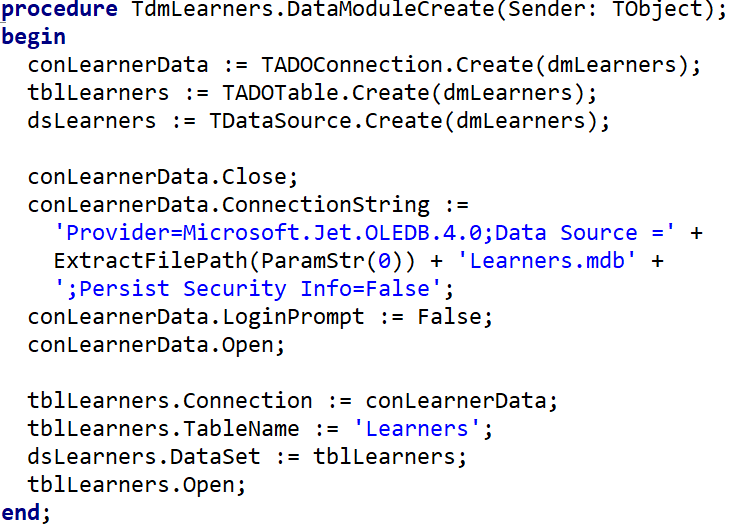
Step-by-Step Setup
- Create a Data Module: File → New → Data Module. Save it as
DataModule_u.pas. - Drop TADOConnection onto the Data Module. Set up the connection string (browse to your .mdb file). Set
LoginPrompt = False. - Drop TADOTable onto the Data Module. Set
Connectionto the ADOConnection. SetTableName. SetActive = True. - Drop TDataSource onto the Data Module. Set
DataSetto the TADOTable. - On your main form: add the Data Module name to the
usesclause at the top of your unit. - Drop TDBGrid onto your main form. Set its
DataSourceto the DataSource you created in the Data Module. - The grid should now show your database records!
Name components so you know what they are at a glance:
conStudents (TADOConnection) • tblStudents (TADOTable) • dsStudents (TDataSource) • dbgStudents (TDBGrid)
Navigating Records
Think of records as pages in a book. These methods let you turn pages:
| Method | What it does |
|---|---|
tblStudents.First | Jump to the very first record |
tblStudents.Last | Jump to the last record |
tblStudents.Next | Move forward one record |
tblStudents.Prior | Move back one record |
tblStudents.Eof | Returns True when you have gone past the last record (End Of File). Use in a WHILE loop to process all records. |
dm.tblStudents.First;                        // start at record 1
while not dm.tblStudents.Eof do           // keep going until past last
begin
  memOut.Lines.Add(dm.tblStudents['Name']); // do something with this record
  dm.tblStudents.Next;                       // move to next record
end;If you forget tblStudents.Next inside the loop, the program will be stuck on the first record forever — an infinite loop that will crash Delphi.
Accessing Field Values in Code
Once connected, you can read the value of any field in the current record using this syntax:
variable := DataModuleName.TableName['FieldName'];sName := dm.tblStudents['Name']; // reads the Name field
sSurname := dm.tblStudents['Surname']; // reads the Surname field
iGrade := dm.tblStudents['Grade']; // reads the Grade field
// Display in a label
lblInfo.Caption := dm.tblStudents['Name'] + ' ' + dm.tblStudents['Surname'];Delphi also lets you reach a field through FieldByName, e.g. dm.tblStudents.FieldByName('Name').AsString instead of dm.tblStudents['Name']. The two do the same job — this page sticks to the square-bracket version, but you'll come across FieldByName in other code and it's worth being able to recognise it.
Dataset States
A TADOTable is always sitting in one of a small set of named states, and that state controls what you're allowed to do with the current record. You've actually been relying on these states already — calling Edit or Insert doesn't touch any data by itself, it just switches the dataset into a state where changing data is legal.
| State | What it means |
|---|---|
dsInactive | The table is closed (Active is False). No reading or writing is possible until it's reopened. |
dsBrowse | The normal resting state once a table is open. You can look at records and move between them, but the current record is locked against edits. |
dsEdit | Entered by calling Edit. The active record can now be changed; Post saves it and drops the dataset back into dsBrowse. |
dsInsert | Entered by calling Insert. A blank record is waiting to be filled in; Post adds it to the table and returns to dsBrowse. |
This is why trying to change a field's value without calling Edit or Insert first raises an error — the dataset is still sitting in dsBrowse, which doesn't allow it.
Inserting a New Record
Adding a new record is a 3-step process: prepare → fill in values → save.
dm.tblStudents.Insert;                    // Step 1: prepare a blank new record
dm.tblStudents['Name']    := edtName.Text;     // Step 2: fill in the fields
dm.tblStudents['Surname'] := edtSurname.Text;
dm.tblStudents['Grade']   := sedGrade.Value;
dm.tblStudents.Post; // Step 3: save to the databasePost will raise an error if you assign a primary-key value that another record already has. It's tempting to just use tblStudents.RecordCount + 1 as the next number, but that scheme breaks the moment an earlier record has ever been deleted — you can end up reissuing a number that's already taken. The safer approach is to scan the table for whatever the highest existing value currently is, and add one to that:
function GetNewStudentNo: Integer;
var
  iLargest : Integer;
begin
  dm.tblStudents.First;
  iLargest := 0;
  while not dm.tblStudents.Eof do
  begin
    if dm.tblStudents['StudentNo'] > iLargest then
      iLargest := dm.tblStudents['StudentNo'];
    dm.tblStudents.Next;
  end;
  Result := iLargest + 1;
end;
Editing an Existing Record
// First navigate to the record you want to change, then:
dm.tblStudents.Edit;                      // Step 1: put the record into edit mode
dm.tblStudents['Grade'] := 12;            // Step 2: change the value
dm.tblStudents.Post;                      // Step 3: save the change
Deleting a Record
// Navigate to the record first, then:
dm.tblStudents.Delete; // removes the current record permanentlyThere is no undo. Always confirm with the user before deleting: if MessageDlg('Delete this record?', mtConfirmation, mbYesNo, 0) = mrYes then dm.tblStudents.Delete;
Changing a Field for All Records at Once
Some tasks need to touch every record in a table, not just one — for example handing out 5 bonus marks to every student, or applying a fee discount to a whole grade. This is really the same "loop through all records" pattern used earlier, just with an Edit / Post pair added inside it:
dm.tblStudents.First;
dm.tblStudents.DisableControls;      // stop the DBGrid refreshing on every single record
while not dm.tblStudents.Eof do
begin
  dm.tblStudents.Edit;
  dm.tblStudents['Mark'] := dm.tblStudents['Mark'] + 5;
  dm.tblStudents.Post;
  dm.tblStudents.Next;
end;
dm.tblStudents.First;
dm.tblStudents.EnableControls; // switch the grid's updates back onWithout this pair of calls, a DBGrid linked to the same dataset would redraw and scroll on every single record while the loop runs — distracting to watch, and noticeably slower once a table has more than a handful of records. DisableControls tells linked data-aware controls to stop refreshing until EnableControls is called again.
Searching for a Record
To find a specific record, loop through all records and check each one:
dm.tblStudents.First;
while not dm.tblStudents.Eof do
begin
  if dm.tblStudents['Surname'] = edtSearch.Text then
  begin
    ShowMessage('Found: ' + dm.tblStudents['Name']);
    Break;   // stop searching once found
  end;
  dm.tblStudents.Next;
end;
Filtering Records
A TADOTable can also show only the records that match a condition, without writing any SQL. Set Filter to a condition string, then set Filtered to True to apply it.
dm.tblStudents.Filter := 'Grade = 11';         // only Grade 11 records
dm.tblStudents.Filtered := True;               // switch the filter on
...
dm.tblStudents.Filtered := False;              // switch it off again — shows all records
Filter hides records that don't match — it changes which records you see. Sort changes the order of the records you see. You can use both together.
Sorting Records
dm.tblStudents.Sort := 'Surname ASC';         // A to Z by surname
dm.tblStudents.Sort := 'Mark DESC';           // highest mark first
dm.tblStudents.Sort := 'Grade ASC, Surname ASC'; // by grade, then surname
Complete Example — Finding the Highest Mark
var
  iHighest : Integer;
  sTopName : String;
begin
  iHighest := 0;
  sTopName := '';
  dm.tblStudents.First;
  while not dm.tblStudents.Eof do
  begin
    if dm.tblStudents['Mark'] > iHighest then
    begin
      iHighest := dm.tblStudents['Mark'];
      sTopName := dm.tblStudents['Name'];
    end;
    dm.tblStudents.Next;
  end;
  lblResult.Caption := sTopName + ' scored the highest: ' + IntToStr(iHighest);
end;
Linked Tables (Master-Detail)
Two related tables can be linked so that selecting a record in the master (parent) table automatically shows only the matching records in the detail (child) table — for example, click a class and see only that class's learners. The link is made on the shared key field (the foreign key in the detail table matching the primary key in the master).
tblLearners.MasterSource := dsClasses;   // point at the MASTER table's DataSource
tblLearners.MasterFields := 'ClassID';   // the linking (foreign key) field
Now the detail grid filters itself as you move through the master table — a one-to-many relationship shown live on screen. (These properties are usually set in the Object Inspector, but can be set in code as above.)
Use a master-detail link when you want two grids that stay in sync as the user browses. Use an SQL join (see Grade 12 SQL — Joining Tables) when you want the linked data combined into a single result set for a report.
Editing Records Without Code — Data-Aware Controls
Everything else on this page shows how to insert, edit and delete records using code. Delphi also provides data-aware controls that let a user browse and change records directly on the Form, with no code at all.
TDBNavigator — A Toolbar for the Dataset
A TDBNavigator (from the Data Controls tab) is a data-aware control with a row of buttons for moving through and maintaining a dataset. Set its DataSource property the same way you would for a DBGrid.
| Button | What it does |
|---|---|
| First / Prior / Next / Last | Move the pointer — the same as calling those methods in code. |
| Insert | Opens up a blank record (the dataset switches to dsInsert state) ready for the user to type into. |
| Delete | Removes the active record straight away — no confirmation unless you configure one. |
| Edit | Unlocks the active record for changes (the dataset switches to dsEdit state). |
| Post | Writes whatever was typed or changed back to the table. |
| Cancel | Throws away an in-progress edit or insert instead of saving it. |
| Refresh | Reloads the grid's data from the table — handy if something else may have changed the underlying records. |
The DBNavigator's Insert and Delete buttons act the instant they're clicked — there's no built-in step to check that what the user typed makes sense, or that a new primary key doesn't clash with one that already exists. That's exactly why the rest of this page prefers to add, edit and delete records through code: it gives you a chance to validate input and show your own confirmation messages first. A quick safety net if you do use the DBNavigator for deleting is to set its ConfirmDelete property to True, which pops up an "are you sure?" prompt before a record disappears.
DBEdit, DBText and DBCheckBox — Single-Field Controls
Sometimes a full grid is more than you need — you might just want one field of the current record shown somewhere on the Form, such as a name next to a photo. Each of these controls links to exactly one field, using the same two properties:
DataSource → select your TDataSource (dm.dsStudents)
DataField → choose the field from the dropdown (e.g. "Surname")| Control | Use for |
|---|---|
DBEdit | Any text or numeric field you want the user to be able to change. |
DBText | Showing a field's value without letting the user change it — useful for a read-only field such as a primary key. |
DBCheckBox | A True/False field, shown as a tick box instead of text. |
Delphi doesn't write a change to the table the instant it's made — it sits in a buffer until something posts it. That happens automatically the moment the user moves to a different record, or you can trigger it sooner yourself, either in code or via a DBNavigator's Post button.
Connecting a Database Dynamically (in Code)
Everything above used components dropped onto a Data Module at design time. You can also build the whole connection at runtime with code — no components needed. This is called a dynamic connection, and it is useful when the database path is only known while the program runs (e.g. the user browses to the file).
usesDynamic database objects live in two units. Add ADODB and DB to the uses clause before you can create them in code.
Declare the three objects (usually under public in the Data Module, or in the form):
public
  conDB  : TADOConnection;
  tblStudents : TADOTable;
  dsStudents  : TDataSource;
Create and wire them together — build the connection string, point the table at the connection, then link the DataSource:
procedure TdmData.DataModuleCreate(Sender: TObject);
begin
  // 1. Create the connection object
  conDB := TADOConnection.Create(Self);
  conDB.LoginPrompt := False;        // don't ask for a password
  conDB.ConnectionString :=
    'Provider=Microsoft.Jet.OLEDB.4.0;' +
    'Data Source=' + ExtractFilePath(Application.ExeName) + 'Students.mdb;';
  conDB.Connected := True;

  // 2. Create the table and link it to the connection
  tblStudents := TADOTable.Create(Self);
  tblStudents.Connection := conDB;
  tblStudents.TableName  := 'tblStudents';
  tblStudents.Active      := True;

  // 3. Create the DataSource and link it to the table
  dsStudents := TDataSource.Create(Self);
  dsStudents.DataSet := tblStudents;
end;
Finally, link your on-screen TDBGrid to the DataSource. Do this in the main form's OnShow event:
procedure TfrmMain.FormShow(Sender: TObject);
begin
  dbgStudents.DataSource := dmData.dsStudents;
end;The Data Module is usually created after the main form. If you try to link the grid in the main form's OnCreate event, the Data Module does not exist yet and you get an access violation error. Use OnShow, which fires later, once everything exists.
Motherboard & Hardware Grade 11
A deeper look at what is inside the system unit — the motherboard, its components, buses, expansion cards, and how data flows between parts.
The Motherboard
The motherboard is a large printed circuit board that connects and provides power to all hardware components. It is the central hub of the computer.
Think of the motherboard as a city. The components (CPU, RAM, GPU) are the buildings; the buses are the roads that carry traffic (data) between them; the power connectors are the electricity grid; and the slots and ports are parking bays where new buildings — expansion cards and devices — plug in. Nothing works alone: everything is linked by the roads of the motherboard.
Key Motherboard Components
| Component | Description |
|---|---|
| BIOS chip | Basic Input/Output System — first instructions when PC starts. Stored on ROM. Performs POST. |
| CPU socket (ZIF) | Connects the CPU to the motherboard |
| DIMM slots | RAM slots |
| PCI / PCIe slots | Add expansion cards (GPU, sound card, NIC) |
| SATA ports | Connect internal storage (HDD, SSD) |
| Power connector | Supplies power from PSU to all components |
| RAM (DIMM) | Volatile short-term memory for active programs |
| ROM | Read-Only Memory — stores BIOS firmware permanently |
BIOS Functions
- Performs the POST (Power-On Self-Test) — checks RAM, keyboard, storage
- Identifies and initialises hardware devices
- Locates the bootloader and hands control to the OS
- Provides low-level system settings
Motherboard Buses
A bus is a set of wires that transfers data between components.
| Bus type | Purpose |
|---|---|
| Data bus | Transfers data and instructions between components |
| Address bus | Carries the physical memory address of data |
| Control bus | CPU sends signals to coordinate actions |
| Power bus | Delivers electricity to components |
| Internal bus | Links CPU and main memory |
| External bus | Interface for peripherals (USB, SATA, PCIe) |
Bus vs Point-to-Point Connections
Not every connection on the motherboard is a shared bus. A bus is a shared pathway — several devices can use the same lines to send and receive data (e.g. multiple USB devices sharing one USB controller). A point-to-point connection is a direct, dedicated link between exactly two components, with no other device sharing the line — this makes it faster and more efficient because there is no waiting for the line to be free.
| Connection type | Description | Example |
|---|---|---|
| Bus | Shared pathway — multiple devices can use it | USB devices sharing a USB bus |
| Point-to-point | Direct dedicated link between two components only | CPU ↔ RAM via a dedicated memory channel; GPU ↔ VRAM inside a graphics card; NVMe SSD ↔ CPU via PCIe lanes |
Expansion Cards
An expansion card plugs into a PCI or PCIe slot to add extra functionality that the motherboard does not already provide.
| Expansion card | Adds |
|---|---|
| Graphics card (GPU) | Faster, dedicated graphics rendering |
| Sound card | Improved sound quality or surround sound |
| Network / Wi-Fi card | Wired or wireless network connectivity |
| TV capture card | Captures and stores video from a TV signal |
| Storage controller card | Adds extra or faster hard-drive connections |
Data Flow Between Components
Storage → RAM → CPU: Data is loaded from slow storage into fast RAM, then the CPU fetches from RAM for processing.
RAM → VRAM → GPU: Graphics data is moved from RAM to VRAM so the GPU can render images without burdening the CPU.
Cache Memory
Cache is a very small, very fast memory located close to (or inside) the CPU. It stores frequently used instructions so the CPU does not have to wait for slower RAM.
| Level | Speed | Size |
|---|---|---|
| L1 | Fastest | Smallest (inside each core) |
| L2 | Fast | Larger |
| L3 | Moderate | Largest (shared across cores) |
Types of Caching
Caching means keeping a copy of frequently used data somewhere faster to fetch it from. It happens at several levels of a computer system:
| Type | What it stores | Speeds up |
|---|---|---|
| Cache memory | Frequently used data and instructions, kept on or near the CPU | Processing — the CPU avoids waiting for slower RAM |
| Disk caching | Recently or frequently read disk data, held in RAM | File access — avoids re-reading the slow drive |
| Web caching | Recently visited web pages and images, stored by the browser | Browsing — pages load faster on a return visit |
Modular Design
Motherboards use a modular design — individual components (RAM, CPU, GPU) can be upgraded or replaced without replacing the whole computer.
Processing Techniques Grade 11
Modern computers can execute multiple tasks simultaneously using multitasking, multithreading and multiprocessing. This page also covers operating-system types, virtual memory, compilers and interpreters.
Types of Operating Systems
You met the main operating-system (OS) types in Grade 10 — stand-alone (desktop), network/server, embedded and mobile. In Grade 11 you must be able to compare them in terms of cost, size, hardware needed and platform.
| OS type | Cost | Size | Hardware needed | Platform / typical use |
|---|---|---|---|---|
| Stand-alone (desktop) Windows 11, macOS, Ubuntu | Moderate (home/pro editions) | Large | A full PC or laptop (multi-core CPU, several GB RAM, large disk) | One personal computer for everyday tasks |
| Network / server Windows Server, Linux server | Expensive (often per-user / per-device licensing) | Large | A powerful, reliable server (lots of RAM and storage, redundancy) | Manages a network, its users and shared resources |
| Embedded router, smart TV, ATM, car system | Low (usually built in, once-off) | Very small | Minimal — a small chip with very little memory | Controls one dedicated device or appliance |
| Mobile Android, iOS | Usually free with the device | Small to medium | Phone/tablet hardware (touchscreen, power-efficient ARM CPU, battery) | Touchscreen mobile devices; optimised for battery life |
A real-time operating system is built to respond within a guaranteed, fixed time. It is used where a late response is dangerous or useless — for example medical equipment, aircraft and industrial control systems. (Beyond the core CAPS list, but good to recognise.)
Processing Techniques (T1)
A processing technique is a method the operating system and CPU use to handle more than one job at a time so the computer feels fast and responsive. In the early days a computer could only do one thing from start to finish before moving on. Today we expect to type an email, listen to music and download a file all at once — and these techniques are what make that possible.
Why Do We Need This?
A CPU is incredibly fast, but a human is slow. While you pause to think about your next sentence, the CPU is sitting idle for millions of cycles. Processing techniques let the computer fill those gaps with other work, so no time is wasted and every program feels like it is running "at the same time".
Imagine one chef preparing several dishes. Multitasking is the chef stirring one pot, then quickly turning to chop onions, then back to the pot — one pair of hands switching between jobs so fast it looks simultaneous. Multithreading is one big recipe (say a curry) broken into steps that move along together — the sauce simmers while the rice cooks, all part of the same dish. Multiprocessing is hiring several chefs (CPU cores), each cooking a whole dish at the same moment in real parallel.
| Technique | Description | Example |
|---|---|---|
| Multitasking | OS rapidly switches between multiple programs, giving the illusion of simultaneous execution | Listening to music while browsing the web |
| Multithreading | A single program is divided into threads that run concurrently | Browser: separate threads for UI, downloads, rendering, scripts |
| Multiprocessing | Multiple CPU cores execute tasks truly in parallel | A quad-core CPU running 4 tasks simultaneously |
- Multitasking – running several programs at once by switching rapidly between them. Only one task truly runs at any instant, but the switching is so quick it feels simultaneous.
- Multithreading – splitting a single program into smaller "threads" that progress together, so one slow part (like a download) does not freeze the rest of the program.
- Multiprocessing – using two or more CPU cores to genuinely execute different tasks at the same time. This is real parallelism, not an illusion.
Note: The key difference to remember is that multitasking and multithreading share one processor by taking turns, while multiprocessing uses multiple processors to do work truly at the same moment.
Virtual Memory
Virtual memory is storage space on the hard drive that the operating system uses as if it were extra RAM. When the real RAM fills up, the OS borrows a slice of the much larger (but much slower) hard drive to keep programs running instead of crashing.
Why Do We Need This?
RAM is expensive and limited. Without virtual memory, the moment your RAM filled up the computer would simply refuse to open the next program. Virtual memory acts as a safety valve so you can keep working even when memory is tight.
Picture your RAM as the top of your desk — small, but everything on it is right in front of you and instantly reachable. The hard drive is a big filing cabinet across the room — it holds far more, but you must get up and fetch things from it. When your desk overflows, you move papers you are not using right now into the cabinet (virtual memory) and fetch them back when you need them. It works, but every trip to the cabinet wastes time.
When RAM is full, the OS uses a section of the hard drive as temporary RAM — called virtual memory.
- Programs not currently in use are swapped from RAM to virtual memory
- When needed again, they are swapped back into RAM
- Allows more programs to run than physical RAM would normally allow
- Much slower than real RAM — heavy use causes thrashing (performance crash)
Thrashing is what happens when the computer spends more time swapping data back and forth between RAM and virtual memory than it spends doing actual useful work. The hard drive light stays on constantly, the mouse stutters, and everything slows to a crawl. In our desk analogy, thrashing is when your desk is so small that you are constantly running to the filing cabinet and back, never getting anything done.
Solutions when thrashing occurs:
- Close unnecessary background apps
- Increase physical RAM
- Upgrade to 64-bit OS
- Install smaller, lighter alternative programs in place of large ones, where possible
Compilers vs Interpreters
Computers only understand machine code (binary 1s and 0s), but humans write in readable programming languages. A translator is needed to bridge that gap. There are two main kinds, and the difference is all about when the translation happens.
- Compiler – a translator that converts the entire source code into machine code in one go, before the program ever runs, producing a standalone executable file.
- Interpreter – a translator that reads and runs the code one line at a time, translating each line just as it is about to be executed.
Think of translating a book. A compiler is like a translator who sits down and translates the whole book into a finished printed copy — slow to prepare, but afterwards anyone can read it instantly. An interpreter is like a live human interpreter standing next to a speaker, translating each sentence out loud as it is spoken — you can start immediately, but it is slower overall because translation happens during the conversation.
| Compiler | Interpreter | |
|---|---|---|
| How it works | Translates entire source code to machine code at once | Reads and executes one line at a time |
| Speed | Slower to open program, faster once running | Faster to open, slower while running |
| On error | Stops completely — program never opens | Runs until error is hit, then crashes |
| Examples | Delphi, C++ | Python, JavaScript |
Virtualisation
Virtualisation is the technique of using software to create a "virtual" computer — called a virtual machine — that runs inside your real computer as if it were a separate physical machine with its own operating system.
Why Do We Need This?
One powerful computer can be split into several virtual machines, so a single server can do the work of many. This saves money, electricity and space, and lets you safely test risky software in a sealed-off environment without endangering your real system.
Imagine one large building (your physical computer). Virtualisation divides it into several self-contained flats (virtual machines). Each flat has its own front door, kitchen and tenants (its own operating system and programs), and what happens in one flat does not affect the others — yet they all share the same building, plumbing and electricity (the real hardware).
Example: Running Windows on a Mac, or a single cloud server hosting dozens of separate websites, each in its own virtual machine.
Why Use a Virtual Machine?
- Try a new OS safely — test an operating system like Ubuntu without installing it directly on your real computer.
- Test risky software — install a program you are not sure is safe. If it turns out to contain malware, you simply delete the whole virtual machine and your real computer is untouched.
- Backup and transfer — the image of a virtual hard drive can be used to back up a system, or move all its data and settings onto a new physical computer.
- Cross-platform app development — mobile developers can test an app on many different versions of Android and iOS using virtual machines, instead of buying hundreds of physical devices.
Programming Languages
| Type | Description | Examples |
|---|---|---|
| Low-level | Close to machine code; fast and efficient; hard to read | Assembly language |
| High-level | English-like; easier to write and understand; compiled or interpreted | Delphi, Python, Java, C++ |
Types of Errors
| Error Type | Description |
|---|---|
| Syntax | Code typed incorrectly — won't compile |
| Runtime | Crashes while running (e.g. divide by zero) |
| Logical | Runs but gives wrong output |
| Overflow | Calculation result too large for the data type |
Database Management Grade 11
A database is like a highly organised digital filing cabinet — instead of papers stuffed into folders, your data is stored in neat tables with rows and columns, so you can find, sort and filter it in seconds. A DBMS (Database Management System) is the software that manages it all.
Key Terms
| Term | Definition |
|---|---|
| Database | An organised collection of data stored in tables |
| Table | Rows and columns storing one type of entity (e.g. Students) |
| Record | One complete row — all data about one item |
| Field | One column — a specific attribute (e.g. Surname, Age) |
| Primary key | Unique field that identifies each record (e.g. StudentID) |
| Foreign key | A field that links to the primary key of another table |
| DBMS | Database Management System — software to create, manage and query databases |
Common DBMS Software
| DBMS | Type | Cost | Use Case |
|---|---|---|---|
| Microsoft Access | Desktop | Paid (MS Office) | Small databases, school/office, learning, Grade 11–12 IT practicals |
| MySQL | Open-source server | Free | Web applications, websites (used with PHP) |
| Oracle | Enterprise server | Very expensive | Banks, airlines, hospitals — mission-critical systems |
| PostgreSQL | Open-source server | Free | Advanced queries, large datasets, analytics |
| Microsoft SQL Server | Enterprise server | Paid | Large corporate databases, Windows environments |
Database Types by Usage
| Type | Description | Example |
|---|---|---|
| Desktop / Personal | Single user, stored locally on one computer | MS Access for a school IT project |
| Server / Centralised | Multi-user, stored on a server, accessed over a network | School administration system accessed by teachers and admin |
| Distributed | Spread across multiple locations/servers, synchronised | A national learner database accessed from all provinces |
Database Careers
- DBA (Database Administrator) — maintains security, backups, performance tuning
- Database Programmer / Developer — writes queries, stored procedures, applications
- Database Analyst — designs structure, models relationships, plans migrations
- Data Scientist — analyses large datasets to find patterns and insights
- Project Manager — manages database projects, budgets and teams
What a Database Table Looks Like
A table in a database looks exactly like a spreadsheet grid. The table has a name, column headers (fields), and rows of data (records).
Primary Key vs Foreign Key
Keys are what make databases powerful — they link tables together so you do not repeat data.
| Key Type | Description | Example |
|---|---|---|
| Primary Key (PK) | Uniquely identifies each record. Cannot be NULL. Cannot repeat. | StudentID = 1001 |
| Foreign Key (FK) | A field in one table that refers to the PK of another table. | ClassID in tblStudents → ClassID in tblClasses |
| Composite Key | Two or more fields combined to form a unique identifier. | StudentID + SubjectCode |
Entity Relationship Diagram (ERD)
An ERD shows the tables in a database and how they are related. The line between tables shows the type of relationship (one-to-many, etc.).
Database Field Data Types
Each field in a table has a data type that controls what kind of data can be stored.
| Data Type | Also Called | Description | SA School Example |
|---|---|---|---|
| Text / Short Text | VARCHAR, String | Letters, numbers, symbols — max 255 chars | Student name, school name |
| Number | Integer, Long Integer | Whole numbers or decimals (for calculations) | Mark out of 100, age |
| Date/Time | DateTime | Dates and/or times stored as numeric values internally | Date of birth, test date |
| Yes/No | Boolean | Only two values: True/False, Yes/No, 1/0 | Has paid school fees, is a prefect |
| AutoNumber | Identity, Auto-increment | Automatically assigns the next unique integer — ideal for PK | StudentID, RecordID |
| Currency | Money, Decimal | Monetary values with fixed decimal precision | Fee amount, textbook cost |
| Memo / Long Text | Text (large) | Longer text — more than 255 characters | Teacher comments, notes |
| OLE Object | Blob | Stores files — images, documents, audio | Student photo, report PDF |
Metadata
Metadata is "data about data" — information that describes other data, rather than being the actual content itself. It helps you organise, categorise, search and correctly interpret data.
| Data | Example Metadata |
|---|---|
| A photograph | Date taken, camera type, GPS location |
| A document | Author, creation date, date last revised |
| A database field | Data type, size, constraints (e.g. required, max length) |
Table Relationships
| Relationship | Description | Example |
|---|---|---|
| One-to-One | One record in Table A links to exactly one record in Table B | Student ↔ Locker (each student has one locker) |
| One-to-Many | One record in Table A links to many records in Table B | Class → Students (one class has many students) |
| Many-to-Many | Many records in A link to many records in B (needs a linking table) | Students ↔ Subjects (students take many subjects; subjects have many students) |
Data Quality Characteristics
Data quality means the data is fit for purpose. Poor quality data leads to wrong decisions.
| Characteristic | Meaning | SA School Example |
|---|---|---|
| Accuracy | Data is correct and free from errors | A learner's mark recorded as 78, not 87 (transposition error) |
| Correctness | Data conforms to defined rules and constraints | Grade field only contains values 8–12 |
| Currency | Data is up to date — not outdated | A learner's address updated after they move house |
| Completeness | All required data is present — no blank fields where required | Every learner record has a valid ID number and grade |
| Relevance | Only data that is needed is stored | A school database does not need to store a learner's favourite colour |
Data Integrity
Data integrity ensures data is accurate, consistent and reliable over its entire lifetime.
- Physical integrity — protection from hardware failure using RAID, backups, and UPS.
- Logical integrity — data follows rules: input validation, referential integrity, access control.
- Referential integrity — a FK value must exist as a PK in the related table (no orphan records).
Validation Types
Validation checks that data entered is reasonable and in the correct format — it does not check if data is true, just if it is acceptable.
| Check | Description | SA School Example |
|---|---|---|
| Format check | Data matches required pattern or structure | Email must contain @ and a dot — alice@school.co.za |
| Range check | Value falls within acceptable minimum and maximum | Test mark must be between 0 and 100 |
| Type check | Data entered is the correct data type | Age field must be a number, not text |
| Presence check | The field must not be blank (required) | Surname cannot be empty — every learner must have a surname |
| Check digit | A calculated digit is appended and re-calculated to verify correctness | SA ID number: last digit is a check digit |
| Lookup check | Value must match an item in a predefined list | Province field: only one of the 9 SA province names allowed |
| Consistency check | Two or more fields must be logically consistent | Date of Birth must match the learner's stated age |
Manual vs Electronic Methods
Data doesn't have to live in a computer database — it can also be recorded and processed by hand. Comparing the two shows why databases and DBMS software are so valuable.
| Method | Description | Advantages | Disadvantages |
|---|---|---|---|
| Manual | Recording and processing data by hand — no computer involved (e.g. registers, index cards, paper forms) | No electricity or computer needed; simple for very small datasets | Slow; prone to errors (typos, miscalculations); hard to search, sort or summarise large amounts of data |
| Electronic | Using a computer and software (e.g. a DBMS) to capture, store and process data | Fast access and processing of large datasets; less prone to error when validation rules are used; easy to search, sort, filter and generate reports; many users can access data at once | Needs electricity and working hardware/software; security risks if not managed properly |
Creating and Maintaining a Database
Setting up a working database is a process, not a single step:
- Design the table — decide the purpose (e.g. track student information), the fields (columns) needed, and set a primary key (e.g. StudentID) so every record is unique.
- Insert / import data — add records manually through a form (e.g. an MS Access form), or import them in bulk from a spreadsheet or CSV file.
- Edit / update data — correct mistakes or update values as information changes (e.g. a learner moves up a grade).
- Delete data — remove records that are no longer needed or were entered incorrectly.
Processing Data: Sort, Query, Filter, Report
Once data is stored, a DBMS lets you turn it into useful information in several ways:
| Technique | Purpose | Example |
|---|---|---|
| Sorting | Arrange records in a specific order | Sort students alphabetically by Surname, or by Mark from highest to lowest |
| Querying | Retrieve specific records that answer a question you ask the database | "Find all students in Grade 11"; "List students older than 16" |
| Filtering | Display only the records that meet a condition, hiding the rest | Show only students with Grade = 12 |
| Generating reports | Summarise or present data in a readable format — tables, charts or dashboards | Count of students in each grade; average age of students; list of email addresses |
You will practise Filter and Sort for real using TADOTable in Databases in Delphi, and full querying with SQL next year in Grade 12.
Networks & Protocols Grade 11
Building on Grade 10 networks — this page covers topologies, network devices in depth, protocols, VoIP, VPN and acceptable use.
Network Topologies
A network topology is the layout or "shape" of a network — it describes how the computers and devices are physically or logically arranged and connected to one another. The topology you choose affects how easy the network is to set up, how it copes with a fault, and how easy it is to add new devices later.
Star Topology
In a star topology every device connects to one central point — usually a switch. Nothing connects directly to anything else; all traffic passes through the middle.
Picture a bicycle wheel: the hub in the centre is the switch, and each spoke is a cable running out to one computer. If a single spoke breaks the rest of the wheel is fine — but if the hub itself fails, the whole wheel falls apart. That is exactly why a star network keeps working when one PC fails, yet goes completely down if the central switch fails.
| Topology | Layout | Advantages | Disadvantages |
|---|---|---|---|
| Star | All devices connect to a central switch | One failure doesn't affect others; easy to add devices | If switch fails, entire network fails |
| Ring | Devices in a closed loop | Equal opportunity to transmit; no collision | One break can down the whole network |
Ring Topology in Detail
In a ring topology, every device connects to exactly two neighbours, forming a closed loop. Data travels in a single direction around the ring, passing through each device in turn — every node acts as a repeater, regenerating the signal and passing it on to the next node until it reaches its destination.
| Advantages | Disadvantages |
|---|---|
| Organised and efficient — each node gets an equal opportunity to transmit, and one-way flow reduces data collisions | Single point of failure — one broken cable or dead device can bring the whole ring down (unless it's a dual-ring setup) |
| No central server required to control connectivity between workstations | Hard to troubleshoot — difficult to identify exactly where a fault occurred |
| Reliability depends on every single connection in the loop working |
Thin vs Thick Client
| Thin Client | Thick (Fat) Client | |
|---|---|---|
| Processing | Done mostly on server | Done on local computer |
| Storage | Minimal local storage | Large local storage |
| Cost | Cheaper | More expensive |
| Example | School lab PC connected to server | Personal desktop PC |
Key Protocols
| Protocol | Purpose |
|---|---|
| HTTP | Transfer web pages (unencrypted) |
| HTTPS | Secure web transfer (SSL/TLS encryption) |
| SMTP | Send emails |
| POP3 | Download emails to device |
| IMAP | Access emails online without downloading |
| FTP | Transfer large files between computers |
| VoIP | Voice calls over the Internet |
VoIP
Voice over Internet Protocol allows phone/video calls using the Internet instead of traditional phone lines.
Your voice is broken into tiny digital packets, sent across the internet just like any other data, and reassembled at the other end. Because it rides on your existing internet connection, calls to other VoIP users are usually free no matter how far away they are — which makes it far cheaper than a traditional long-distance phone call.
- Examples: WhatsApp calls, Skype, Discord, Zoom
- Requires: stable internet, low latency, sufficient bandwidth
VPN
A Virtual Private Network creates an encrypted "tunnel" over the Internet.
- Allows remote users to access a private network securely
- Hides IP address and encrypts all data in transit
- Used by companies for remote workers
Internet vs Intranet vs Extranet
| Network | Access | Description |
|---|---|---|
| Internet | Public | Global network open to all |
| Intranet | Private | Internal company/school network |
| Extranet | Controlled external | Intranet accessible from outside (VPN) |
Acceptable Use Policies (AUP)
Rules governing how ICT resources may be used in an organisation. Key rules:
- No downloading illegal content
- Use computers for educational/work purposes
- No cyberbullying or harassment
- Respect copyright laws
Mobile Technology Grade 11
Mobile devices have transformed communication and computing. This page covers smartphones, tablets, wireless technologies, and location-based services.
What Is Mobile Technology (T2)?
Mobile technology is any portable, wireless technology that lets you communicate, compute and access information while on the move, without being tied to a desk or a cable. The key idea is mobility: the device travels with you, connects wirelessly, and runs off its own battery.
In South Africa mobile technology is especially important. Many people first reach the internet not through a desktop PC but through a smartphone, because data on a phone is often cheaper and more accessible than a fixed-line connection at home. This makes the smartphone the main computer in millions of households.
Common Mobile Devices Explained
- Smartphone – a pocket-sized computer that combines a phone, camera, GPS, web browser and thousands of apps. It connects through Wi-Fi and the cellular network and is by far the most common mobile device in South Africa. Its key feature is a connection to an app store — a centralised portal where users search for and download software applications.
- Feature phone – a step between a basic mobile phone and a smartphone. It can send multimedia messages, play music, take photos and browse the internet in a limited way, but unlike a smartphone it does not run a full mobile OS or third-party apps — it comes with extra features rather than functioning as a true pocket computer.
- Tablet – a larger touchscreen device, ideal for reading, watching media and light productivity. The bigger screen makes it more comfortable than a phone, but it is less pocket-friendly.
- Phablet – a device between a smartphone and a tablet (screen roughly 5.5"–7"), offering a bigger display while remaining somewhat portable.
- Wearables – devices worn on the body, such as smartwatches and fitness bands. They track health data like heart rate and steps, and show notifications from your phone.
- Smart camera – a digital camera with a built-in operating system (often Android), touchscreen, on-device image processing and Wi-Fi, so photos can be edited and shared straight from the camera or sent wirelessly to a phone.
- GPS – the Global Positioning System uses signals from satellites to work out exactly where a device is on Earth, which is what powers navigation apps.
- Bluetooth – a short-range wireless technology (about 10m) used to connect devices to each other, such as wireless earphones, keyboards or a car's hands-free system.
- Wi-Fi – a wireless technology that connects devices to the internet through a router or hotspot over a medium range, usually inside a home, school or office.
- 4G and 5G – generations of mobile cellular internet. 4G gave us reliable mobile browsing and video; 5G is far faster and more responsive, enabling things like real-time video and large numbers of connected smart devices.
Advantages and Limitations of Mobile Technology (T2)
Advantages – you can work, bank, learn and communicate from anywhere; devices are convenient and always with you; and a single phone replaces many separate gadgets (camera, torch, calculator, GPS).
Limitations – small screens and keyboards are harder to work on for long periods; battery life is limited; mobile data can be expensive in South Africa; and the constant connection raises privacy, security and "always-on" distraction concerns.
Mobile Device Types
| Device | Key Features |
|---|---|
| Smartphone | High-res touchscreen, app store, camera, Wi-Fi, cellular, GPS |
| Feature phone | Calls, SMS and a few extras (camera, music); no full app store or mobile OS |
| Tablet | Larger screen (7"+), touch input, iOS/Android, media and productivity apps |
| Phablet | Screen 5.5"–7", between a smartphone and a tablet |
| Smartwatch / Wearable | Fitness tracking, heart rate, notifications, GPS |
| eReader | E-ink display, long battery, sunlight readable, primarily for books |
| Smart camera | Built-in OS and touchscreen, on-device editing, Wi-Fi sharing |
| GPS device | Satellite navigation, location tracking |
Wireless Technologies
The wireless technologies differ mainly in range, and you can picture it by how far your voice carries. NFC (a few centimetres) is like whispering right into someone's ear — you must almost touch. Bluetooth (~10 m) is like chatting across a room. Wi-Fi (tens of metres) is like calling out across a whole house or hall. 4G/5G cellular (kilometres) is like using a phone to reach someone in another town. The shorter the range, generally the less power it uses.
| Technology | Range | Speed | Use |
|---|---|---|---|
| Bluetooth | ~10m | Low–medium | Headphones, keyboards, file sharing |
| Wi-Fi | 10–100m | High | Internet access via router/hotspot |
| 4G/LTE | Nationwide | 5–100 Mbps | Mobile internet on the go |
| 5G | Nationwide | 50 Mbps–10 Gbps | IoT, real-time VR, autonomous vehicles |
| NFC | ~4cm | Low | Contactless payments, tap-to-share |
Location-Based Computing (LBC)
Software that uses your device's location (via GPS, Wi-Fi, cellular) to provide customised services.
Examples
- Weather apps showing your local forecast
- Uber/Bolt finding the nearest driver
- Food delivery apps delivering to your address
- Google Maps navigation
Social Implications of LBC
| Benefit | Risk |
|---|---|
| Navigation and route planning | Privacy — organisations track your movements |
| Emergency services can locate you | Stalking risk |
| Personalised services | Targeted advertising without consent |
| Find lost/stolen devices | Data sold to third parties |
Connection Speed — Shaping and Throttling
- Shaping — ISP prioritises certain traffic types (e.g. video gets priority over downloads)
- Throttling — ISP intentionally slows your speed after you exceed a data cap
Computer Management Grade 11
Safeguarding a computer system requires understanding threats, knowing how malware works, and applying the right remedies.
Keeping a computer safe is like protecting a house. The threats are burglars, fires and floods (malware, hackers, power surges, spills). The remedies are your security measures: a firewall is the perimeter wall and gate, antivirus is the alarm and guard dog, passwords and access rights are the locks on each door, a UPS is a generator for when the power fails, and a backup is a copy of your valuables kept safely off-site. No single measure is enough on its own — you layer them.
Human Error Threats
- Sharing sensitive information with wrong people
- Writing down or reusing passwords
- Clicking links without verifying them
- Leaving devices unlocked / unattended
- Accidentally deleting valuable data
- Entering incorrect data — GIGO ("Garbage In, Garbage Out"): if the input is wrong, the output will be wrong too
Physical Threats
- Theft of devices or storage media
- Hard drive mechanical failure (moving parts)
- Power surges or outages damaging hardware
- Water/liquid spills causing short circuits
Malware
| Type | Description |
|---|---|
| Virus | Attaches to files; replicates when file is run; causes damage |
| Worm | Spreads across networks without user action |
| Trojan | Disguised as useful software; gives attacker back-door access |
| Rootkit | Hides in OS; gives remote attacker control; avoids detection |
| Ransomware | Encrypts data; demands payment to restore access |
| Spyware | Secretly monitors activity and steals data |
| Adware | Displays unwanted pop-up advertisements |
Network Vulnerabilities
| Attack | Description |
|---|---|
| Phishing | Fake official-looking emails to steal credentials |
| Pharming | Redirects users to fake websites |
| Spoofing | Forges sender addresses to impersonate someone |
| SQL Injection | Malicious SQL commands entered via web forms |
Remedies and Protection
| Remedy | Purpose |
|---|---|
| Antivirus | Detects, removes and prevents malware infections |
| Firewall | Filters all incoming and outgoing network traffic |
| Strong passwords | 8+ chars; mix of uppercase, lowercase, numbers, symbols; unique per site |
| User access rights | Users only access files they are authorised for |
| Encryption | Scrambles data so it cannot be read if intercepted |
| UPS | Keeps computer running during power failure |
| Software updates | Patches fix known security vulnerabilities |
| 2FA / MFA | Requires additional verification beyond just a password |
Reasons for Data Loss
Data loss occurs when files become unavailable, corrupted or destroyed. Knowing why data is lost helps you choose the right safeguard for each cause.
| Cause | Example | Safeguard |
|---|---|---|
| Human error | Deleting, overwriting or formatting the wrong files | Backups; access rights; confirmation prompts |
| Hardware failure | Hard-drive crash, worn-out or faulty storage | Backups; replace ageing drives |
| Power problems | Surges or sudden outages corrupt open files | UPS; surge protector |
| Malware | Viruses and ransomware delete, corrupt or encrypt data | Antivirus; updates; offline backups |
| Theft | Stolen laptop, phone or storage media | Encryption; off-site/cloud backup |
| Natural disaster | Fire, flood or lightning destroys equipment | Off-site / cloud backup |
| File corruption | Crashes or bad sectors leave files unreadable | Disk Check; backups |
The single most effective protection against all these causes is a regular, off-site backup — see below.
Backups
| Type | Description | Restore speed |
|---|---|---|
| Full backup | Copy all files every time | Fastest |
| Incremental | Only files changed since last backup (any type) | Slowest to restore |
| Differential | Files changed since last full backup | Moderate |
Backup Locations
- Local — external HDD at same location (fast, but vulnerable to fire/theft)
- Off-site — physical device at another location (protects against local disaster)
- Cloud — Google Drive, OneDrive (automatic, accessible anywhere)
3 copies, on 2 different media types, 1 stored off-site or in the cloud.
E-Communications Grade 11
Mobile and wireless communication forms — blogs, podcasts, VoIP, instant messaging, video conferencing and webinars.
What Are E-Communications?
E-communication (electronic communication) is any way of sending and receiving information using electronic devices and the internet, instead of paper or face-to-face talking. It covers everything from a short WhatsApp message to a live video meeting with people on different continents.
The Communication Forms Explained
- Blogging – a blog is a regularly updated online journal where one person or organisation publishes articles ("posts"), with the newest post at the top. It is mostly one-way: the author writes, readers read. Think of it as a public diary anyone can visit.
- Microblogging – the same idea as blogging but with very short posts, like on X (Twitter). It is designed for quick, frequent updates shared with followers rather than long articles.
- SMS – a Short Message Service text message sent over the cellular network. Its great strength is that it needs no internet, which is why banks still use it for one-time PINs.
- Instant Messaging (IM) – real-time text and media chat over the internet, such as WhatsApp. Messages arrive instantly and you can chat one-on-one or in groups.
- VoIP – Voice over Internet Protocol carries your voice (and video) over the internet instead of the old telephone network, so calls between VoIP users are usually free.
- Video Conferencing – a live meeting where several people see and hear each other on video at the same time, such as on Zoom or Teams. Because you can see faces, it captures nonverbal cues that a phone call cannot.
- Vlogging / Videocasting – like blogging, but the "posts" are videos instead of text, published regularly to a channel such as YouTube or TikTok. It can be pre-recorded or streamed live.
- Webinar – short for "web seminar": a live, structured online presentation to an audience, usually with interactive features like polls and a Q&A session. Unlike an informal video call, it typically has a host presenting to many attendees.
- Podcasting – an audio series you can download and listen to offline, like a radio show on demand. Listeners subscribe and new episodes arrive automatically.
A blog is like a public diary, microblogging is like shouting a quick headline across a crowd, and a podcast is like your own radio station that listeners can tune into whenever they choose.
Mobile/Wireless E-Communication Forms
| Form | Description | Examples |
|---|---|---|
| Blogging | Online journal; one-way content; new posts appear at top | WordPress, Blogger, Medium |
| Microblogging | Very short posts (text/image/video) shared with followers | X/Twitter (280 chars) |
| SMS | 160-char text via mobile network; no internet needed | Cell provider; bank OTPs |
| Instant Messaging | Free real-time text/media over internet; group chats | WhatsApp, Telegram, Signal |
| Vlogging / Videocasting | Video content; pre-recorded or live-streamed | YouTube, TikTok |
| Podcasting | Audio-only series; downloadable for offline listening | Spotify Podcasts, Apple Podcasts |
| VoIP | Voice/video calls over internet; free to other VoIP users | WhatsApp calls, Skype, Discord |
| Video Conferencing | Live multi-person video; includes nonverbal communication | Zoom, Google Meet, MS Teams |
| Webinar | Online seminar with interactive features (polls, Q&A) | Zoom Webinars, Teams Live |
Synchronous vs Asynchronous Communication
E-communication can be grouped by when the people involved take part:
- Synchronous communication happens in real time — everyone takes part at the same moment, like a live conversation (e.g. a VoIP/phone call, video conference, or live instant-messaging chat).
- Asynchronous communication does not happen at the same time — you send a message and the receiver replies whenever it suits them (e.g. email, SMS, a forum post or a blog).
| Synchronous | Asynchronous | |
|---|---|---|
| Timing | Real time, at the same moment | Time-delayed; reply when convenient |
| Everyone online together? | Yes — all parties must be available at once | No |
| Examples | VoIP/phone call, video conference, live chat | Email, SMS, blog, forum, voicemail |
| Best for | Quick discussion and instant feedback | Detailed messages; different time zones |
Advantages and Disadvantages of Key Forms
Instant Messaging
| Advantages | Disadvantages |
|---|---|
| Free to send; delivery confirmation | Not permanently backed up by default |
| Group conversations and media sharing | Too informal for professional use |
| Works globally instantly | Can be a distraction; creates pressure to respond |
Video Conferencing
| Advantages | Disadvantages |
|---|---|
| Free calls; shows nonverbal cues | Requires fast, stable internet |
| Enables remote education and work | High data consumption |
| Can be recorded for later viewing | All participants must be available simultaneously |
VoIP Requirements
- Stable, high-speed internet connection
- Low latency (minimal delay)
- Sufficient bandwidth for voice/video packets
- Microphone and speakers/headset
Types of Email Accounts
Not all email addresses come from the same place. Where your account is hosted affects how you access it and what happens if you switch internet providers.
| Type | Description | Advantages | Disadvantages |
|---|---|---|---|
| ISP-based | Provided by your Internet Service Provider and usually accessed through an email client (e.g. Outlook). Example: name@mweb.co.za | Reliable; often more secure | You lose the account if you switch providers |
| Web-based | A free service accessed through any web browser. Example: name@gmail.com | Portable — access from any device; independent of any ISP; cloud storage; mobile apps | Needs an internet connection; storage limits (though usually generous) |
Data Security in E-Communications
Because e-communications travel across networks that strangers also use, keeping your messages private and your accounts safe is essential. A few key ideas help here: HTTPS encrypts the link between your browser and a website; end-to-end encryption scrambles a message so that only the sender and the intended receiver can read it — not even the service in the middle; and multi-factor authentication (MFA) adds a second proof of identity (like a code on your phone) on top of your password, so a stolen password alone is not enough to break in.
- Use HTTPS for all web communication
- End-to-end encryption (only sender and receiver can read)
- Strong, unique passwords per account
- Multi-factor authentication (MFA)
- Avoid public Wi-Fi for sensitive communications
Internet & Multimedia Grade 11
The evolution of the web, Big Data concepts, streaming vs downloading, multimedia formats and compression technologies.
Evolution of the Web
| Era | Name | Characteristics |
|---|---|---|
| Web 1.0 | Read-only Web | Static HTML pages; users can only read, not interact. (1990s) |
| Web 2.0 | Read-Write Web | Interactive content; user-generated content; social media; blogs; wikis. (2000s–present) |
| Web 3.0 | Semantic / Intelligent Web | AI-driven; understands meaning; personalised; decentralised (blockchain). (Emerging) |
Big Data Concepts
Big Data refers to extremely large and complex datasets that traditional software cannot process effectively.
The 3 Vs of Big Data
| V | Meaning |
|---|---|
| Volume | Massive amounts of data generated every second |
| Velocity | Speed at which data is created and must be processed |
| Variety | Data comes in many forms: text, images, video, sensor data, etc. |
Uses of Big Data
- Healthcare: predict patient risk and personalise treatment
- Retail: recommend products based on browsing and purchase history
- Banking: detect fraud in real time
- Government: optimise traffic, predict crime
Multimedia on the Internet
Download vs Streaming
| Downloading | Streaming | |
|---|---|---|
| How it works | Entire file transferred before playback | Plays in real time as data arrives |
| Storage | Saves a local copy | No local copy stored |
| Internet required | Only during download | Continuously during playback |
| Examples | Downloading a movie file | Netflix, YouTube, Spotify |
Live Broadcasts
Content streamed in real time as it happens — no pre-recording. Examples: live sport, news, gaming streams, webinars, online concerts.
VOD and IPTV
- VOD (Video on Demand): watch any content at any time — Netflix, Showmax, Disney+
- IPTV: TV over the internet; allows pausing live TV, time-shifting, catch-up TV
Compression Technology
Compression reduces file size to speed up transfer and save storage. The trade-off: higher compression = smaller file but lower quality.
| Format | Type | Used for |
|---|---|---|
| MP3 | Lossy audio | Music — removes sounds humans can barely hear |
| JPEG | Lossy image | Photos — removes fine detail to reduce size |
| PNG | Lossless image | Logos, screenshots — no quality loss |
| MPEG-4 (MP4) | Lossy video | Online streaming — high quality, smaller file |
| MPEG-2 | Lossy video | DVDs and early digital TV (older standard) |
| ZIP / RAR | Lossless general | Files and folders — full recovery on decompression |
Lossy: permanently removes data to get smaller files. Cannot fully recover original.
Lossless: compresses without losing data. Decompressed file is identical to original.
Internet Services Grade 11
Types of websites, supporting web technologies, security services, and internet-related careers.
Internet Services
An internet service is any facility the internet provides that lets people find, share, communicate or transact online — from browsing websites to streaming video to online banking. The websites you visit are the most visible internet service, and they come in many types depending on their purpose.
Types of Websites
| Type | Purpose | Examples |
|---|---|---|
| E-commerce | Sell goods or services online | Takealot, Amazon |
| Informational | Provide reference information | Wikipedia, government sites |
| Educational | Online courses and learning | Khan Academy, Siyavula |
| Entertainment | Videos, music, games | Netflix, YouTube, Spotify |
| News | Daily current events | News24, BBC |
| Social networking | User profiles, sharing, interaction | Facebook, Instagram, X |
| Search engine | Find information on the web | Google, Bing |
Online Services
Beyond browsing websites, the internet lets you carry out real transactions and access services that used to require visiting somewhere in person.
- Online / internet banking — checking balances, making payments (EFT) and transferring money through a bank's website or app, e.g. FNB App, Capitec app
- Online bookings and reservations — tickets, hotels, flights, restaurant tables, e.g. Webtickets, Booking.com
- E-learning — digital learning platforms for lessons, assessments and resources, e.g. Siyavula, Google Classroom
| Benefits | Issues / Concerns |
|---|---|
| Faster, convenient, 24/7 access — no need to queue in person | Security and password vulnerability |
| Reduces need for physical travel; saves time and cost | Fraud and phishing attacks targeting account details |
| Enables access for remote learners and rural users | Excludes people without internet access (digital divide) |
| Reduced face-to-face interaction |
Static vs Dynamic Websites
Not all websites are built the same way. A static website shows the same fixed pages to everyone, and only changes when the developer manually edits the HTML files. A dynamic website builds its pages on the spot, pulling fresh content out of a database every time you visit, so what you see can differ from what the next person sees.
A static site is like a printed poster on a wall — it says exactly the same thing to everyone until someone takes it down and pins up a new one. A dynamic site is like a digital noticeboard wired to a computer — it can greet you by name, show your shopping cart, and update prices automatically because it fetches the latest information each time.
| Static | Dynamic | |
|---|---|---|
| Content | Fixed HTML; only changes when developer edits | Generated from a database on demand |
| Database | No | Yes |
| Speed | Faster (no processing needed) | Slightly slower |
| Security risk | Lower | Higher (SQL injection, data breaches) |
| Examples | Simple portfolio, info page | Online shops, social media, news sites |
HTTP vs HTTPS
HTTP (HyperText Transfer Protocol) is the set of rules browsers and web servers use to send web pages to each other. HTTPS is the same protocol with an added layer of security (the "S" stands for Secure) that encrypts the data so nobody can read it while it travels across the internet.
Why Does the "S" Matter?
When you log in to your bank or type in your password, that information passes through many computers on its way across the internet. With plain HTTP, anyone who intercepts it can read it. HTTPS scrambles it into nonsense that only the destination can unlock.
Sending data over HTTP is like writing your message on a postcard — every postal worker who handles it can read it along the way. Sending data over HTTPS is like sealing it inside a locked envelope that only the person you are writing to has the key to open. Always look for the padlock and "https://" before typing anything personal.
| HTTP | HTTPS | |
|---|---|---|
| Encryption | None — plain text | SSL/TLS — encrypted |
| Browser padlock | No | Yes |
| Use for | Non-sensitive public pages | Login, banking, any personal data |
Security Services
Multi-Factor Authentication (MFA)
Requires more than one proof of identity. Examples: password + SMS code; password + fingerprint.
- Advantages: much harder for attackers to access accounts
- Limitations: requires additional device; SMS can be intercepted
One-Time PIN (OTP)
A code sent to your device, valid for one login only. Prevents replay attacks even if code is intercepted later.
Security Token
A hardware device or app that generates a new code every 30–60 seconds. More secure than SMS-based OTPs.
Internet-Related Careers
| Career | Role |
|---|---|
| Web Designer | Designs visual layout and user experience of websites (colours, fonts, layout) |
| Web Developer / Author | Writes HTML, CSS and JavaScript to build and maintain websites |
| Graphics & Multimedia Designer | Creates logos, icons, animations, videos and interactive media |
| Database Administrator | Manages website databases, security, backups and performance |
| SEO Specialist | Optimises websites to rank higher in search results |
| Cybersecurity Analyst | Monitors and protects systems from attacks |
Social Implications Grade 11
The impact of technology on society — covering IoT, Big Data, the Fourth Industrial Revolution, cybercrime, and digital ethics.
Social implications are revisited every term rather than taught once. The sections below are grouped by the term where each topic is introduced on the Year Planner — but all of it stays examinable afterwards.
Digitalisation and the 4IR
| Effect | Positive | Negative |
|---|---|---|
| Employment | New IT-related jobs created | Many routine jobs automated away |
| Efficiency | Faster, more accurate processes | Over-reliance on technology |
| Access | Global connectivity and knowledge sharing | Digital divide widens |
| Privacy | Better security systems | Constant surveillance and data collection |
The Gig Economy
The gig economy is a labour market built on short-term, flexible jobs or "gigs" (freelance or on-demand work) rather than permanent employment, usually arranged through online platforms.
- Examples: Uber/Bolt drivers, Mr D and other food-delivery couriers, freelancers on Fiverr or Upwork.
- Advantages: flexible hours, work from anywhere, an easy source of extra income.
- Disadvantages: no job security, no benefits (paid leave, medical aid, pension), and an unpredictable income.
Blockchain
A distributed digital ledger where data is stored in linked, tamper-resistant "blocks".
- Decentralised — no single owner
- Highly secure — changing one block breaks the chain
- Used for: cryptocurrency (Bitcoin), smart contracts, supply chain tracking
Cybercrime
| Crime | Description |
|---|---|
| Identity theft | Stealing personal info to commit fraud |
| Business data theft | Stealing company secrets or customer databases |
| Ransomware | Encrypting company data and demanding ransom |
| SQL Injection | Inserting malicious SQL into web forms to access databases |
Internet of Things (IoT)
A network of physical devices embedded with sensors and internet connectivity that collect and exchange data automatically.
| Category | Examples |
|---|---|
| Smart home | Smart fridges, thermostats, security cameras |
| Connected cars | Real-time traffic, remote diagnostics |
| Healthcare | Remote patient monitoring, smart wearables |
| Agriculture | Soil sensors, weather monitoring for crop yields |
| Smart cities | Adaptive lighting, smart bins, traffic management |
Big Data
Extremely large and complex datasets that traditional software cannot handle. Characteristics: Volume, Velocity, Variety.
- Healthcare: track vitals, predict illnesses
- Marketing: personalised advertising
- Banking: fraud detection
- Risk: privacy erosion, data breaches, discrimination
Crowdsourcing
Crowdsourcing is getting ideas, content, services or funding by asking a large group of people (the "crowd"), usually online, rather than from traditional employees or suppliers. The internet makes it possible to reach huge numbers of contributors quickly.
| Type | Example |
|---|---|
| Crowdfunding (raising money) | Kickstarter, BackaBuddy, GoFundMe |
| Knowledge / content | Wikipedia, Stack Overflow, OpenStreetMap |
| Reviews & ratings | Google Maps reviews, TripAdvisor |
| Problem solving / micro-tasks | Citizen-science projects, design competitions |
Benefit: taps into a wide range of skills and ideas cheaply and quickly. Risk: contributions may be inaccurate, biased or unverified.
Privacy: Advantages & Disadvantages
Privacy is your right to control what personal information is collected about you and how it is used. Technology constantly gathers data — what you browse, buy, watch and where you go — which brings real convenience but also serious risks. In an exam you must be able to argue both sides.
| Advantages of data collection | Disadvantages / privacy risks |
|---|---|
| Personalised services and recommendations (Netflix, online shops) | Constant tracking and surveillance of your activity |
| Faster, more convenient use (saved details, auto-login) | Personal data sold to third parties without consent |
| Better security — fraud and identity-theft detection | Data breaches can expose millions of records |
| Relevant, targeted advertising | Profiling can lead to discrimination (insurance, jobs) |
| Services improved by analysing user behaviour | Loss of anonymity; stalking risk from location data |
Protecting Your Privacy
- Adjust privacy settings on social media and apps
- Limit the personal information you share online
- Review app permissions (location, camera, contacts)
- Use strong, unique passwords and 2FA
- Know your rights under POPIA — SA law protecting personal information
Digital Footprint
The trail of data you leave online. Active: data you intentionally share (posts, forms). Passive: data collected without your knowledge (cookies, browsing history).
Implications: affects reputation, privacy, can be used by employers or cybercriminals.
Grade 11 — Year Planner Grade 11
Based on the 2026 IT CAPS. Grade 11 introduces 1D arrays, text files, user-defined methods and databases. Note: SQL, OOP and 2D Arrays are Grade 12 topics.
This shows when each topic is taught during the year — it is not a list of what any single test covers. Any work done so far this year, plus the foundational work from earlier grades, can still be assessed, so don't study only the current term's topics.
- 1D arrays: concept, declaration, population
- Nested FOR loops with arrays
- Array calculations (sum, average, min, max)
- Linear search
- Binary search (sorted array)
- Bubble sort & selection sort
- Parallel arrays
- Extend string methods from Grade 10
- Date methods: DateToStr, TimeToStr, IsLeapYear
- Binary number ↔ decimal conversions in code
- Motherboard: components, slots, buses
- BIOS/UEFI & POST
- Cache memory (L1/L2/L3) & caching
- RAM vs ROM in depth; HDD vs SSD
- Computer performance factors
- OS types (stand-alone, embedded, network)
- Compilers vs interpreters
- Multitasking, multithreading, multiprocessing
- Virtual memory & virtualisation/VMs
- Network topology (star), NIC, modem, switch, router
- VoIP, Intranet/Extranet, VPN, location-based computing
- Social: LBC implications, AUP, capabilities & limitations
- Computer management: threats, malware, remedies, backups
- Text files: physical vs logical file names
- AssignFile, Reset, Rewrite, Append, CloseFile
- ReadLn, WriteLn, EOF
- FileExists check & exception handling
- Reading multiple lines; populating arrays from file
- Writing/appending; generating text reports
- User-defined procedures (no parameters)
- Procedures with value parameters
- User-defined functions (return values)
- Functions with parameters
- Input validation using methods
- Microblogging, SMS, instant messaging, social media
- Video casting, podcasting, VoIP, video conferencing
- Mobile devices, browsers, apps
- GPS, 4G/5G, Bluetooth, Wi-Fi, access points
- Shaping, throttling, protocols (POP3, SMTP, IMAP, VoIP)
- Data security: passwords, encryption, multi-layer verification
- Blockchain: definition & purpose
- Digitalisation effects, gig economy
- Online services, video conferencing, social media & influencing
- Future careers: digital forensics, 3D printing, privacy consultant
- Remote work, office automation, robotics, AI overview
- DBMS: definition, functions, examples
- Database types (desktop, server, distributed)
- Database careers (DBA, programmer, analyst)
- Connect to a database by path in code
- TADOConnection, TADOTable, DataSource, DBGrid
- Navigate records (First, Next, Eof)
- Access field values with code
- Insert, Edit, Delete, Post records
- Search/filter records using code (no SQL)
- Multi-form GUI design
- Data quality: accuracy, correctness, currency, completeness
- Data validation: format, type, range, check digit
- Records, fields & field types
- Tables & relationships (1:1, 1:M, M:M)
- Referential integrity & ERDs
- Creating a simple database (design, maintain, query)
- Effects of computer & human error on data
- Effects of cybercrime (identity theft, ransomware, SQL injection)
- PAT finalization
- Revision of all T1–T3 practical
- Evolution of internet (IoT characteristics & uses, 4IR)
- Big Data (Volume, Variety, Velocity)
- Download vs streaming, live broadcasts, VOD, IPTV
- Compression: lossy vs lossless (MP3, JPEG, MPEG-4)
- Static vs dynamic websites
- Location-based services, HTTP vs HTTPS
- MFA, OTP, security tokens
- Internet careers (web designer, developer, multimedia designer)
- Social implications of Big Data, IoT & globalisation
- 4IR: effects on employment & society
- Protecting online identity & digital footprint
Exam Extras Out-of-CAPS
These topics are not explicitly required by CAPS but have appeared in NSC past papers (2015–2024). Knowing them can mean the difference between a pass and a distinction.
Items marked P1 appear in Paper 1 (practical/Delphi), P2 in Paper 2 (theory), and Both in either paper. These are supplementary — master your CAPS content first.
The Software Development Process
CAPS never teaches "how to plan a whole program" as one topic — instead it hands you the individual planning tools (IPO tables, TOE charts, pseudocode) at different points across Grade 10 and 11. Strung together in order, those tools form a complete process for turning a vague idea into a finished, working program. None of this is examinable on its own, but following it will make your PAT — and any open-ended practical question — far less overwhelming.
- Pin down exactly what the program must do. A one-line description ("a till program") is not enough to start coding from — write out every input the program will receive, every calculation or decision it must make, and every output it must produce. This is the same information an IPO table asks for (Grade 10 T1, Algorithms & Problem Solving), just applied to the whole program instead of one calculation.
- Sketch the interface before placing a single component. Decide which forms the user will see, what components sit on each one, and how the user moves between them. Keep the same layout, colours and button placement on every form — a program that looks different from screen to screen feels unfinished even when the code is solid.
- Map out which event triggers which task. For every button, checkbox or form event, list precisely what must happen when it fires — this is exactly what a TOE (Task–Object–Event) chart is for (also covered on the Algorithms & Problem Solving page). Doing this before writing code stops the common mistake of half-remembering what a button was supposed to do halfway through typing its handler.
- Break the plan into procedures and functions before typing the body of any of them. Decide which pieces of logic will repeat, which need a return value and which don't, and what needs to pass between them as parameters — this is where the Procedures & Functions (Grade 11 T2) content and the local-vs-global variable rules on that page earn their keep.
- Write the code in small, testable pieces rather than the whole program at once — build and run after every procedure or two so that when something breaks, you know it's in the last few lines you typed, not buried somewhere in 200 lines you haven't tested yet.
- Test with data designed to break it, not just data that works. Run the program with an empty text box, a negative number, the largest and smallest values it should accept, and anything else a careless user might type — this is the mindset behind the Input Validation content (Grade 10 T2). Where something goes wrong before you can even see the output, Delphi's debugger (breakpoints, F8 stepping, the Watch List — see Data Types & Variables) will show you exactly which line is responsible.
A PAT is marked over months, revisited many times, and often built on by a partner or by future-you after a long break. Time spent planning up front — even just a page of notes on what each form does — is what makes it possible to pick the project back up in Term 4 and still understand your own Term 2 code.
Practical Extras — Paper 1 (Delphi)
These Delphi functions, components and techniques are not listed in CAPS but appear regularly in exam questions or are needed to solve exam problems efficiently.
StringReplace()
Replaces all or first occurrence of a substring within a string.
s := StringReplace(s, 'old', 'new', [rfReplaceAll]);
Format() function
Formats numbers/strings with precise control — Format('%.2f', [rVal]) gives 2 decimal places. More powerful than FloatToStrF.
Random() & Randomize()
Generate random integers. Always call Randomize; first to seed the generator. Random(100) returns 0–99.
TOpenDialog / TSaveDialog
Let users browse for files at runtime.
if OpenDialog1.Execute then sFile := OpenDialog1.FileName;
DateToStr() & StrToDate()
Convert between TDate values and string representation. Used with TDateTimePicker.
sDate := DateToStr(dtpDate.Date);
Try…Except…End (Exception Handling)
Catch runtime errors gracefully — e.g. invalid StrToInt input.
try iNum := StrToInt(edtNum.Text); except ShowMessage('Invalid'); end;
Memo.Lines.Count
Returns the number of lines in a Memo. Often used in loops to process all memo lines.
for i := 0 to Memo1.Lines.Count - 1 do
SameText() / CompareText()
Case-insensitive string comparison — avoids problems when user types 'yes', 'YES' or 'Yes'.
if SameText(sInput, 'yes') then
IntToHex() & HexToInt()
Convert integers to hexadecimal strings and back. Sometimes tested in conjunction with number systems theory.
sHex := IntToHex(255, 4); // = '00FF'
Odd() & Even() functions
Built-in boolean checks — cleaner than MOD 2.
if Odd(iNum) then // true if iNum is odd
Break & Continue in loops
Break exits the loop immediately. Continue skips to the next iteration. Both appear in exam solutions — know the difference.
Theory Extras — Paper 2
These theory topics have appeared in NSC Theory papers but sit at the edge of or outside the formal CAPS scope. They typically appear in social implications or "current technology" questions.
Artificial Intelligence (AI) & Machine Learning
AI appears regularly in social implications questions — automation of jobs, AI decision-making, bias in AI, chatbots. Not deeply technical — understand the concept and its social effects.
Blockchain Technology
A distributed digital ledger of linked blocks. Used in cryptocurrency, supply chain, and secure records. Appeared in Gr12 theory papers. Know: what it is, how it works, and 2 uses.
Deep Fakes
AI-generated fake videos or audio that appear authentic. Social implications question topic — impacts on trust, truth, and politics. Know the definition and two risks.
Dark Web
A part of the internet not indexed by search engines, accessed via special software (Tor). Used for anonymity — legal and illegal uses. Appeared in theory cybercrime questions.
Net Neutrality
The principle that all internet traffic should be treated equally — ISPs cannot throttle or prioritise certain content. A social/political IT topic.
IPv6
The successor to IPv4 — uses 128-bit addresses (vs 32-bit) to solve address exhaustion. Format: 2001:0db8:85a3::8a2e:0370:7334. Know why it was introduced.
RAID Levels (0, 1, 5)
RAID 0: speed (striping, no redundancy). RAID 1: mirroring (exact copy). RAID 5: striping with parity (balance of speed + fault tolerance). CAPS only mentions RAID in general — exams go deeper.
Steganography
Hiding secret information within ordinary files (images, audio) without detection. Different from encryption — encryption scrambles data; steganography hides its existence. Appeared in theory questions.
Smart Contracts
Self-executing contracts where terms are written in code on a blockchain. No middlemen needed. Related to blockchain technology — appeared in Gr12 social implications.
Edge Computing
Processing data close to where it is generated (the "edge" of the network) rather than sending it all to a central cloud server. Reduces latency — important for IoT and 5G.
Bus Network Topology
All devices share a single communication line (the bus). Not in the current CAPS but appeared in older papers. Advantage: cheap. Disadvantage: single point of failure; performance drops with more devices.
Mesh Network Topology
Each device connects to several others, so data has more than one possible path. Not in the current CAPS (it sits under "network innovation"). Advantage: very reliable — traffic reroutes if a link fails. Disadvantage: expensive, many connections needed. It's how "mesh Wi-Fi" systems work.
Social Engineering
Manipulating people (rather than systems) to reveal confidential information. Includes pretexting, baiting, tailgating. Appears in cybercrime theory questions.
Number System Conversions
Exams frequently ask you to convert values — not just explain systems. Practise: decimal↔binary, decimal↔hex, binary↔hex. Know the place values (powers of 2 and 16).
POPIA (Protection of Personal Information Act)
South African law governing how personal data must be collected, stored, and protected. Appears in privacy and legal implications questions. Know: what it is, who it protects, and 2 requirements.
Cybercrimes Act (2020)
SA legislation that criminalises hacking, ransomware, online fraud, and malicious communications. Often referenced in cybercrime theory questions for Gr12.
Digital Twins
A virtual replica of a physical object or system, updated in real time from sensor data. Used in engineering, manufacturing, and smart cities. Appeared in 4IR/IoT questions.
Complete Delphi Functions Quick Reference
A comprehensive reference of all Delphi functions you need to know — both CAPS-required and commonly appearing in exams.
String Functions
| Function/Procedure | What it does | Example |
|---|---|---|
Length(s) | Returns number of characters | Length('Hello') = 5 |
Pos(find, source) | Position of substring (0 if not found) | Pos('lo','Hello') = 4 |
Copy(source, start, len) | Extract substring | Copy('Hello',2,3) = 'ell' |
Insert(text, var s, pos) | Insert text into string at position | Insert('!','Hello',6) → 'Hello!' |
Delete(var s, pos, len) | Remove characters from string | Delete(s,1,3) |
UpperCase(s) | All uppercase | UpperCase('hi') = 'HI' |
LowerCase(s) | All lowercase | LowerCase('HI') = 'hi' |
Trim(s) | Remove leading/trailing spaces | Trim(' Hi ') = 'Hi' |
StringReplace(s,old,new,flags) | Replace substring(s) | StringReplace(s,'a','e',[rfReplaceAll]) |
SameText(s1,s2) | Case-insensitive comparison (boolean) | SameText('Yes','yes') = True |
Concat(s1,s2) | Join two strings (same as +) | Concat('Hel','lo') |
s[i] | Character at index i (1-based) | s[1] = first character |
Math Functions
| Function | What it does | Example |
|---|---|---|
Sqr(x) | x squared (x²) | Sqr(4) = 16 |
Sqrt(x) | Square root | Sqrt(16) = 4 |
Power(base, exp) | base to the power of exp | Power(2,8) = 256 |
Round(x) | Round to nearest integer | Round(4.6) = 5 |
Trunc(x) | Remove decimal (truncate toward zero) | Trunc(4.9) = 4 |
Ceil(x) | Round UP to integer | Ceil(4.1) = 5 |
Floor(x) | Round DOWN to integer | Floor(4.9) = 4 |
Abs(x) | Absolute value | Abs(-5) = 5 |
Random(n) | Random integer 0 to n-1 | Random(6)+1 simulates a die |
Randomize | Seed the random generator (call once) | Call before Random() |
Inc(x) / Inc(x,n) | Increment by 1 or n | Inc(i) ≡ i := i+1 |
Dec(x) / Dec(x,n) | Decrement by 1 or n | Dec(i,3) ≡ i := i-3 |
Odd(n) | True if n is odd | Odd(3) = True |
Pi | Returns π (3.14159…) | rArea := Pi * Sqr(r) |
Type Conversion Functions
| Function | Converts | Example |
|---|---|---|
StrToInt(s) | String → Integer | StrToInt('42') = 42 |
StrToFloat(s) | String → Real | StrToFloat('3.14') |
StrToIntDef(s, default) | String → Integer (safe — returns default if invalid) | StrToIntDef(edtNum.Text, 0) |
IntToStr(n) | Integer → String | IntToStr(42) = '42' |
FloatToStr(r) | Real → String | FloatToStr(3.14) |
FloatToStrF(r, fmt, digits, dec) | Formatted real → String | FloatToStrF(r, ffFixed, 6, 2) |
Ord(c) | Char → Integer (ASCII value) | Ord('A') = 65 |
Chr(n) | Integer → Char | Chr(65) = 'A' |
UpCase(c) | Single char to uppercase | UpCase('a') = 'A' |
IntToHex(n, digits) | Integer → Hex string | IntToHex(255,2) = 'FF' |
DateToStr(d) | TDate → String | DateToStr(Now) |
FormatFloat(fmt, r) | Real → formatted string | FormatFloat('#,##0.00', 1234.5) |
Past Paper Patterns & Tips
Paper 1 (Practical) — What Always Appears
| Section | What to expect | Common traps |
|---|---|---|
| Q1: General programming | Strings, loops, decisions, calculations (~30–40 marks) | Off-by-one errors in loops; forgetting to initialise variables |
| Q2: Arrays & files | 1D/2D arrays, text file reading/writing (~20–25 marks) | Using wrong index (0 vs 1-based); not closing file |
| Q3: OOP | Class with constructor, accessors, mutators, toString (~25–30 marks) | Calling Create on the object var (not class name); forgetting Result in functions |
| Q4: Database/SQL | TADOQuery, SQL statements including JOIN (~20–25 marks) | Not calling qry.Close before changing SQL; wrong JOIN ON condition |
| Recursion (Gr12) | Write a recursive function; trace it (~10–15 marks) | Missing base case; not returning Result |
Paper 2 (Theory) — What Always Appears
| Topic | Typical mark allocation | What examiners look for |
|---|---|---|
| Hardware & software | 15–20 marks | Specific advantages/disadvantages; real-world examples |
| Networks & internet | 20–25 marks | Correct terminology; topology advantages/disadvantages |
| Databases & normalisation | 20–30 marks | Correct normal form identification; proper primary/foreign key use |
| Social implications | 20–25 marks | Balance of positive AND negative effects; specific examples |
| Cybercrime | 10–15 marks (Gr12) | Correct crime type names; effects on both victim and business |
| Current technology (IoT, AI, VR) | 10–15 marks (Gr12) | Practical application examples; social implications |
General Exam Advice
- Read the question twice — "list" means bullet points, "explain" means a sentence or two
- Never leave a practical question blank — partial marks are awarded for correct structure
- In SQL: always check your WHERE condition matches the question's criteria exactly
- In OOP: write the constructor first — it sets up all the attributes you'll use elsewhere
- In theory: "advantage AND disadvantage" means you need both for full marks