Grade 10 Study Reference
A complete printable guide to Information Technology for Grade 10 - practical Delphi programming and theory.
Contents — Grade 10
- Practical
- Algorithms & Problem Solving
- Introduction to Delphi
- Delphi Components & Events
- Data Types & Variables
- Operators & Functions
- Decision Making (IF / CASE)
- Loops
- String Manipulation
- Theory
- Digital Technologies & ICT
- Hardware
- Software & Licensing
- Data Representation
- Networks
- Internet & WWW
- Internet Services
- E-Communication
- Computer Management & Security
- Term Planner
- Grade 10 - By Term
- Exam Resources
- Exam Extras (Out-of-CAPS)
Algorithms & Problem Solving Grade 10
Before writing a single line of code, good programmers plan their solution. This page covers algorithms, pseudocode, flowcharts, IPO tables and trace tables — the thinking tools of programming.
What is an Algorithm?
Imagine you want to make a cup of tea. You don't just randomly pour hot water and hope for the best — you follow steps: boil water, put teabag in cup, pour water, wait, add milk. That ordered list of steps is an algorithm.
In computing, an algorithm is a precise, step-by-step set of instructions used to solve a problem or complete a task. Every program you write starts as an algorithm in your head (or on paper) before it becomes code.
Think of an algorithm like a recipe. A recipe tells you exactly what ingredients to use, in what order, and what to do with them. A computer program is just a recipe written in a language the computer understands.
Key Characteristics of a Good Algorithm
| Property | Meaning | Example of failure |
|---|---|---|
| Clear | Every step is unambiguous — only one interpretation | "Do something with the number" — too vague |
| Finite | It must end after a certain number of steps | A loop that never stops |
| Correct | It must produce the right answer every time | Adding instead of multiplying |
| Ordered | Steps must follow a logical sequence | Calculating average before calculating total |
| Efficient | No unnecessary steps or wasted resources | Calculating the same total three times |
Why Do Algorithms Matter?
Before writing code, planning with an algorithm helps you:
- Spot logical errors before they become code bugs
- Save time — plan once, code faster
- Communicate your solution to others
- Prove your solution is correct
In 1999, NASA's Mars Climate Orbiter crashed because one team used metric units and another used imperial in their calculations. A clear algorithm with defined units would have caught this. The mistake cost $327 million. Accurate algorithms matter.
The Problem-Solving Cycle
- Understand the problem — State it in your own words. What is given? What must be produced?
- Plan the solution — Write pseudocode or draw a flowchart. Use an IPO table.
- Implement — Convert your plan into Delphi code.
- Test — Run the program and check output against expected results using a trace table.
- Fix errors — Debug and correct any mistakes, then retest.
IPO Tables (Input – Process – Output)
An IPO table is the first planning tool you use. It forces you to identify three things before writing any code: what data goes in, what happens to it (process), and what comes out.
| Input | Process | Output |
|---|---|---|
| Length, Width | Area = Length × Width Perimeter = 2 × (Length + Width) |
Area, Perimeter of rectangle |
| Mark1, Mark2, Mark3 | Total = Mark1 + Mark2 + Mark3 Average = Total ÷ 3 |
Total marks, Average mark |
| A number (num) | IF num MOD 2 = 0 THEN "Even" ELSE "Odd" | "Even" or "Odd" |
| Temperature in Celsius (C) | F = (C × 9/5) + 32 | Temperature in Fahrenheit (F) |
In exams you may be asked to complete an IPO table. Always write the Process column as a formula or decision — not just "calculate it". Show your working: Area = Length × Width, not just "work out the area".
TOE Charts (Task – Object – Event)
Once a program has several buttons and several jobs to do, an IPO table stops being enough on its own — it never says which component is responsible for a job, or what has to happen before that component springs into action. A TOE chart closes that gap: for every task the program must carry out, it records the object (component) that will handle it and the event that sets that component's code running.
- List out everything the program needs to do
- Match each item on that list to the component that will handle it
- Decide which event on that component should trigger the code
Worked Example: Tuck Shop Cooldrink Stand
A cooldrink at the school tuck shop costs R12. A learner types in how many cooldrinks they want, clicks a button to see the total, types in the money they handed over, then clicks a second button to see their change. Breaking that down task by task produces the following TOE chart:
| Task | Object | Event |
|---|---|---|
| Read how many cooldrinks were ordered | sedQty | Exit |
| Work out the total cost | btnTotal | Click |
| Show the total on the receipt | btnTotal, memReceipt | Click, None |
| Read how much money was handed over | btnChange, edtPaid | Click, None |
| Work out the change owed | btnChange | Click |
| Show the change on the receipt | btnChange, memReceipt | Click, None |
Notice that "Show the total on the receipt" lists two objects. Clicking btnTotal is what actually makes the display happen — memReceipt is only there to show the result, and has no event of its own. Whenever an object is just along for the ride like this, write None next to it in the Event column.
Once the chart is finished, coding becomes close to mechanical: open one event handler for every distinct event you listed, and turn that row's task into a line or two of Delphi inside it.
Flowcharts
A flowchart shows the steps of an algorithm as a picture using standard symbols connected by arrows. It is easier to spot errors in a diagram than in written text, which is why flowcharts are so useful.
Flowchart Symbol Reference
Flowchart example: checking if a colour is blue
Worked Example: Is a Number Even or Odd?
This flowchart takes a number as input, checks if it divides evenly by 2, and displays "Even" or "Odd" before ending.
Worked Example: Nested Decisions
Here one decision sits inside another. First we check the age; only if that is True do we ask the second question about the licence.
Flowchart: nested decisions — check age first; only if True check the licence.
The diamond shape always asks a Yes/No question. The two arrows leaving the diamond are labelled YES and NO. Both paths must eventually reach the END oval.
Pseudocode
Pseudocode is fake code written in plain English that describes the logic of a program. It is not real Delphi code — it is for planning only. Anyone who understands programming should be able to read your pseudocode, even if they don't know Delphi.
Pseudocode Rules
- Use CAPITALS for keywords:
IF,THEN,ELSE,ENDIF,WHILE,FOR,INPUT,OUTPUT - Indent inside structures to show what is inside a block
- Use
:=or=for assignment (both are accepted) - Keep it short and clear — no Delphi syntax needed
- Start with START and end with END
SET total TO 10          // assignment
INPUT age                // get data from user
OUTPUT total             // show result
SET area TO length * width   // calculation

IF age >= 18 THEN
    OUTPUT "May vote"
ELSE
    OUTPUT "Too young to vote"
ENDIF
Example: Find the Average of Three Marks
START
    INPUT mark1
    INPUT mark2
    INPUT mark3
    SET total TO mark1 + mark2 + mark3
    SET average TO total / 3
    OUTPUT "Total: ", total
    OUTPUT "Average: ", average
END
Example: Even or Odd
START
    INPUT num
    IF num MOD 2 = 0 THEN
        OUTPUT num, " is Even"
    ELSE
        OUTPUT num, " is Odd"
    ENDIF
END
Trace Tables
A trace table is used to test an algorithm by hand. You pick a test value, then track every variable as you step through the algorithm line by line. This helps you check whether the algorithm produces the correct output.
Trace Table Example: Even or Odd (num = 7)
| Step | Instruction | num | num MOD 2 | Output |
|---|---|---|---|---|
| 1 | START | — | — | — |
| 2 | INPUT num | 7 | — | — |
| 3 | IF num MOD 2 = 0? | 7 | 1 | — |
| 4 | Condition FALSE → ELSE branch | 7 | 1 | — |
| 5 | OUTPUT "Odd" | 7 | 1 | "Odd" |
| 6 | END | — | — | — |
Trace Table Example: Average of Three Marks (90, 70, 80)
| Step | Instruction | mark1 | mark2 | mark3 | total | average |
|---|---|---|---|---|---|---|
| 1 | INPUT mark1 | 90 | — | — | — | — |
| 2 | INPUT mark2 | 90 | 70 | — | — | — |
| 3 | INPUT mark3 | 90 | 70 | 80 | — | — |
| 4 | total = mark1+mark2+mark3 | 90 | 70 | 80 | 240 | — |
| 5 | average = total / 3 | 90 | 70 | 80 | 240 | 80 |
| 6 | OUTPUT total, average | — | — | — | 240 | 80 |
Comparing Algorithms
When two algorithms solve the same problem, we compare them. Three key criteria matter in CAPS exams:
| Criterion | What it means | Poor example | Better example |
|---|---|---|---|
| Sequence | Steps must be in the correct order | Calculate average BEFORE total | Calculate total first, THEN average |
| Precision | Each step must have one clear meaning | "Calculate the answer" | SET total TO mark1 + mark2 + mark3 |
| Efficiency | No unnecessary steps or repeated work | Calculate total three separate times | Calculate total once and reuse the variable |
Common Algorithm Patterns in Delphi
Finding Smallest and Largest Values
The trick: assume the first value is both smallest and largest, then compare the rest one by one.
var
  iNum1, iNum2, iNum3: Integer;
  iSmallest, iLargest: Integer;
begin
  iNum1 := StrToInt(edtNum1.Text);
  iNum2 := StrToInt(edtNum2.Text);
  iNum3 := StrToInt(edtNum3.Text);

  iSmallest := iNum1;   // assume first is smallest
  iLargest  := iNum1;   // assume first is largest

  if iNum2 < iSmallest then iSmallest := iNum2;
  if iNum3 < iSmallest then iSmallest := iNum3;
  if iNum2 > iLargest  then iLargest  := iNum2;
  if iNum3 > iLargest  then iLargest  := iNum3;

  lblResult.Caption := 'Smallest: ' + IntToStr(iSmallest)
                     + ' Largest: ' + IntToStr(iLargest);
end;
Swapping Two Values
You always need a temporary variable to swap values. Without it, one value gets overwritten before it can be saved — like trying to swap two glasses of water without a third empty glass.
var
  iA, iB, iTemp: Integer;
begin
  iA := StrToInt(edtA.Text);
  iB := StrToInt(edtB.Text);

  iTemp := iA;    // step 1: save A into temp
  iA    := iB;    // step 2: overwrite A with B
  iB    := iTemp; // step 3: put saved A into B

  edtA.Text := IntToStr(iA);
  edtB.Text := IntToStr(iB);
end;
Even or Odd
var
  iNum: Integer;
begin
  iNum := StrToInt(edtNum.Text);
  if iNum MOD 2 = 0 then
    lblResult.Caption := 'Even number'
  else
    lblResult.Caption := 'Odd number';
end;
Factor Check
A number is a factor if it divides another with no remainder (MOD = 0). For example, 3 is a factor of 12 because 12 ÷ 3 = 4 with remainder 0.
if iNum2 MOD iNum1 = 0 then
  lblResult.Caption := IntToStr(iNum1) + ' is a factor of ' + IntToStr(iNum2)
else
lblResult.Caption := IntToStr(iNum1) + ' is NOT a factor of ' + IntToStr(iNum2);Introduction to Delphi Grade 10
Delphi is a visual programming environment — you design the screen AND write the code. You drag components onto a form to build the interface, then write Delphi code to make it all work. This page covers the IDE layout, components, naming, events, and your first program.
The Delphi IDE — What You See When You Open It
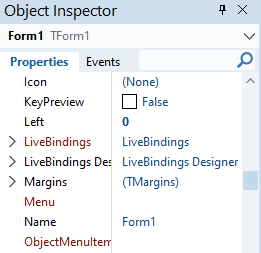
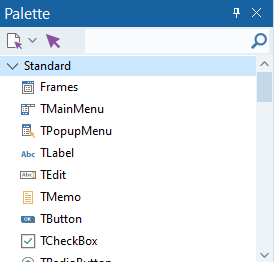
When you open Delphi, this is what you will see. It might look overwhelming at first — but each area has one clear job:
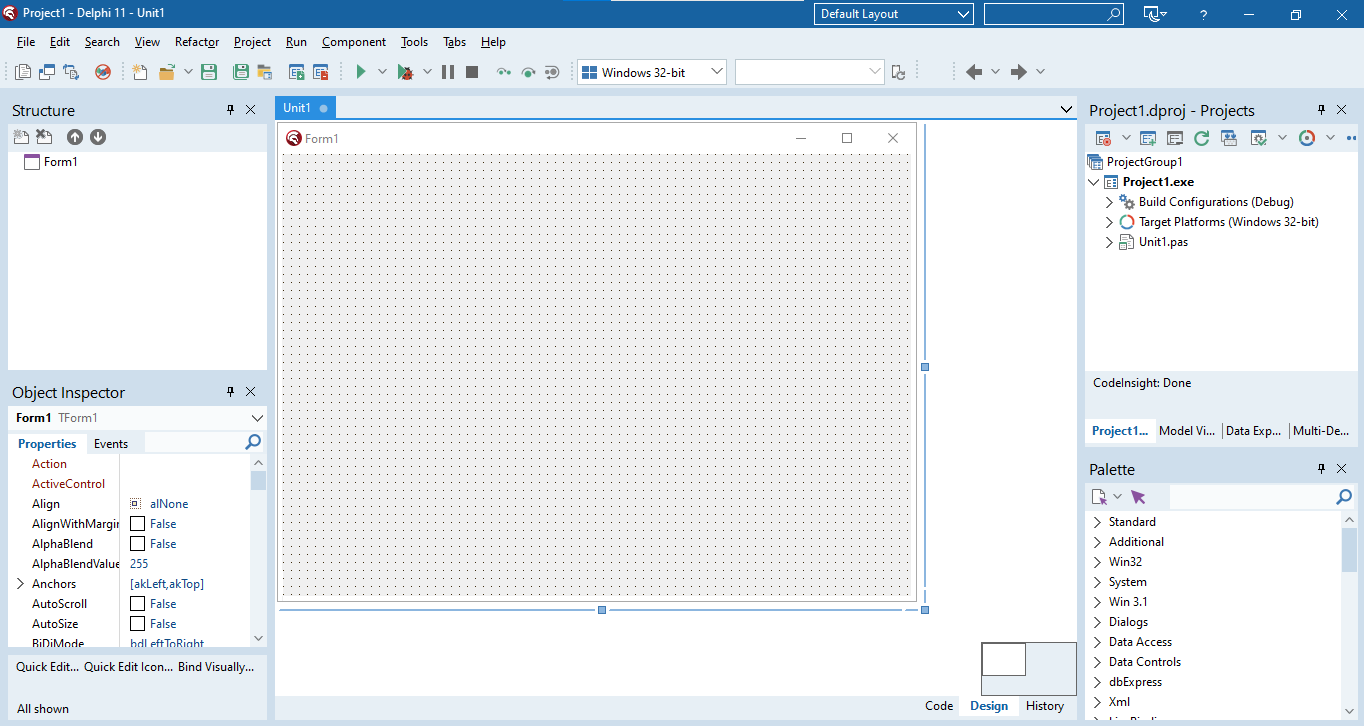
Switching to Code View
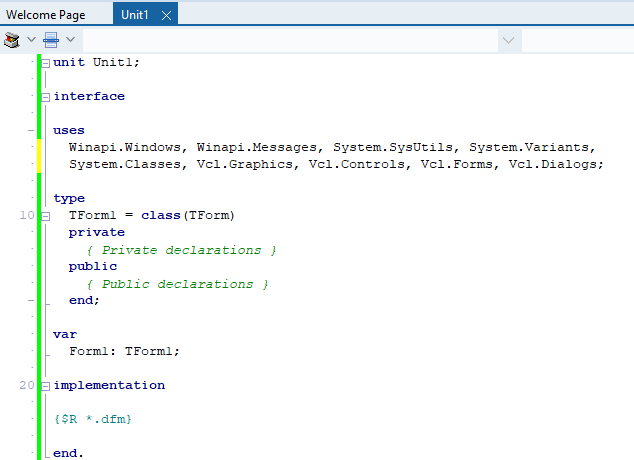
Press F12 to toggle between the Design View (what you see above) and the Code View (where you type your Delphi code).
The Delphi IDE Layout
An Integrated Development Environment (IDE) is a software application that combines the tools a programmer needs — a code editor, a compiler, and a debugger — into a single interface, so you can design, write, test and run a program without switching between separate tools.
Think of the IDE as your workshop — every tool you need (editor, compiler, debugger) is laid out and ready to use, all in one place.
RAD stands for Rapid Application Development. The label applies to Delphi because most of the visual work is already done for you: instead of writing code to draw a button or a text box pixel by pixel, you drag a ready-made component from the Tool Palette onto the form. Skipping that low-level drawing work is what lets a small classroom project turn into a working app within a single lesson.
Key IDE Panels
| Panel | Purpose |
|---|---|
| Menu Bar | Top menu — File, Edit, View, Project, Run, Tools etc. |
| Tool Palette | All Delphi components grouped by category. Click a component, then click on the form to place it. |
| Object Inspector | Sets the initial properties and events of a selected component. |
| Structure Panel (Object TreeView) | Quick reference showing all objects on the current form, displayed in a hierarchical (tree) view. |
| Form / Design Area | The visual canvas — drag and drop components here to build the UI. |
| Code View | Where you write Delphi code. Toggle with F12. |
Objects, Classes & Components
Delphi is an Object-Oriented Programming (OOP) language, so almost everything you place on a form is an object. To talk about objects precisely, three related terms are used:
| Term | Meaning |
|---|---|
| Class | The plan or blueprint for an object — for example TButton is the class that defines what every button can look like and do. Class names always start with a capital T. |
| Object | An instance of a class — an actual button, label or form that exists in your program, e.g. btnCalculate is an object (instantiation) of the class TButton. |
| Component | A particular type of object that can be placed on a form to build a user-friendly, interactive interface (e.g. a Button, Label or Edit). |
Before a house is built, an architect draws up plans — the class. Many houses can then be built from the same plan — each one is an object (an instantiation of the class). TButton is the plan; btnCalculate and btnCancel are two different objects built from that same plan.
Every object has:
- Attributes — what it looks like and contains, described through its properties and events.
- Behaviour — what it can do, described through its methods.
Basic Format of Statements
An assignment statement stores a value in a property or variable using the assignment operator :=. We use code in Delphi to assign values to properties of components in the following format:
Component.Property := Value;All the properties a component has can be seen in the Object Inspector when that component is selected — the same properties you set visually at design time can also be set in code.
- Always assign TO the component/property on the left side of
:=— never the other way round. - Every statement ends with a semicolon
;
Form1.Height := 500;
Form1.Width := 700;
Button1.Caption := 'Register';
Shape1.Top := 20;
Shape1.Left := 20;
Step-by-Step: Creating Your First Project
- File → New → Windows VCL Application — creates a blank Form (TForm).
- Place components by clicking them in the Tool Palette, then clicking on the form.
- Set properties in the Object Inspector (e.g. change a button's Caption).
- Double-click a button to go to Code View and write the event handler.
- File → Save All (Ctrl+Shift+S) — save in a NEW dedicated folder.
- Press F9 to compile and run.
Each project must be saved in its own dedicated folder. Save the Unit file as FileName_u.pas and the Project file as FileName_p.dpr. Never mix two projects in one folder.
The Files Delphi Creates
Delphi creates several files for every program, but you only ever need to save two of them yourself — Delphi regenerates the rest automatically when you run the program.
| File | Extension | Contains | Save it yourself? |
|---|---|---|---|
| Unit file | .pas | The Delphi code you write (event handlers, class definition) | Yes |
| Project file | .dpr | Information that ties the units of a project together | Yes |
| Form file | .dfm | The visual layout of the form and its components | No — saved automatically with the Unit |
If you need to copy a project to another computer, copy the .dpr, .dfm and .pas files — Delphi will recreate every other file the next time you run the program.
Visual Component Reference
Components are the building blocks placed on a form. Each is an object with properties and events. Here is what the most common ones look like:
Naming Convention
Every component gets a prefix that indicates its type, followed by a meaningful name. This makes code readable.
| Prefix | Component Type | Example |
|---|---|---|
btn | TButton | btnCalculate |
lbl | TLabel | lblResult |
edt | TEdit | edtName |
mem | TMemo | memOutput |
img | TImage | imgLogo |
pnl | TPanel | pnlHeader |
sed | TSpinEdit | sedNotes |
cbo | TComboBox | cboGrade |
lst | TListBox | lstNames |
rgp | TRadioGroup | rgpGender |
chk | TCheckBox | chkAgree |
tmr | TTimer | tmrClock |
Accelerator (Hot) Keys
Placing an & in front of a letter in a component's Caption underlines that letter and turns it into a keyboard shortcut. Pressing Alt + that letter clicks the component without using the mouse.
btnRed.Caption := '&Red'; // underlines the R — press Alt+R to click the buttonEvent-Driven Programming
Delphi programs are event-driven — code only runs when something HAPPENS (an event), like pressing a button, typing in a box, or a timer ticking.
Think of a vending machine. It just sits there doing nothing — until you push a button. That press is the event. The machine then dispenses the item — that is the event handler (your code). If no button is pressed, nothing happens. Delphi works exactly like this.
| Event | When it fires | Common use |
|---|---|---|
OnClick | User clicks a button / component | Calculate, submit, navigate |
OnChange | Text in an edit box changes | Live validation, update display |
OnKeyPress | A key is pressed while component has focus | Accept only numbers |
OnCreate | Form loads / opens | Initialise variables, load data |
OnTimer | Timer interval elapses | Countdown, clock display |
How to Create an Event Handler
- In Design View, double-click a button to create its
OnClickhandler automatically. - For other events, go to the Events tab in the Object Inspector and double-click next to the event name.
- Delphi creates a skeleton procedure. Write your code between
beginandend. - Never change the procedure header — only add code inside.
procedure TForm1.btnCalculateClick(Sender: TObject);
begin
  // Your code goes here
  ShowMessage('Button clicked!');
end;
ShowMessage and InputBox
ShowMessage displays a pop-up with a message. InputBox pops up a window asking the user to type something. Both are modal — the program pauses until the user responds.
ShowMessage('Hello world!');
ShowMessage('Result: ' + IntToStr(iAnswer));// Returns a string
sName := InputBox('Name', 'Enter your name:', '');
// Convert to integer
iNum := StrToInt(InputBox('Number', 'Enter a number:', ''));
// Convert to real
rAmount := StrToFloat(InputBox('Amount', 'Enter amount:', ''));
// Get first character only
cClass := InputBox('Class', 'Enter class:', '')[1];Components — Properties
Properties control how a component looks and behaves. Set them in the Object Inspector or through code.
| Property | Description | Example Value |
|---|---|---|
Name | Unique identifier used in code | btnCalculate |
Caption | Text shown on labels, buttons, forms | 'Calculate' |
Text | Text in a TEdit box | edtName.Text |
Height | Component height in pixels | 30 |
Width | Component width in pixels | 150 |
Font.Size | Text size | 14 |
Font.Color | Text colour (note: Color not Colour) | clRed |
Visible | Whether component is shown | True / False |
More Properties in Code
The same Component.Property := Value; format works for every property, including nested ones like Font.Color:
Label1.Font.Color   := clGreen;
Shape1.Brush.Color  := clRed;
Methods
Methods are pre-written operations that perform tasks on components. Format: ComponentName.Method;
| Method | Effect |
|---|---|
Button1.Hide; | Makes the button invisible |
Button1.Show; | Makes the button visible again |
Edit1.SetFocus; | Moves the cursor into the edit box |
Memo1.Clear; | Clears all text in the memo |
Form1.Close; | Closes the form / program |
RichEdit1.Lines.Add('text'); | Adds a new line to a RichEdit or Memo |
Syntax Rules
Forgetting the closing semicolon ; on a statement causes a syntax error. There is never a semicolon before else. Begin/end pairs must always match.
Delphi Components & Events Grade 10
Beyond buttons and labels — these components are used in most IT practical exams. Know each one's key property and how to use it in code.
Input Components
| Component | Key Property/Event | How to use in code |
|---|---|---|
| TEdit | .Text | edtName.Text — read or write as string |
| TSpinEdit (sedNum) | .Value | sedNum.Value — returns Integer directly |
| TComboBox | .Text or .ItemIndex | cboMonth.Text or cboMonth.ItemIndex (0-based) |
| TListBox | .ItemIndex, .Items | lstNames.Items.Add('Alice'); lstNames.ItemIndex |
| TRadioGroup | .ItemIndex | if rgpGender.ItemIndex = 0 then (0 = first item) |
| TCheckBox | .Checked | if chkAgree.Checked then |
| TTrackBar | .Position | trkVolume.Position — Integer |
| TDateTimePicker | .Date | dtpBirth.Date — TDateTime value |
Output Components
| Component | Key Property | Code example |
|---|---|---|
| TLabel | .Caption | lblResult.Caption := 'Done'; |
| TMemo | .Lines | memOut.Lines.Add('Hello'); |
| TRichEdit | .Lines | Same as Memo; supports formatting |
| TListBox | .Items | lstOut.Items.Add('Alice'); |
| TImage | .Picture | imgPhoto.Picture.LoadFromFile('face.jpg'); |
| TProgressBar | .Position | pbrLoad.Position := 75; |
| TPanel | .Caption, .Color | pnlInfo.Caption := 'Ready'; |
Bitmap Buttons (TBitBtn)
A TBitBtn is a special type of button that can show a caption and a small picture (bitmap) on its face, making an interface look more professional. Its most useful property is Kind — setting it gives the button pre-programmed behaviour, so some Bitmap Buttons need no code at all.
| Kind value | Built-in behaviour |
|---|---|
bkClose | Closes the form/program — fully pre-programmed |
bkOK | Closes a modal form and returns mrOk |
bkCancel | Closes a modal form and returns mrCancel |
bkYes / bkNo | Closes a modal form, returning mrYes / mrNo |
bkHelp | Triggers context help — the programmer adds the code |
Bitmap Buttons use the prefix bmb, e.g. bmbClose.
ComboBox — Adding Items
// At design time: use Items property in Object Inspector
// At runtime:
cboMonth.Items.Add('January');
cboMonth.Items.Add('February');
cboMonth.ItemIndex := 0;  // select first item

// Reading selected item
sSelected := cboMonth.Text;
iIndex    := cboMonth.ItemIndex;
ListBox — Adding, Clearing, Accessing Items
lstNames.Items.Add('Alice');         // add item
lstNames.Items.Clear;                 // remove all
lstNames.Items.Delete(0);            // remove first item
iCount := lstNames.Items.Count;       // number of items
sItem  := lstNames.Items[2];         // access item at index 2
sSelected := lstNames.Items[lstNames.ItemIndex]; // selected item
Resetting a Selection — the -1 Trick
The ItemIndex property tells you which item is selected, counting from 0 (the first item). When nothing is selected, ItemIndex is -1.
This works in reverse too: setting ItemIndex := -1 deselects everything and visually clears the box. This is the standard way to reset a TComboBox, TListBox or TRadioGroup — for example when a user clicks a "Clear form" button.
cboMonth.ItemIndex  := -1;   // ComboBox: no month selected (box appears empty)
rgpGender.ItemIndex := -1;   // RadioGroup: no radio button filled in
lstNames.ItemIndex := -1; // ListBox: nothing highlightedIf the user has not chosen anything, ItemIndex is -1. Reading cboMonth.Items[cboMonth.ItemIndex] while it is -1 causes a runtime error (list index out of bounds). Guard it first:
if cboMonth.ItemIndex = -1 then
  ShowMessage('Please select a month first.')
else
  sMonth := cboMonth.Text;
Naming Convention for Components
| Prefix | Component |
|---|---|
btn | TButton |
lbl | TLabel |
edt | TEdit |
mem | TMemo |
sed | TSpinEdit |
cbo | TComboBox |
lst | TListBox |
rgp | TRadioGroup |
chk | TCheckBox |
pgc | TPageControl |
tmr | TTimer |
img | TImage |
Timer Component
A TTimer fires its OnTimer event at regular intervals without user input.
| Property | Meaning |
|---|---|
Interval | Milliseconds between triggers (1000 = 1 second) |
Enabled | True/False — starts or stops the timer |
var
  iSeconds: Integer;  // global variable

// OnTimer event (fires every 1000ms)
procedure TForm1.tmrCountTimer(Sender: TObject);
begin
  Dec(iSeconds);
  lblTime.Caption := IntToStr(iSeconds) + ' seconds left';
  if iSeconds <= 0 then
  begin
    tmrCount.Enabled := False;
    ShowMessage('Time is up!');
  end;
end;
PageControl (Tabbed Forms)
A TPageControl creates tabbed pages on a form. Each tab is a TTabSheet.
Creating tabs
- Add
TPageControlto the form - Right-click → New Page to add tabs
- Set each
TTabSheet.Captionin the Object Inspector - Drop other components onto each tab — they belong to that tab
Controlling tabs in code
// Show a tab
TabSheet2.TabVisible := True;

// Hide a tab
TabSheet2.TabVisible := False;

// Jump to a specific tab
pgcMain.ActivePage := TabSheet3;Data Types & Variables Grade 10
Every value in Delphi has a data type. Variables are the containers that hold these values while your program runs. Constants hold values that never change.
Data Types
| Data Type | What it stores | Examples | Quotes? |
|---|---|---|---|
Integer | Whole numbers (positive & negative, no decimals) | 3, -15, 1250 | No |
Real | Numbers with decimals (floating point) | 3.14, -13.24, 125.89 | No |
String | One or more characters — text | 'Banana', '23.45', '@!jkl' | Single quotes '…' |
Char | A single character only | 'S', '!', 'a' | Single quotes '…' |
Boolean | Only True or False | True, False | No |
Delphi lets you go one way but not the other: a whole-number result can be poured into a Real variable without any fuss, but a Real value can never be poured into an Integer variable — there is no automatic way to throw away a decimal part. Worth remembering too: the / operator always hands back a Real answer, even when both of the numbers you divide happen to be whole numbers.
rTotalStock := iBoxesIn + iBoxesReturned;   // fine — a whole number fits happily into a Real
iBoxesIn    := rTotalStock * 2;             // rejected — a Real value won't fit into an Integer
Variables
A variable is a named storage location that holds a value during program execution. Think of it as a labelled cup — it holds one thing at a time, but you can empty it and refill it whenever you like.
Variables must be: Declared → Populated → Used.
A variable holds one value at a time, but the value can change. Your cup might hold coffee now, tea after break and hot chocolate tonight — same cup, different contents. In the same way iScore could be 5 now and 12 later.
The data type is the kind of container, and it decides what may go inside — just as a cup is made for liquids and a plate is made for food. Each type is its own kind of container:
Integer— holds whole numbers, e.g. 3, 15, −7Real— holds numbers with decimals, e.g. 3.14String— holds text, e.g.'Banana'Boolean— holds onlyTrueorFalse
And just as you would not serve soup on a plate, you cannot store the word 'Banana' in an Integer — the value has to match the type of container.
Rules for Variable Names
Delphi won't accept just any piece of text as a variable name — a handful of rules apply every time you choose one:
- It has to begin with a letter or an underscore
_— never a digit or another symbol - Spaces are not allowed anywhere in the name
- Once past the first character, digits and underscores may join the letters — but nothing else
- You can't reuse one of Delphi's own reserved words, since words like
begin,varorendalready have a fixed meaning to the compiler - Delphi stops paying attention after the 255th character, so an extremely long name gains you nothing beyond that point
When a single word isn't descriptive enough, run several together and capitalise each new one instead of using spaces or an unbroken run of lowercase letters — sFirstName and rTotalCost read far more clearly than sfirstname or rtotalcost.
Naming Convention — Prefixes
| Prefix | Data Type | Example |
|---|---|---|
i | Integer | iAge |
r | Real | rPrice |
s | String | sName |
c | Char | cGrade |
b | Boolean | bFound |
Declaring Variables
Declaring a variable means creating a named container that we can populate later, in the var section, using the format: variableName : DataType;
Local Declaration (inside a procedure)
procedure TForm1.btnClickClick(Sender: TObject);
var
  sName:   string;
  iNumber: integer;
begin
  // code here
end;
Global Declaration (available to all procedures)
var
  Form1:   TForm1;
  sName:   string;   // declared here, below existing var block
  iNumber: integer;
Populating (Assigning) Variables
Use the assignment operator := to put a value into a variable that has already been declared.
sName   := 'Jannie';
sName   := edtName.Text;        // from a text box
iNumber := 15;
iNumber := sedNum.Value;         // from a spin edit
bFlag := True;The := operator always works right → left: it takes the value on the right and stores it in the variable on the left.
Think of pouring coffee. You put the coffee (the value) into the cup (the variable) — you would never put the cup into the coffee! So the container always goes on the left.
In sName := 'Jannie'; the coffee is 'Jannie' (on the right) and the cup is sName (on the left). Read it backwards: "take 'Jannie' and pour it into sName".
It works the same with a calculation: iTotal := iPrice * iQty; — work out the answer (the coffee) on the right first, then pour it into iTotal (the cup) on the left. This is also why 5 := iAge; is impossible — you cannot pour a variable into a plain number.
Initialising Variables
Set a starting value before using a variable, especially counters and totals — otherwise Delphi may assign a random garbage value.
i        := 0;
iTotal   := 0;
sReverse := '';
cLetter  := '';
Using Variables
lblFullName.Caption := sName + ' ' + sSurname;
memOut.Lines.Add(sName + ' ' + sSurname);
iAnswer := iNum1 + iNum2;
memOut.Lines.Add(IntToStr(iNum1) + ' + ' + IntToStr(iNum2)
+ ' = ' + IntToStr(iAnswer));Two ASCII character codes are handy for laying out text: #13 forces whatever follows onto a new line (it is the code for a carriage return), and #9 inserts a tab space. Join either one into a string with +, exactly like any other piece of text:
lblResult.Caption := 'Test 1: 78%' + #13 + 'Test 2: 84%';
memOut.Lines.Add('Player' + #9 + 'Score');
Incrementing and Decrementing Variables
Instead of writing out a full assignment every time a counter needs to move up or down by one, Delphi gives you two ready-made procedures: Inc and Dec. Call one with just the variable name and it steps by one; give it a second number and it steps by that amount instead.
| Statement | Equivalent to |
|---|---|
Inc(iVisitors); | iVisitors := iVisitors + 1; |
Inc(iVisitors, 5); | iVisitors := iVisitors + 5; |
Dec(iStock); | iStock := iStock - 1; |
Dec(iStock, 5); | iStock := iStock - 5; |
You'll reach for Inc most often inside a loop, nudging a counter forward one step per repetition — Inc(iCount); reads more naturally than repeating the full assignment statement every time.
Getting Input with InputBox
Not every value needs its own Edit box sitting on the form. The InputBox function opens a small dialog of its own, waits for the user to type something, and hands back whatever they entered — always packaged as a string, no matter what kind of data it looks like.
sTeam := InputBox('House Team', 'Which house are you in?', '');Since the result is always text, wrap it in a conversion function whenever you actually need a number or a single character:
| Required type | Example |
|---|---|
string | sTeam := InputBox('House Team', 'Which house are you in?', ''); |
integer | iAge := StrToInt(InputBox('Age', 'How old are you?', '')); |
real | rHeight := StrToFloat(InputBox('Height', 'What is your height in metres?', '')); |
char | cGrade := InputBox('Grade', 'Enter your grade symbol:', '')[1]; — the [1] keeps only the first character typed |
Constants
A constant holds a value that is known before the program runs and cannot change while it runs. Use const instead of var. No data type is needed, and use = not :=.
const
  VAT       = 0.15;
  MAX_ITEMS = 100;

// Using a constant — exactly like a variable
rVatAmount := rCostPrice * VAT;
rTotal     := rCostPrice + rVatAmount;
Type Conversion
Components like TEdit only hold strings. You must convert to the right type before using in calculations.
| Function | Converts | Example |
|---|---|---|
StrToInt() | String → Integer | iAge := StrToInt(edtAge.Text); |
StrToFloat() | String → Real | rPrice := StrToFloat(edtPrice.Text); |
IntToStr() | Integer → String | lblOut.Caption := IntToStr(iTotal); |
FloatToStr() | Real → String | lblOut.Caption := FloatToStr(rAverage); |
Val procedure — converting safelyStrToInt crashes (runtime error) if the text isn't a valid number. The Val procedure converts a string to a number without crashing: it gives back the converted value AND an error code that tells you whether the conversion worked (0 = success, otherwise the position of the first bad character).
var
  iValue, iCode : Integer;
begin
  Val(edtAge.Text, iValue, iCode);
  if iCode = 0 then
    ShowMessage('Valid number: ' + IntToStr(iValue))
  else
    ShowMessage('Not a valid number!');   // iCode = position of the bad character
end;
Formatting Real Numbers
// FloatToStrF(value, format, totalDigits, decimals)
lblPrice.Caption := FloatToStrF(rPrice, ffCurrency, 4, 2);  // → R24.50
lblPrice.Caption := FloatToStrF(rPrice, ffFixed, 4, 2); // → 24.50| Format | Description |
|---|---|
ffCurrency | Adds a currency symbol to the formatted value |
ffExponent | Writes the value out in scientific notation |
ffFixed | Rounds the value to however many decimal places you ask for |
ffGeneral | Plain number formatting — decimals are shown only when the value actually has them |
ffNumber | Works like ffFixed, but breaks large numbers up with thousands separators |
Types of Errors
| Error Type | When it occurs | Example |
|---|---|---|
| Syntax Error | Code is typed incorrectly — won't compile | Missing semicolon, missing end |
| Runtime Error | Crashes while the program is running | Dividing by zero |
| Logical Error | Runs, but gives wrong answer | Calculating average before total, infinite loop |
Only a syntax error stops the program from compiling at all — Delphi catches it immediately. Runtime and logical errors both let the program compile and run, which makes them harder to catch: a runtime error only shows itself when the exact conditions that break it occur (e.g. the user finally types a letter instead of a number), and a logical error may never show itself at all — the program keeps running and simply produces the wrong answer.
| Common causes of runtime errors | Common causes of logical errors |
|---|---|
Converting text that isn't a valid number (StrToInt/StrToFloat) | Using the wrong variable in a calculation (e.g. a property was never transferred into it) |
| Dividing by zero | Getting the sequence of instructions wrong (e.g. calculating a total before all the values were added) |
| Calculating the square root of a negative number | Using AND/OR/NOT incorrectly in a compound condition |
| A calculated answer too big for its variable type (overflow) | Ignoring the order of precedence of operators |
| Accessing an array index that is out of range | A mistake with the variable controlling a loop, causing it to run forever |
Many runtime and logical errors trace back to invalid data: Garbage In, Garbage Out. A program is only as reliable as the checks it makes on the data it receives — see Input Validation on the Decision Making page.
Preventing and Handling Runtime Errors with Try..Except
A try..except block protects against any runtime error, not just a bad conversion. Code that might fail — a conversion, a calculation, anything risky — goes inside the try section. The moment something in there raises an error, Delphi abandons whatever was left in that section and jumps straight to except, running the recovery code written there instead of letting the program crash.
try
  // risky code that might raise a runtime error
except
  // code that runs only if an error occurred above
end;var
rAmount : real;
begin
try
rAmount := StrToFloat(edtAmount.Text);
except
ShowMessage('Invalid amount entered');
end;
end;The Val procedure above and a try..except block solve the same problem in different ways. Val checks a conversion specifically and gives you an error code to test. try..except is more general — it protects any block of code (a conversion, a calculation, a file operation) and reacts only if something actually goes wrong.
Finding Logical Errors — Debugging Tools
Logical errors are the hardest to find because the program runs without crashing. Besides tracing the code by hand with a paper-based trace table, Delphi's built-in debugger lets you watch a program execute one line at a time and see exactly what is happening inside it.
| Tool | What it does |
|---|---|
| Breakpoint | Click in the grey margin next to a line of code to mark where execution must pause. When the program reaches that line, Delphi stops and lets you take control instead of running straight through. |
| Step (F8) | Executes only the highlighted line, then pauses again on the next one — lets you watch the program run one instruction at a time. |
| Watch List (Run → Add Watch) | Displays the current value of one or more variables, updated live as each line executes — so you can see exactly where a variable gets the wrong value. |
It is tempting to change lines of code at random when the output looks wrong, hoping something sticks. That approach wastes time and can introduce new bugs on top of the original one. Watching the variables change value one line at a time pinpoints the exact instruction responsible, so the fix is targeted instead of accidental.
Operators & Functions Grade 10
Operators perform calculations. Delphi also has a rich library of built-in functions for maths, string handling, and more.
Arithmetic Operators
| Operator | Symbol | Description | Example | Result |
|---|---|---|---|---|
| Addition | + | Add values | 5 + 3 | 8 |
| Subtraction | - | Subtract | 10 - 4 | 6 |
| Multiplication | * | Multiply | 4 * 3 | 12 |
| Division | / | Divide (returns Real) | 7 / 2 | 3.5 |
| Integer Division | DIV | Whole part only (no remainder) | 7 DIV 2 | 3 |
| Modulus | MOD | Remainder only | 7 MOD 2 | 1 |
MOD and DIV Examples
| Calculation | Working | MOD result | DIV result |
|---|---|---|---|
5 MOD/DIV 2 | 5 ÷ 2 = 2 remainder 1 | 1 | 2 |
25 MOD/DIV 5 | 25 ÷ 5 = 5 remainder 0 | 0 | 5 |
17 MOD/DIV 3 | 17 ÷ 3 = 5 remainder 2 | 2 | 5 |
Even/Odd check: n MOD 2 = 0 → even
Factor check: b MOD a = 0 → a is a factor of b
Last digit: n MOD 10 → last digit of n
Worked Example — Isolating the Digits of a Number
A favourite exam task: pull a number apart digit by digit. The trick is the pair MOD 10 (gives the last digit) and DIV 10 (chops the last digit off). Repeat in a loop until nothing is left. Here we add up the digits, e.g. 1234 → 1+2+3+4 = 10.
var
  iNum, iDigit, iSum : Integer;
begin
  iNum := StrToInt(edtNum.Text);   // e.g. 1234
  iSum := 0;
  while iNum > 0 do
  begin
    iDigit := iNum mod 10;   // MOD 10 grabs the LAST digit  (1234 -> 4)
    iSum   := iSum + iDigit;
    iNum   := iNum div 10;   // DIV 10 chops it off          (1234 -> 123)
  end;
  lblSum.Caption := 'Digit sum: ' + IntToStr(iSum);
end;The MOD 10 / DIV 10 loop is the key to counting digits, reversing a number, checking for a palindrome, or building the Luhn check digit of an ID. Swap what you do with iDigit and you have solved a whole family of questions.
Operator Precedence (Order of Operations)
| Priority | Operators |
|---|---|
| 1st (highest) | Brackets ( ) |
| 2nd | * / DIV MOD (left to right) |
| 3rd (lowest) | + - (left to right) |
result := 2 + 3 * 4;         // = 14  (3*4 first)
result := (2 + 3) * 4;       // = 20  (brackets first)
result := 10 DIV 2 + 3;      // = 8   (DIV first)
Mathematical Functions
Add Math to your uses section to access power, floor, ceil etc.
| Function | Description | Example | Result |
|---|---|---|---|
sqr(x) | x squared (x²) | sqr(4) | 16 |
sqrt(x) | Square root | sqrt(16) | 4.0 |
power(x,n) | x to the power of n | power(5,3) | 125 |
round(x) | Round to nearest integer | round(5.68) | 6 |
trunc(x) | Remove decimal (truncate) | trunc(5.68) | 5 |
floor(x) | Round DOWN | floor(3.76) | 3 |
ceil(x) | Round UP | ceil(3.76) | 4 |
abs(x) | Absolute value (remove negative) | abs(-12) | 12 |
frac(x) | Fractional part only | frac(12.75) | 0.75 |
pi | Value of π | pi | 3.14159… |
random(n) | Random number from 0 to n-1 | random(10) | 0–9 |
RoundTo(x,-n) | Round to n decimal places | RoundTo(12.3456,-2) | 12.35 |
Inc and Dec
| Procedure | Effect | Example | Result |
|---|---|---|---|
Inc(x) | Increment by 1 | Inc(5) | 6 |
Inc(x, n) | Increment by n | Inc(5, 3) | 8 |
Dec(x) | Decrement by 1 | Dec(5) | 4 |
Dec(x, n) | Decrement by n | Dec(6, 4) | 2 |
Upcase and Trim
| Function | Description | Example | Result |
|---|---|---|---|
UpCase(c) | Convert single char to uppercase | UpCase('a') | 'A' |
Trim(s) | Remove spaces from both ends | Trim(' Hello ') | 'Hello' |
TrimLeft(s) | Remove leading spaces | TrimLeft(' Hi') | 'Hi' |
TrimRight(s) | Remove trailing spaces | TrimRight('Hi ') | 'Hi' |
Ord and Chr
Ord and Chr convert between characters and their ASCII numeric codes.
| Function | Description | Example | Result |
|---|---|---|---|
Ord(c) | Character → ASCII integer | Ord('A') | 65 |
Chr(n) | ASCII integer → Character | Chr(65) | 'A' |
Caesar Cipher Example
var
  sInput, sOutput: string;
  i, iShift: Integer;
begin
  sInput := InputBox('Text', 'Enter text:', 'ABC');
  iShift := StrToInt(InputBox('Shift', 'Enter shift (1-25):', '3'));
  sOutput := '';
  for i := 1 to Length(sInput) do
    // wrap back to 'A' after 'Z' using MOD 26
    sOutput := sOutput + Chr(Ord('A') + (Ord(sInput[i]) - Ord('A') + iShift) mod 26);
  ShowMessage('Shifted: ' + sOutput);  // ABC → DEF, XYZ → ABC
end;Without it, shifting a letter near the end of the alphabet (like 'X', 'Y' or 'Z') pushes past 'Z' into punctuation characters instead of wrapping back to 'A'. Subtracting Ord('A') first converts the letter to a 0–25 range, MOD 26 wraps it, and adding Ord('A') back converts it to a real letter again.
Decision Making — IF & CASE Grade 10
Decision structures let your program choose different paths based on conditions. Delphi uses if…then…else and case for this.
What is Decision Making?
Decision-making (also called conditional logic) is when a program tests whether something is true or false and then chooses what to do next based on the answer. A condition is any question that can only be answered with true or false — for example, "is the age 18 or more?".
Everyday analogy: A robot (traffic light) at an intersection makes a decision for you. If the light is green you go; else you stop. Your program does the same thing — it looks at a condition and takes one path or another.
Why Do Programs Need to Make Decisions?
Without decisions, a program could only ever do the exact same thing every single time it runs. Decisions make a program react to its data and its user.
- React to input – an age-check on a website: if you are old enough it lets you in, otherwise it blocks you.
- Validate data – if a mark is below 0 or above 100, warn the user it is invalid.
- Choose an outcome – if a learner scored 50 or more, display "Passed", otherwise display "Failed".
- Stay safe – if the password matches, grant access; otherwise deny it.
The IF Statement
The IF statement evaluates a condition that must resolve to True or False, and executes a statement only when that condition is True.
In plain words it says: "If this is true, then do that; otherwise (else) do something else." Everyday analogy: "If it is raining, take an umbrella, else wear a cap." The "if it is raining" part is the condition that is checked first.
IF … THEN (one-way)
if condition then
  statement;
IF … THEN … ELSE (two-way)
Never put a ; on the line before else — it ends the if statement too early.
if condition then
  statement
else
  statement;
Multiple Statements — use BEGIN…END
if iAge >= 18 then
begin
  lblResult.Caption := 'Adult';
  btnVote.Enabled   := True;
end
else
begin
  lblResult.Caption := 'Minor';
  btnVote.Enabled   := False;
end;
Examples
if iNum1 > iNum2 then
  ShowMessage(IntToStr(iNum1) + ' is larger');

if iAge >= 18 then
  ShowMessage('Old enough to vote');

if sUsername <> 'admin' then
  ShowMessage('Access denied')
else
  ShowMessage('Welcome, administrator!');
Comparison Operators
| Operator | Meaning | Example |
|---|---|---|
= | Equal to | iAge = 18 |
<> | Not equal to | sName <> 'Admin' |
> | Greater than | iScore > 50 |
< | Less than | iAge < 18 |
>= | Greater than or equal to | iMark >= 30 |
<= | Less than or equal to | rPrice <= 100.0 |
Nested IF
An IF inside another IF.
if iAge >= 18 then
begin
  if bHasLicense = True then
    bDrive := True
  else
    bDrive := False;
end
else
  bDrive := False;
Boolean Operators
Combine multiple conditions in one statement.
Boolean operators let you ask more than one question at the same time. Everyday analogy: to get into a club you might need to be 18 AND have an ID — both must be true. To qualify for a discount you might need to be a student OR a pensioner — either one is enough. NOT simply flips an answer around, like saying "if it is not a holiday, school is open".
| Operator | Rule | Example |
|---|---|---|
AND | Both conditions must be true | (iAge >= 18) AND (bHasID = True) |
OR | At least one condition must be true | (sGender = 'M') OR (sGender = 'F') |
NOT | Inverts the condition | NOT (iScore > 50) |
if (iAge >= 18) AND (bHasLicense = True) then
  bCanDrive := True;

if (iScore >= 30) OR (bHasSymbol = True) then
lblResult.Caption := 'Passed';When a condition mixes AND and OR without brackets, Delphi does not test them strictly left-to-right — NOT is applied first, then AND, and only then OR. This is the same idea as multiplication happening before addition in a maths expression. Two learners could type the exact same words and end up with logically different conditions, so get into the habit of bracketing every individual condition — it removes any doubt about what is being tested against what.
Shortcut — Assigning a Boolean Directly
Sometimes an entire if…then…else exists purely to store True or False in a Boolean variable. In that case the condition already is the answer you want, so the if is not needed at all — the condition can be assigned straight to the variable.
// Longer version:
if iMark >= 50 then
  bPassed := True
else
  bPassed := False;

// Shorter, equivalent version:
bPassed := iMark >= 50;
Simplifying a Long Condition with 'Flags'
A single if line that strings together many ANDs and ORs across several variables becomes hard to read, and one misplaced bracket can break the whole thing. A tidier approach is to work out each separate rule on its own line first, storing every result in its own Boolean variable (often called a flag), and letting the final decision combine only the flags.
Consider selecting a learner for the school athletics team: they must have run the trial faster than the qualifying time, attended at least 80% of the practice sessions, and not currently be under a sports suspension.
var
  bFastEnough, bAttendedEnough, bMaySelect : boolean;
  rTrialTime, rQualifyTime, rAttendancePercent : real;
  bSuspended : boolean;
begin
  bFastEnough     := rTrialTime <= rQualifyTime;
  bAttendedEnough := rAttendancePercent >= 80;
  bMaySelect      := NOT bSuspended;

  if bFastEnough AND bAttendedEnough AND bMaySelect then
    lblResult.Caption := 'Selected for the team'
  else
    lblResult.Caption := 'Not selected';
end;Each flag can be checked on its own, which makes it much easier to spot a mistake in one rule without untangling a single sprawling condition. The final decision then reads almost like plain English.
The IN Operator
Tests if a value is in a set. Cleaner than multiple OR conditions.
// Check for specific values
if iNumber IN [1, 3, 5, 7] then
  ShowMessage('Odd single digit found');

// Range using ..
if iMark IN [0..49] then
  lblSymbol.Caption := 'F';

// Works with Char too
if cLetter IN ['A', 'E', 'I', 'O', 'U'] then
  ShowMessage('Vowel');
Sets, Ordinal Types & Sub-Ranges
Everything written inside those square brackets is called a set. Sets only work with ordinal data types — types where every value has one clear predecessor and one clear successor, so the values can be counted off in order. Integer, Char and Boolean all qualify. Real and String do not: between any two real numbers there are infinitely many more real numbers, so there is no single "next" one, which rules them out of a set.
Instead of listing every value separately, a sub-range lets you give just the two endpoints as <lowest> .. <highest>. A single set is allowed to mix plain values and sub-ranges together, separated by commas:
if cGrade IN ['A'..'C'] then
  ShowMessage('Well done — top achiever!');

if NOT (iSeat IN [1..15, 40..55]) then
ShowMessage('Seat number must be 1-15 or 40-55');A sub-range built from Integers can only test values between 0 and 255 — anything outside that band raises an error. A set is also capped at a maximum of 265 values in total.
Decision Components
RadioGroup
Uses an ItemIndex property — first item is index 0.
if rgpGender.ItemIndex = 0 then
  sGender := 'Male'
else
  sGender := 'Female';
CheckBox
Uses the Checked property — True or False.
if chkInsurance.Checked = True then
  rCost := rCost + rInsuranceAmount;
The CASE Statement
Cleaner alternative to multiple IF…ELSE when testing one variable against many values. Works with Integer and Char only.
Use CASE when one variable could take many possible values and each value leads to a different outcome — like turning a mark into a grade symbol. Everyday analogy: a vending machine. You press one button (the value), and depending on which button it was, a different snack drops out. Writing that as a long chain of IF…ELSE statements works, but CASE lays it out neatly so it is much easier to read.
case expression of
  value1: statement1;
  value2: statement2;
  value3: statement3;
else
  statementDefault;
end;CASE has no begin, but always has end. You can use ranges with ..
case iMark of
  80..100: lblSymbol.Caption := '7 — Outstanding';
  70..79:  lblSymbol.Caption := '6 — Meritorious';
  60..69:  lblSymbol.Caption := '5 — Substantial';
  50..59:  lblSymbol.Caption := '4 — Adequate';
  40..49:  lblSymbol.Caption := '3 — Moderate';
  30..39:  lblSymbol.Caption := '2 — Elementary';
else
  lblSymbol.Caption := '1 — Not Achieved';
end;
What Can Go in a CaseList
The value being tested (the Selector Expression, straight after the word case) must be ordinal. Each individual caseList is flexible about how it lists the values it matches — it can be one constant on its own, several constants separated by commas, a sub-range, or any mixture of these on the same line. The only rule is that a value may not show up in two different caseLists.
case iZone of
  1             : rFare := 12;
  2, 3          : rFare := 18;
  4..6          : rFare := 25;
  7, 8, 10..12 : rFare := 35;
end;
A caseList is not restricted to a single statement either — wrap several statements in begin…end exactly as you would for a multi-statement IF:
case iArrivalMinutes of
  0..5    : Inc(iOnTime);
  6..15   : Inc(iLate);
  16..60  : begin
                Inc(iLate);
                Inc(iVeryLate);
              end
else
  ShowMessage('Please check the time entered');
end; // end of caseOnly one caseList can fire per run of the statement, so double-check that your ranges don't overlap. And remember there is never a semicolon directly before the else part — the same rule as an IF statement. If a CASE branch needs to abandon the rest of the procedure entirely (say, after finding invalid data), call Exit — it works inside any procedure or function, not only inside a CASE.
MessageDlg
A pop-up dialog that asks the user a yes/no question and returns a result.
if MessageDlg('Are you sure?', mtConfirmation, mbYesNo, 0) = mrYes then
  // execute if user clicked Yes
ShowMessage('Confirmed!');| Parameter | Options |
|---|---|
| Message type | mtConfirmation, mtInformation, mtWarning, mtError |
| Buttons | mbYesNo, mbOKCancel, mbYesNoCancel |
| Result | mrYes, mrNo, mrOK, mrCancel |
Input Validation
No amount of clever code can rescue a program that starts with bad data — this is often summed up as GIGO: Garbage In, Garbage Out. Before a program uses a value in a calculation or a decision, it should first check that the value is reasonable. Checking a value before it gets used is called input validation, and the IF statement is the tool most often used to do it.
It helps to separate two ideas that are easy to confuse:
- Valid data — the value falls within rules a program can check on its own, e.g. a ticket quantity of
4is a whole number the program can accept. - Correct data — the value is actually the right one for this situation, e.g. that this particular learner really did order 4 tickets. A program cannot verify this by itself; a person has to check it against a reliable source.
A validation rule spells out exactly what "valid" means for a piece of data, for example: "the number of matric dance tickets ordered must be a whole number from 1 to 6." Once the rule is written down, an IF statement can enforce it:
if (iTickets < 1) or (iTickets > 6) then
  ShowMessage('You may order between 1 and 6 tickets.');
Validation matters most when an invalid value would otherwise crash the program during a calculation. Delphi's Sqrt function, for instance, cannot handle a negative number, so the sign has to be checked first:
if rNumber < 0 then
  ShowMessage('Cannot calculate the square root of a negative number')
else
rAnswer := Sqrt(rNumber);A single warning message still leaves the program with no usable value to work with. Wrapping the input and the check in a REPEAT..UNTIL loop forces the user to keep trying until they enter something acceptable:
repeat
  iTickets := StrToInt(edtTickets.Text);
  if not (iTickets in [1..6]) then
    ShowMessage('You may order between 1 and 6 tickets.');
until iTickets in [1..6];
A range is only one kind of validation rule. Depending on the field, a program might instead need to check:
- Format — does the value match an expected pattern, e.g. a South African ID number must be exactly 13 digits.
- Type — is the value the right kind of data, e.g. rejecting text where a numeric mark is expected.
- Presence — has a required field been left empty, e.g. testing
edtName.Text <> ''.
Worked Example — Validate, Grade & Decide
A typical question chains several decisions together: first validate the input with an if, then use a case to map the mark to a symbol, then a final if to decide pass/fail. This shows exactly when to reach for if and when for case.
procedure TForm1.btnGradeClick(Sender: TObject);
var
  iMark   : Integer;
  sSymbol : string;
begin
  iMark := StrToInt(edtMark.Text);

  // 1. Validate first — reject impossible marks (IF with OR)
  if (iMark < 0) or (iMark > 100) then
  begin
    ShowMessage('A mark must be between 0 and 100.');
    Exit;                       // stop here — don't grade an invalid mark
  end;

  // 2. Map the mark to a symbol — CASE handles the many bands neatly
  case iMark of
    80..100: sSymbol := '7';
    70..79:  sSymbol := '6';
    60..69:  sSymbol := '5';
    50..59:  sSymbol := '4';
    40..49:  sSymbol := '3';
    30..39:  sSymbol := '2';
  else
    sSymbol := '1';
  end;

  // 3. A final pass/fail decision (IF)
  if iMark >= 50 then
    lblResult.Caption := 'Symbol ' + sSymbol + ' - PASS'
  else
    lblResult.Caption := 'Symbol ' + sSymbol + ' - needs improvement';
end;Use CASE when one variable maps to many ranges or values (the mark → symbol step). Use IF for a true/false test or when conditions combine different variables (the validation and the pass/fail steps). The pattern validate → work out → decide appears in almost every practical question.
Loops Grade 10
Loops repeat a block of code multiple times. Delphi has three loop types — choose based on whether you know how many times to repeat.
What is a Loop?
A loop is a programming structure that repeats a block of code over and over until a certain point is reached. Instead of writing the same instruction many times, you write it once and tell the computer how often, or until when, to repeat it.
Everyday analogy: Think of doing push-ups. The coach does not shout "do a push-up" fifty separate times. He says "do fifty push-ups." That single instruction, repeated until you reach fifty, is a loop. The action (one push-up) is the loop body, and "fifty" is the condition that tells you when to stop.
Why Do We Use Loops?
Loops save us from repeating ourselves and let programs handle any amount of work with the same short piece of code.
- Less code – printing the numbers 1 to 100 takes three lines with a loop instead of one hundred lines without one.
- Fewer mistakes – you write the instruction once, so there is only one place where a typo could hide.
- Flexibility – the same loop can run 5 times or 5 000 times just by changing one number, so your program copes with any size of data.
- Processing collections – loops let you visit every item in a list, every learner in a class, or every character in a string, one at a time.
The Three Loop Types in Plain Words
Choosing the right loop comes down to one question: do you know in advance how many times to repeat?
- FOR – use it when you know the exact number of repeats. Analogy: climbing a staircase with a known number of steps — you count "step 1, step 2…" up to the top.
- WHILE – use it when you do not know how many times, and you must check first before doing anything. Analogy: filling a glass of water — you keep checking "is it full yet?" before each pour, and if the glass was already full you never pour at all.
- REPEAT…UNTIL – use it when you do not know how many times, but you must do the action at least once and check afterwards. Analogy: asking someone for their PIN — you always ask once, then check if it was right, and ask again only if it was wrong.
Types of Loops
| Loop | Type | Use when… |
|---|---|---|
for … do | Unconditional (fixed) | You know exactly how many times |
while … do | Conditional (pre-test) | Repeat WHILE a condition is true — check first |
repeat … until | Conditional (post-test) | Repeat UNTIL a condition is true — always runs at least once |
FOR Loop (Fixed / Unconditional)
Runs a set number of times. The counter increments or decrements automatically.
We call it fixed or unconditional because the number of repeats is decided before the loop even starts and cannot change while it runs. You give it a start value and an end value, and Delphi handles the counting for you — you never have to add 1 to the counter yourself.
Reach for a FOR loop whenever you can finish the sentence "do this exactly ___ times" with a number — printing 1 to 10, working through all 30 learners in a class, or drawing 12 rows of a table.
for counter := lowest to highest do
begin
  // code repeated each iteration
end;for i := 1 to 5 do
begin
memOut.Lines.Add(IntToStr(i));
end;FOR … DOWNTO (counting down)
for i := 5 downto 1 do
begin
  memOut.Lines.Add(IntToStr(i));
end;
FOR Loop — Running Total
var
  i, iTotal: Integer;
begin
  iTotal := 0;  // initialise!
  for i := 1 to 10 do
    iTotal := iTotal + i;
  lblTotal.Caption := 'Sum = ' + IntToStr(iTotal);
end;
FOR Loop — the Counter Can Be Any Ordinal Type
A FOR loop's counter does not have to be an Integer — it can be declared as any ordinal type, provided the start value, end value and the counter variable itself all agree on that type. A Char counter, for instance, steps through the alphabet one letter at a time instead of counting through numbers.
var
  cLetter: char;
begin
  for cLetter := 'B' to 'F' do
    memOut.Lines.Add(cLetter);
end;A start value in uppercase paired with an end value in lowercase (or the reverse) will not behave the way you expect — uppercase and lowercase letters occupy separate blocks in the ASCII table, so mixing them changes how far apart the two values actually are, and therefore how many times the loop runs. Pick one case and stick to it for both bounds.
WHILE … DO Loop (Pre-Conditional)
Checks the condition before each iteration. If the condition is false from the start, the loop body never runs.
We call it pre-conditional ("pre" = before) because it tests the condition first, and only then decides whether to run the body. This makes it the safe choice when there is a chance the loop should not run at all.
Use WHILE when you do not know how many repeats you need and it might be zero — for example, "keep reading numbers while the user hasn't typed 0". If they type 0 immediately, you correctly do nothing.
while condition do
begin
  // code
end;
The ITC-Principle
A handy checklist for building a correct WHILE loop is the ITC-principle — three things that must all be true of your code, in this order:
| Step | What to check |
|---|---|
| Initialise | Has every variable used in the WHILE condition already been given a starting value before the loop is reached? |
| Test | Is that condition re-checked at the top of every pass, deciding whether the body runs again? |
| Change | Does something inside the body actually update the variable(s) being tested? Without this step the condition can never turn False. |
The counter must be initialised before the loop and incremented inside the loop — otherwise it runs forever and crashes your program. Also never put a ; straight after the do keyword — while condition do; creates an empty loop body, so the statement that was meant to change the condition is skipped, and the loop runs forever.
var
  Counter: Integer;
begin
  Counter := 1;           // initialise BEFORE loop
  while Counter <= 5 do
  begin
    memOut.Lines.Add('Counter: ' + IntToStr(Counter));
    Inc(Counter);          // increment INSIDE loop
  end;
end;
WHILE — Reading user input until sentinel
var
  iNum, iTotal: Integer;
begin
  iTotal := 0;
  iNum   := StrToInt(InputBox('Input', 'Enter number (0 to stop):', ''));
  while iNum <> 0 do
  begin
    iTotal := iTotal + iNum;
    iNum   := StrToInt(InputBox('Input', 'Enter number (0 to stop):', ''));
  end;
  lblTotal.Caption := 'Total: ' + IntToStr(iTotal);
end;
Letting the User Interrupt a Loop While It Runs
A different situation arises when nobody knows how many times a loop should run until the user physically clicks a [Stop] Button partway through — a reaction game or a live counter are typical examples. This needs a Boolean variable that both the button that starts the loop and the button that stops it can share, so it must be declared in the private section of the form (giving it class scope) rather than inside a single procedure.
private
  bRunning : boolean;   // shared by both button handlers below

procedure TForm1.btnGoClick(Sender: TObject);
var
  iTick : byte;
begin
  bRunning := True;
  iTick    := 0;
  while bRunning do
  begin
    Inc(iTick);
    memLog.Lines.Add(IntToStr(iTick));
    Sleep(300);                    // short pause so the numbers are readable
    Application.ProcessMessages;   // give the form a chance to react to the click
  end;
end;

procedure TForm1.btnHaltClick(Sender: TObject);
begin
  bRunning := False;
end;A Delphi form normally deals with one event at a time, finishing the current event handler completely before looking at the next. While btnGoClick is stuck inside its loop, a click on [Halt] just waits in a queue rather than running immediately. Application.ProcessMessages is a command that tells the program to pause for a moment and clear that queue — handling any waiting clicks — before the loop carries on. Leave it out, and the [Halt] click is never processed until the loop finishes on its own, which defeats the purpose of having a stop button at all.
REPEAT … UNTIL Loop (Post-Conditional)
Runs the body first, then checks the condition. Guaranteed to run at least once. Loop continues while condition is false; stops when it becomes true.
We call it post-conditional ("post" = after) because it does the work first and asks the question afterwards. That is the opposite of the WHILE loop, and it is exactly what you want when the action must happen at least one time no matter what.
Use REPEAT…UNTIL when the body must run at least once — like showing a menu and asking the user to choose, or asking for a valid mark and re-asking until they get it right. You always ask once, then keep asking until the answer is acceptable.
repeat
  // code
until condition;
REPEAT follows the same three checks as the WHILE loop's ITC-principle, only in a swapped order — Initialise, Change, then Test — since the body always fires once before the condition is ever looked at. Lining the two loops up side by side shows how they really are opposites of each other:
| While loop | Repeat loop |
|---|---|
| Suited to situations where it is fine for the loop to run zero times. | Suited to situations where the body must run at least once. |
| Keeps looping while the condition stays True. | Keeps looping until the condition finally becomes True. |
| Order of checks: ITC — Initialise, Test, Change. | Order of checks: ICT — Initialise, Change, Test. |
Testing for an exact match can trap you in an infinite loop if the value ever skips straight past the target — for example a running score that jumps from 46 to 52 will never satisfy until iScore = 50. Writing until iScore >= 50 instead guarantees the loop will stop even if the value overshoots.
var
  i: Integer;
begin
  i := 1;
  repeat
    memOut.Lines.Add(IntToStr(i));
    i := i + 1;
  until i > 10;
end;
REPEAT — Validate input
var
  iMark: Integer;
begin
  repeat
    iMark := StrToInt(InputBox('Mark', 'Enter mark (0-100):', ''));
    if (iMark < 0) OR (iMark > 100) then
      ShowMessage('Invalid! Enter 0-100');
  until (iMark >= 0) AND (iMark <= 100);
end;
Worked Example — Count, Average & Highest
One loop can gather several answers at once. Here we read marks until the user enters -1, and while looping we keep a counter, a running total and the highest so far — then work out the average at the end.
var
  iMark, iCount, iTotal, iHighest : Integer;
  rAverage : Real;
begin
  iCount   := 0;      // initialise all three trackers before the loop
  iTotal   := 0;
  iHighest := 0;

  iMark := StrToInt(InputBox('Marks', 'Enter a mark (-1 to stop):', ''));
  while iMark <> -1 do
  begin
    Inc(iCount);                 // how many so far
    iTotal := iTotal + iMark;    // running total
    if iMark > iHighest then    // track the maximum
      iHighest := iMark;
    iMark := StrToInt(InputBox('Marks', 'Enter a mark (-1 to stop):', ''));
  end;

  if iCount > 0 then            // guard against dividing by zero
  begin
    rAverage := iTotal / iCount;
    memOut.Lines.Add('Count:   ' + IntToStr(iCount));
    memOut.Lines.Add('Average: ' + FloatToStrF(rAverage, ffFixed, 4, 1));
    memOut.Lines.Add('Highest: ' + IntToStr(iHighest));
  end
  else
    ShowMessage('No marks were entered.');
end;Initialise your trackers before the loop, update them inside it (add to the total, compare for the highest), and report after it. Always check iCount > 0 before dividing, or an empty run will crash with a divide-by-zero.
Comparison: Which Loop to Use?
| Situation | Best Loop |
|---|---|
| Print numbers 1 to 100 | for |
| Read until user types "stop" | while or repeat |
| Must run at least once (e.g. menu) | repeat |
| Unknown number of iterations | while or repeat |
| Process each element in an array | for |
Loop Control — How a Loop Is Controlled
Beyond picking FOR, WHILE or REPEAT, it is useful to describe what decides when a loop stops. This splits loops into two broad groups: definite repetition, where the number of passes can be worked out ahead of time, and indefinite repetition, where it cannot.
Counter Controlled Loops (Definite Repetition)
A counter controlled loop relies on a variable that starts at a known value, changes by a predictable amount on every pass, and is compared to a fixed target to decide whether to continue.
Because that change is predictable, you can always calculate in advance exactly how many times a counter controlled loop will run — a FOR loop is the most obvious example, but a WHILE or REPEAT loop built around a simple counter is counter controlled too.
iRow := 1;
while iRow <= 10 do
begin
  iResult := iRow * 8;
  memOut.Lines.Add(IntToStr(iRow) + ' x 8 = ' + IntToStr(iResult));
  iRow := iRow + 1;
end; {while}
Sentinel Controlled Loops (Indefinite Repetition)
A sentinel controlled loop watches for a special "stop" value — a sentinel — typed in by the user. That value is only ever compared, never used in a calculation, since its whole job is to signal "no more data."
The "WHILE — Reading user input until sentinel" example further up this page is a sentinel controlled loop: 0 is the signal that tells it to stop. Since nobody can predict how many real numbers the user will enter before typing that sentinel, the number of passes is unknown in advance — which is why sentinel controlled loops fall under indefinite repetition.
Result Controlled Loops (Indefinite Repetition)
A result controlled loop keeps going until a particular outcome has actually happened — it is not driven by a counter reaching a target or a user typing a sentinel, but by whatever condition the program is watching for finally becoming true.
iSpins := 0;
repeat
  iSlot := Random(8) + 1;
  Inc(iSpins);
until iSlot = 8;
ShowMessage('Jackpot landed after ' + IntToStr(iSpins) + ' spins');
Nothing here counts down towards a known number of repeats, and there is no value the user types to signal "stop" — the loop simply keeps spinning until the result it is watching for (slot 8) actually comes up.
Nested Loops
A nested loop is simply a loop placed inside the body of another loop. Each time the outer loop takes one step, the inner loop runs through its entire range from start to finish before the outer loop is allowed to take its next step. The inner and outer loops don't have to be the same kind — a FOR loop can quite happily sit inside a WHILE loop, or inside another FOR loop.
Suppose an exam venue needs a code for every seat: a block letter ('A' to 'C'), a row number (1 to 3) and a seat letter within the row ('a' to 'c'). Three nested FOR loops can generate the complete list in one go.
procedure TfrmVenue.btnListSeatsClick(Sender: TObject);
var
  iRow : integer;
  cBlock, cSeat : char;
  iSeatCount : integer;
  sSeatCode : string;
begin
  iSeatCount := 0;
  for cBlock := 'A' to 'C' do       // outer loop
  begin
    for iRow := 1 to 3 do          // middle loop
    begin
      for cSeat := 'a' to 'c' do       // inner loop
      begin
        sSeatCode := cBlock + IntToStr(iRow) + cSeat;
        Inc(iSeatCount);
        memSeats.Lines.Add(sSeatCode);
      end; // for cSeat
    end; // for iRow
  end; // for cBlock
  memSeats.Lines.Add('Total seats = ' + IntToStr(iSeatCount));
end;Follow the innermost loop first: cSeat runs all the way through 'a', 'b', 'c' before iRow is even allowed to move on to its next value. Only once iRow has itself been through 1, 2 and 3 — meaning the middle loop has fully finished for the current block — does cBlock step forward to its next letter. The resulting list reads A1a, A1b, A1c, A2a, A2b, A2c, A3a, A3b, A3c, B1a, … and finishes at Total seats = 27, since 3 blocks × 3 rows × 3 seats gives 27 combinations in total.
String Manipulation Grade 10
Strings are sequences of characters. Delphi provides built-in functions and procedures to analyse, extract, and modify strings.
What is String Manipulation?
String manipulation is the process of working with text inside a program — searching it, pulling pieces out of it, changing it and measuring it. A string is simply a piece of text: a name, an ID number, an email address or a whole sentence are all strings.
Everyday analogy: Think of a string like a row of bead letters on a piece of string, exactly like a beaded keyring that spells a name. Each bead is one character and it sits in a fixed position. String manipulation is what you do when you slide beads off the end, count how many there are, swap a small to a capital bead, or read which bead is sitting in position 3.
Almost every real program handles text. When you log in, the computer compares the string you typed against the stored one. When a website greets you by your first name only, it has extracted that name out of your full name. When a form checks that an email contains an "@", it is searching a string. Learning these functions means you can validate input, format output neatly, and pull useful data out of messy text — skills you will use in every program from here on.
Note: In Delphi, the very first character of a string sits at position 1 (not 0). This is why the reference string below numbers its letters starting at 1.
All examples on this page use: sSourceText := 'Andre is cute';
Positions: A=1, n=2, d=3, r=4, e=5, (space)=6, i=7, s=8, (space)=9, c=10, u=11, t=12, e=13
Quick Reference
| Name | Type | What it does | Returns |
|---|---|---|---|
Pos | Function | Position of a substring in a string | Integer |
Index [ ] | — | Character at a specific position | String (1 char) |
Copy | Function | Extract part of a string | String |
Insert | Procedure | Insert text into a string | Modifies original |
Delete | Procedure | Remove part of a string | Modifies original |
Length | Function | Number of characters in a string | Integer |
UpperCase | Function | Convert to all capitals | String |
LowerCase | Function | Convert to all lowercase | String |
Length — String Length
IntegerVariable := Length(SourceText);iX := Length(sSourceText); // = 13 (length of 'Andre is cute')
iX := Length('Hello'); // = 5Group 4 — Changing Case
Changing case means turning all the letters into capitals (UpperCase) or all into small letters (LowerCase). The most important reason we do this is to compare text fairly. The computer thinks 'YES', 'yes' and 'Yes' are three different strings, so if you force them all to lowercase first, they all match.
Everyday analogy: Imagine a teacher marking a one-word answer. Whether a learner wrote "Cape Town", "CAPE TOWN" or "cape town", it is the same correct answer. Lowercasing both the answer and the memo before comparing is how you make sure capitals do not unfairly mark someone wrong.
Important Rule: UpperCase and LowerCase return a new string — they do not change the original unless you store the result back into a variable.
UpperCase and LowerCase
sResult := UpperCase(sSourceText);
// 'Andre is cute' → 'ANDRE IS CUTE'

sResult := LowerCase(sSourceText);
// 'Andre is cute' → 'andre is cute'Group 1 — Searching a String
Searching means asking "is this smaller piece of text in there, and if so, where?" The answer you get back is a position number. This is the first thing you do before you can extract or change part of a string, because you usually need to know where something is first.
Everyday analogy: It is like using Find (Ctrl+F) in a document. You type a word, and the computer jumps to the spot where it appears and tells you where it is. Pos is Delphi's version of that "Find".
Pos — Find Position
Returns the integer position of the first occurrence of a substring. Returns 0 if not found.
IntegerVariable := Pos(StrToBeFound, SourceText);iX := Pos('e', sSourceText); // = 5 (first 'e' in 'Andre')
iX := Pos('is', sSourceText); // = 7
iX := Pos('xyz', sSourceText); // = 0 (not found)Index [ ] — Character at Position
Access a single character using square brackets and a position number.
StringVariable := SourceText[CharacterPosition];sNewText := sSourceText[2]; // = 'n'
sNewText := sSourceText[5]; // = 'e'Group 2 — Extracting Part of a String
Extracting means taking a copy of a piece of the string without changing the original. You decide where to start and how many characters to grab. This is how you pull a first name out of a full name, a year out of a date, or an area code out of a phone number.
Everyday analogy: Think of cutting a slice out of a loaf of bread. The loaf (the original string) stays whole; you just take a slice from a chosen spot of a chosen thickness. Copy takes the slice, and Index [ ] takes a single thin slice — just one character.
Copy — Extract Substring
Extracts a section of text starting at a position for a given number of characters.
StringVariable := Copy(SourceText, BeginPosition, Length);sNewText := Copy(sSourceText, 10, 4); // = 'cute' (start at 10, take 4)
sNewText := Copy(sSourceText, 1, 5); // = 'Andre' (start at 1, take 5)Group 3 — Changing a String
Changing a string means actually modifying it — adding text in, taking text out, or measuring it. Unlike extracting, these Insert and Delete procedures change the original string directly, so afterwards the string is different from before.
Everyday analogy: This is like editing a sentence in your exercise book. Insert squeezes a new word into the middle of the sentence; Delete rubs a few words out. Length is just counting how many letters the sentence now has.
Insert — Add Text
Inserts text into an existing string at a given position. Modifies the string directly.
Insert(InsertText, SourceText, Position);Insert('very ', sSourceText, 10);
// sSourceText is now: 'Andre is very cute'Delete — Remove Text
Removes a section of text from a string. Modifies the string directly.
Delete(SourceText, Position, Length);Delete(sSourceText, 9, 5);
// sSourceText is now: 'Andre is' (removed ' cute')Practical Patterns
Reverse a String
var
  sInput, sReverse: string;
  i: Integer;
begin
  sInput   := edtInput.Text;
  sReverse := '';
  for i := Length(sInput) downto 1 do
    sReverse := sReverse + sInput[i];
  lblResult.Caption := sReverse;
end;
Count Occurrences of a Character
var
  sText: string;
  i, iCount: Integer;
begin
  sText  := LowerCase(edtInput.Text);
  iCount := 0;
  for i := 1 to Length(sText) do
    if sText[i] IN ['a','e','i','o','u'] then
      Inc(iCount);
  lblResult.Caption := 'Vowels: ' + IntToStr(iCount);
end;
Extract First Name from "Surname, Name"
var
  sFullName, sName, sSurname: string;
  iCommaPos: Integer;
begin
  sFullName  := edtInput.Text;           // e.g. 'Smith, John'
  iCommaPos  := Pos(',', sFullName);
  sSurname   := Copy(sFullName, 1, iCommaPos - 1);
  sName      := Copy(sFullName, iCommaPos + 2, Length(sFullName));
  lblOut.Caption := 'Name: ' + sName + '  Surname: ' + sSurname;
end;
Worked Example — Reading a South African ID Number
A South African ID number is a 13-digit string that packs several pieces of information into fixed positions — a favourite exam question because it uses Length, Copy and the index [ ] all at once.
| Positions | Meaning | Example (8801235111088) |
|---|---|---|
| 1–2 | Year of birth (YY) | 88 |
| 3–4 | Month (MM) | 01 |
| 5–6 | Day (DD) | 23 |
| 7–10 | Gender sequence (5000+ = male) | 5111 → Male |
| 11 | Citizenship (0 = SA citizen, 1 = resident) | 0 |
| 12 | Historically a race indicator; on modern IDs it is always 8 and carries no meaning | 8 |
| 13 | Check digit (Luhn algorithm) | 8 |
var
  sID, sDOB, sGender, sStatus : string;
  iSeq : Integer;
begin
  sID := edtID.Text;

  // 1. Validate — an ID must be exactly 13 characters long
  if Length(sID) <> 13 then
  begin
    ShowMessage('An ID number must be exactly 13 digits.');
    Exit;
  end;

  // 2. Date of birth — YY at 1, MM at 3, DD at 5 (rebuild as DD/MM/YY)
  sDOB := Copy(sID, 5, 2) + '/' + Copy(sID, 3, 2) + '/' + Copy(sID, 1, 2);

  // 3. Gender — the 4 digits at positions 7-10; 5000 and up = male
  iSeq := StrToInt(Copy(sID, 7, 4));
  if iSeq >= 5000 then
    sGender := 'Male'
  else
    sGender := 'Female';

  // 4. Citizenship — the single character at position 11
  if sID[11] = '0' then
    sStatus := 'SA citizen'
  else
    sStatus := 'Permanent resident';

  // 5. Show the result
  memOut.Lines.Add('Date of birth: ' + sDOB);
  memOut.Lines.Add('Gender: ' + sGender);
  memOut.Lines.Add('Status: ' + sStatus);
end;
The 13th digit is a check digit worked out from the other 12 using the Luhn algorithm. A program can recalculate it and compare — if it does not match, the ID was mistyped. That step adds a loop and some arithmetic on top of the string work shown here.
Digital Technologies & ICT Grade 10
Understanding what digital technology and ICT actually mean, how computers process information, and the basic model behind every computer system.
Digital Technologies
Digital technologies are electronic tools, systems and devices that use digital data (0s and 1s) to collect, process, store and communicate information.
Examples: computers, smartphones, networks, cloud computing, databases, AI systems, IoT devices.
ICT vs IT
| Term | Stands for | Meaning |
|---|---|---|
| ICT | Information Communication Technology | All technologies that capture, transmit and display data electronically — people, hardware, software, procedures, data. |
| IT | Information Technology | A subset of ICT — the development, maintenance and use of computer systems, software and networks for processing and communicating data. |
Types of Computers
Computers come in different forms, each suited to a different purpose. They differ mainly in processing power, size / portability and typical use.
| Type | Description / typical use |
|---|---|
| Desktop | A non-portable personal computer for home or office; good performance for its price. |
| Laptop / notebook | A portable personal computer with a built-in screen, keyboard and battery. |
| Tablet | A small, touchscreen mobile device; very portable, for lighter computing tasks. |
| Smartphone | A pocket-sized touchscreen device combining a phone with apps, a camera and internet access. |
| Server | A powerful computer that manages a network and provides resources/services to other computers. |
| Embedded computer (microcontroller) | A tiny computer built into another device to control one specific task (e.g. a washing machine, car or smart TV). |
Roughly from most to least processing power: server → desktop → laptop → tablet → smartphone → embedded; for physical size the order is broadly the reverse.
Data vs Information vs Knowledge
| Term | Definition | Example |
|---|---|---|
| Data | Raw, unprocessed facts with no meaning on their own | 3, 5, 7, 1, 9 |
| Information | Data that has been processed and given meaning | "Sorted list: 1, 3, 5, 7, 9" |
| Knowledge | Insight derived from understanding information | "These are odd numbers in ascending order" |
Characteristics of a Computer
- Speed — performs millions of operations per second
- Accuracy — follows instructions exactly
- Diligence — does not get tired or distracted
- Storage — large amounts of data can be stored
- Automation — tasks can be executed automatically
- Versatility — can perform many different types of tasks
The Information Processing Cycle
All computer operations follow this cycle:
| Stage | Description | Example |
|---|---|---|
| Input | Raw data is collected and entered | Typing on keyboard, scanning a barcode |
| Processing | CPU manipulates data using instructions | Calculating a total, sorting a list |
| Output | Results produced in usable format | Screen display, printout |
| Storage | Data saved for future use | Saving to HDD, cloud backup |
| Communication | Data transferred between systems | Email, network transfer |
Benefits and Negative Impacts of ICT
| Benefits | Negative Impacts |
|---|---|
| Improved communication | Cyberbullying |
| Automation of services | Addiction to digital devices |
| Access to information | Job displacement due to automation |
| Improved education and training | Privacy and security risks |
| Remote work possibilities | Digital divide |
The Digital Divide
The digital divide is the growing gap between people with access to digital technology ("haves") and those without ("have-nots"). Factors include:
- Education — higher-educated households use technology more
- Income — lower-income areas lack infrastructure
- Location — rural areas have limited access
Green Computing
Green computing is the environmentally responsible use of computers and digital devices — using technology in ways that reduce energy consumption and electronic waste.
- Use energy-efficient hardware and enable power-saving/sleep settings
- Turn off computers and monitors when not in use, instead of leaving them on standby
- Reduce unnecessary printing; print double-sided when you must
- Choose a laptop over a desktop where possible — laptops use less power
- Recycle e-waste responsibly instead of throwing old devices in the bin
- Use cloud storage instead of buying and running extra physical storage hardware
Green computing saves electricity (and money), reduces pollution and carbon footprint, and conserves the natural resources used to manufacture new devices. E-waste (old phones, monitors, batteries) contains toxic materials like lead and mercury, so it should go to a proper e-waste recycler — not a normal landfill.
Hardware Grade 10
Hardware is every physical component of a computer — the parts you can actually touch. Software is the instructions that tell hardware what to do. Together they make a complete computing system.
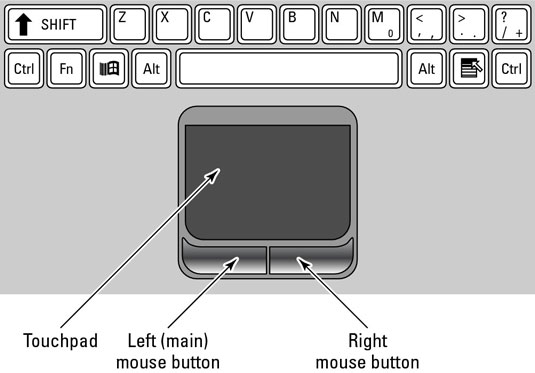
Hardware vs Software — The Body Analogy
Think of your body: your brain, eyes, hands, heart are hardware — physical organs you can touch. The thoughts, decisions, and reflexes your brain generates are software — instructions that control what your body does. A computer works the same way: the physical parts are hardware, and the programs running on them are software.
The Computer System — Five Categories
Every hardware component falls into one of five categories. Data flows through the system in a loop: Input → Processing → Output, while Memory holds data temporarily and Storage saves it permanently. Communication devices connect the computer to other devices.
Hardware Categories
| Category | Description | Examples | You use this when… |
|---|---|---|---|
| Input devices | Allow you to add data to the computer | Keyboard, mouse, touchscreen, scanner, microphone, webcam | You type, click, scan a document, or record a video |
| Output devices | Present results to the user | Monitor, printer, speakers, projector | You read text on screen, print a document, hear sound |
| Processing devices | Execute instructions and perform calculations | CPU, GPU | Any program runs — it's always using the CPU |
| Memory (RAM) | Temporary storage for data being processed | RAM, cache | You open a program — it loads into RAM |
| Storage devices | Permanently save data for later use | HDD, SSD, USB flash drive, memory card, optical disc | You save a file — it goes to storage |
| Communication devices | Allow computers to connect to networks | NIC, modem, router, Wi-Fi card | You browse the internet or share a printer |
Input Devices in Detail
Keyboard
- Used to type letters, numbers, symbols, and commands
- Types: mechanical (tactile click), membrane (quiet, cheap), wireless, ergonomic
- Special keys: F1–F12 (function keys), Ctrl, Alt, Shift (modifier keys), shortcuts like Ctrl+C (copy)
- You use this when: typing a document, entering a password, coding in Delphi
Mouse
- Pointing device for graphical interfaces (GUI)
- Types: optical (uses LED light), laser (more precise), trackball, wireless
- Actions: left-click (select), double-click (open), right-click (context menu), drag-and-drop, scroll wheel
- You use this when: navigating a desktop, clicking buttons, drawing in a graphics program
Other Input Devices
| Device | How it works | Common use |
|---|---|---|
| Touchscreen | Detects finger or stylus pressure on screen | Smartphones, tablets, POS tills at Pick n Pay |
| Scanner (flatbed) | Passes light over document, captures image | Scanning ID documents, photos |
| Barcode scanner | Reads black/white stripes with laser | Supermarket checkouts, library books |
| Webcam / camera | Captures video/still images | Google Meet, Teams calls, security cameras |
| Microphone | Converts sound waves into digital data | Voice commands, online calls, recordings |
| Stylus/graphics tablet | Pressure-sensitive pen on surface | Digital art, architect sketches |
Output Devices
Monitors
LCD/LED Monitor
| Specification | Meaning | Example |
|---|---|---|
| Resolution | Number of pixels (dots) on screen. More = sharper image | 1920×1080 (Full HD), 3840×2160 (4K) |
| Refresh rate (Hz) | How many times the screen redraws per second | 60 Hz standard; 144 Hz for gaming |
| Screen size (inches) | Measured diagonally corner to corner | 24" desktop, 15.6" laptop |
| LCD | Liquid Crystal Display — uses fluorescent backlight | Older monitors and TVs |
| LED | Improved LCD with LED backlight — brighter, thinner, more energy efficient | Most modern monitors |
| OLED | Each pixel emits its own light — perfect blacks, best contrast | Premium phones, TVs |
Printers
| Type | How it works | Use case | Cost per page |
|---|---|---|---|
| Inkjet | Sprays microscopic ink droplets onto paper | Home or office colour printing, photos | Medium |
| Laser | Electrostatic drum attracts toner powder, fuses it with heat | Fast high-volume office printing | Low (bulk) |
| Ink-tank | Bulk refillable ink reservoir — no cartridges | Schools, high-volume printing (e.g. Epson EcoTank) | Very low |
| 3D Printer | Layers material (plastic, resin) from a digital design | Prototypes, models, custom parts | Varies |
DPI (dots per inch) = print quality (higher = sharper).
PPM (pages per minute) = print speed.
Storage Devices
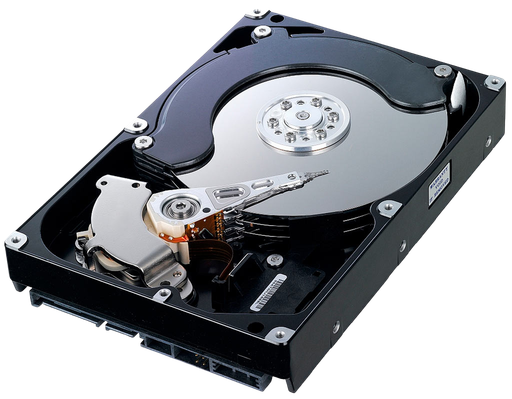

| Device | Technology | Speed | Notes |
|---|---|---|---|
| HDD | Magnetic spinning platters — a read/write head moves over them like a vinyl record | Slow (~120 MB/s) | Cheap per GB, large capacities (1–20 TB), fragile (moving parts) |
| SSD | Flash memory chips — no moving parts, like a giant USB drive | Very fast (~500 MB/s read) | Durable, silent, faster boot times, more expensive per GB |
| NVMe SSD | SSD connected directly to CPU via PCIe slot | Extremely fast (~3500 MB/s) | Found in high-end laptops and desktops |
| USB flash drive | Flash memory in a portable stick | Moderate | Easy to carry, easy to lose; 8 GB–512 GB common |
| Memory card | Flash (SD, microSD) | Moderate–fast | Used in cameras, phones, drones |
| Optical disc | Laser reads/writes pits and lands on a spinning disc | Slow | CD (700 MB), DVD (4.7 GB), Blu-ray (25 GB) — mostly obsolete |
HDD vs SSD — Detailed Comparison
| Feature | HDD | SSD |
|---|---|---|
| Speed | Slow (~80–160 MB/s read) | Fast (~500 MB/s read; NVMe SSDs up to ~3500 MB/s) |
| Durability | Fragile — moving parts can break if dropped | Durable — no moving parts |
| Cost | Cheap (R500 for 1 TB) | More expensive (R800–R1200 for 1 TB) |
| Noise | Audible clicking/spinning sound | Completely silent |
| Power use | Uses more power — reduces laptop battery life | Uses less power — better for laptops |
| Boot time | ~45–60 seconds | ~8–15 seconds |
| Best use case | Bulk storage, backups, external drives | Operating system drive, main laptop drive |
Types of Computers

Memory vs Storage
RAM = your desk workspace — only holds what you're actively working on right now. It's fast to access but clears when you switch off.
Storage (HDD/SSD) = the filing cabinet — stores everything long-term, even when the power is off. Slower to access than RAM.
Memory Hierarchy — Speed vs Capacity
The higher up the pyramid, the faster and more expensive the memory — but there's less of it.
| CPU Cache | RAM | SSD | HDD | |
|---|---|---|---|---|
| Purpose | Holds the CPU's most-used data | Active programs and open files | Installed programs, OS | Bulk file storage |
| Volatile? | Yes — clears on power off | Yes — clears on power off | No — data stays | No — data stays |
| Speed | Extremely fast (nanoseconds) | Very fast | Fast | Slow |
| Typical size | 4–32 MB | 4–64 GB | 256 GB – 4 TB | 500 GB – 20 TB |
CPU cache itself comes in levels, from smallest/fastest to largest/slowest: L1 cache is extremely fast and very small, built directly into each CPU core; L2 cache is larger but slightly slower, usually still per-core; L3 cache is bigger again but slower than L2, and is shared across all the CPU's cores.
Processing — CPU & GPU
- CPU (Central Processing Unit) — the "brain" of the computer. Fetches instructions from memory, decodes them, and executes them. Measured by: clock speed (GHz — higher = faster), number of cores (more cores = more tasks at once), and cache size. Example: Intel Core i5, AMD Ryzen 5.
- GPU (Graphics Processing Unit) — specialist processor for parallel tasks like rendering graphics, gaming, and AI. Can be integrated (built into the CPU — uses less power) or dedicated (separate card with its own memory, like NVIDIA GeForce). Example: your phone camera uses a GPU to apply filters in real-time.
Ports & Connectors
Ports are the sockets on a computer's case used to connect peripherals and cables. Knowing the common ones helps you pick the right cable for the right job.
| Port/Connector | Used for | Notes |
|---|---|---|
| USB-A | Standard rectangular port — flash drives, mice, keyboards | Only fits one way round |
| USB-B | Square-ish port — printers, scanners | Less common on modern laptops |
| USB-C | New standard — phones, modern laptops, external drives | Small, reversible (fits either way up), also used for charging |
| VGA | Connecting older monitors/projectors | Analogue signal, video only — no audio, mostly obsolete |
| HDMI | Connecting modern monitors, TVs, projectors | Digital signal, carries both video and audio |
USB speed depends on its version: USB 2.0 transfers at up to 480 Mbps, USB 3.0 up to 5 Gbps, and USB 3.1/3.2 even faster — always check the version, not just the connector shape, when speed matters.
Storage Units
| Unit | Abbreviation | Size | Real-world example |
|---|---|---|---|
| Bit | b | Smallest unit — 0 or 1 | A single on/off switch |
| Byte | B | 8 bits | One character, e.g. the letter "A" |
| Kilobyte | KB | 1 024 bytes | ~One page of plain text |
| Megabyte | MB | 1 024 KB | A small photo, a 3-minute MP3 song |
| Gigabyte | GB | 1 024 MB | A 2-hour movie, a smartphone game |
| Terabyte | TB | 1 024 GB | A large hard drive, server storage |
| Petabyte | PB | 1 024 TB | Entire data centres, cloud storage |
Software & Licensing Grade 10
Software is the set of instructions that tells hardware what to do. Without software, a computer is just an expensive paperweight. Understanding the different types and how they are licensed is essential IT knowledge.
What is Software?
Software is a collection of programs and data that tells a computer how to perform tasks. You can't touch software — it only exists digitally. Hardware is the body; software is the brain telling the body what to do.
Software Licensing
When you "buy" software, you're not actually buying the software — you're buying a licence to use it. The developer keeps ownership. Software licences define what you are and aren't allowed to do with the software.
| Type | Cost | Can modify code? | Can share? | Examples |
|---|---|---|---|---|
| Proprietary | Paid | No | No (only on licensed devices) | Microsoft Office, Adobe Photoshop, Windows |
| Freeware | Free | No (source code hidden) | Yes (as-is) | Skype, Google Chrome, Adobe Acrobat Reader |
| Shareware | Free for trial period, then pay | No | Limited (trial version) | WinZip, many antivirus programs |
| Free Open-Source (FOSS) | Free | Yes — source code public | Yes (under same licence) | Linux, LibreOffice, Firefox, GIMP |
EULA — End User Licence Agreement
The EULA is the legal agreement between you and the software developer. It's that long wall of text you click "I Agree" on when installing software.
It specifies: how many devices you can install on, what you're not allowed to do, and who owns the software.
| Licence Type | Who it covers |
|---|---|
| Single-user licence | One user on one device only |
| Multi-user licence | A specific number of users or devices (e.g. 10 PCs) |
| Site licence | Unlimited use within one organisation (e.g. a school) |
Software Piracy & Copyright
Copyright is the legal right that protects a creator's work. Software is automatically protected by copyright the moment it is created. You cannot copy, share or distribute software without the copyright holder's permission.
Piracy is the illegal copying or distribution of copyrighted software. It is a crime in South Africa and most countries.
Forms of software piracy:
- Softlifting: installing one licensed copy on multiple computers
- Counterfeiting: making and selling fake copies of licensed software
- Online piracy: downloading software illegally from the internet (torrents, crack sites)
- Hard disk loading: selling computers with pirated software pre-installed
- Client-server overuse: exceeding the number of users a network licence actually allows (e.g. a school's licence covers 20 lab computers but it's installed on 30)
Piracy is illegal, but it raises ethical questions that differ from ordinary theft — the original owner keeps their copy, so nothing is physically taken. Some argue piracy can even help creators by increasing exposure, or that it gives people access to software/entertainment they couldn't otherwise afford. These arguments don't make piracy legal, but they explain why it's a genuinely debated social issue, not simply "wrong."
Copyleft & Creative Commons
These are alternative licensing systems that allow sharing and collaboration while still giving creators some protection.
- Attribution (BY): You can use the work if you credit the creator
- Non-Commercial (NC): You can use it, but not for profit
- Share-Alike (SA / Copyleft): Any work you create from it must use the same licence
- No Derivatives (ND): You cannot modify the original work
System Software
System software manages and controls the hardware. The most important type is the Operating System (OS).
Operating System (OS)
The Operating System (OS) is system software that manages a computer's hardware and software resources, and provides a platform on which application software can run. It is the first software to load when a computer starts up, and every other program runs through it.
The OS is like the manager of a restaurant. The manager organises the kitchen (hardware), assigns tasks to staff (processes), keeps everything running smoothly, and makes sure customers (users) get what they need.
What the OS does:
- User interface — provides the desktop, windows and menus you interact with
- Hardware management — controls how programs access the CPU, RAM and storage
- File management — organises files and folders on storage devices
- Process management — runs multiple programs at once (multitasking)
- Security — manages user accounts and access permissions
| OS Type | Description | Examples |
|---|---|---|
| Stand-alone (desktop) | Installed on a single personal computer. Used for everyday tasks. | Windows 10/11, macOS, Ubuntu |
| Network (server) | Manages a network of computers. Controls who accesses what. | Windows Server, Red Hat Linux |
| Embedded | Built into a device to control one specific task. Very small. | Smart TV OS, ATM software, fridge firmware |
| Mobile | Designed for touchscreen devices. Efficient with battery. | Android, iOS |
Utility Programs
Utility programs are small tools that help maintain the computer. They come with the OS or can be downloaded.
- Antivirus software (e.g. Avast, Windows Defender)
- Disk cleanup and defragmentation tools
- File compression tools (e.g. WinZip, 7-Zip)
- Backup software
Device Drivers
A device driver is a small program that allows the OS to communicate with a hardware device. Without the correct driver, hardware won't work properly.
Example: When you plug in a new printer, Windows downloads or installs the printer driver so it knows how to send data to that specific printer model.
Firmware
Firmware is specialised, permanent software stored on non-volatile memory (usually a ROM or flash chip) inside a hardware device, controlling its most basic functions. Unlike a normal application, you don't install firmware yourself — it comes built into the device and is only changed through a controlled firmware update.
Examples: the BIOS/UEFI firmware that starts up a computer before the OS loads, the firmware inside a Wi-Fi router, or the firmware that runs a printer or smart TV.
Application Software
Application software lets you perform specific tasks — it uses the OS as its foundation.
| Category | Purpose | Examples |
|---|---|---|
| Productivity | Create documents, spreadsheets, presentations | Microsoft Office, LibreOffice, Google Docs |
| Communication | Send messages, emails, make calls | WhatsApp, Outlook, Zoom, Teams |
| Education | e-learning, tutorials, reference | Khan Academy, Siyavula, Duolingo |
| Entertainment | Play games, watch media, listen to music | Netflix, Spotify, Steam |
| Creativity | Edit photos, videos, audio | Photoshop, Audacity, Canva |
| Web browsers | Access websites and web applications | Chrome, Firefox, Edge |
Data Representation Grade 10
Computers only understand two states: on (1) and off (0). Everything — text, images, sound, video — must first be converted to those 1s and 0s before a computer can process it. This page explains how that conversion works.
Why Only 1s and 0s?
Deep inside your computer, everything is built from tiny transistors — microscopic electronic switches. Each switch can only be in one of two states: on (1) or off (0). This is called binary because there are only two options.
A single 1 or 0 is called a bit (short for binary digit). On its own, one bit can only represent two things. But group 8 bits together into a byte, and suddenly you can represent 256 different values (28 = 256) — enough for every letter, digit, and common symbol.
Think of a light switch: it is either ON or OFF — that's 1 bit. Now imagine a row of 8 light switches. Each combination of on/off gives a different pattern — 256 possible combinations. That's how a computer stores one character.
Bits and Bytes — Visual Diagram
Eight bits grouped together form one byte. The example below shows the byte 01000001 — the binary code for the letter A in ASCII.
Number Systems Overview
| System | Base | Digits used | Used for |
|---|---|---|---|
| Decimal | 10 | 0–9 | Everyday counting — the system humans naturally use |
| Binary | 2 | 0, 1 | Internal computer data — all data is stored this way |
| Hexadecimal | 16 | 0–9, A–F | Colour codes (#FF5733), memory addresses, shorter binary notation |
Binary (Base 2)
In decimal, each column is worth 10× the column to its right (1, 10, 100, 1000…). In binary, each column is worth 2× the column to its right — these are the powers of 2.
Memorise the 8 place values: 128, 64, 32, 16, 8, 4, 2, 1. Every binary conversion uses these numbers. Notice each one doubles: 1×2=2, 2×2=4, 4×2=8, 8×2=16, and so on.
Step-by-Step Conversion Examples
Binary → Decimal
Multiply each bit by its place value, then add them all up. Only count the columns where the bit is 1.
(0 × 2⁷) + (0 × 2⁶) + (1 × 2⁵) + (0 × 2⁴) + (1 × 2³) + (1 × 2²) + (0 × 2¹) + (1 × 2⁰)

= (0 × 128) + (0 × 64) + (1 × 32) + (0 × 16) + (1 × 8) + (1 × 4) + (0 × 2) + (1 × 1)

= 0 + 0 + 32 + 0 + 8 + 4 + 0 + 1

= 45(1 × 2⁴) + (0 × 2³) + (1 × 2²) + (1 × 2¹) + (0 × 2⁰)
= (1 × 16) + (0 × 8) + (1 × 4) + (1 × 2) + (0 × 1)
= 16 + 0 + 4 + 2 + 0
= 22Decimal → Binary (Divide by 2 Method)
Divide the number by 2 repeatedly. Write down each remainder. Read the remainders from bottom to top.
25 ÷ 2 = 12  remainder  1   ← LSB (written last, read first from bottom)
12 ÷ 2 =  6  remainder  0
 6 ÷ 2 =  3  remainder  0
 3 ÷ 2 =  1  remainder  1
 1 ÷ 2 =  0  remainder  1   ← MSB (written first, read last from bottom)

Read remainders bottom to top:  1  1  0  0  1
                                                = 11001₂

Verify: 16 + 8 + 0 + 0 + 1 = 25 ✓13 ÷ 2 = 6 remainder 1
6 ÷ 2 = 3 remainder 0
3 ÷ 2 = 1 remainder 1
1 ÷ 2 = 0 remainder 1
Read bottom to top: 1 1 0 1 = 1101₂
Verify: 8 + 4 + 0 + 1 = 13 ✓Hexadecimal (Base 16)
Hexadecimal (hex) uses 16 symbols: the digits 0–9, then the letters A–F for values 10–15. Because one hex digit represents exactly 4 binary bits, hex is a much shorter way to write binary numbers. For example, 11111111 in binary is just FF in hex.
Hex Digit Table
| Decimal | Binary (4-bit) | Hex |
|---|---|---|
| 0 | 0000 | 0 |
| 1 | 0001 | 1 |
| 2 | 0010 | 2 |
| 3 | 0011 | 3 |
| 4 | 0100 | 4 |
| 5 | 0101 | 5 |
| 6 | 0110 | 6 |
| 7 | 0111 | 7 |
| 8 | 1000 | 8 |
| 9 | 1001 | 9 |
| 10 | 1010 | A |
| 11 | 1011 | B |
| 12 | 1100 | C |
| 13 | 1101 | D |
| 14 | 1110 | E |
| 15 | 1111 | F |
Hex → Decimal Conversion
Each position in hex is worth 16× the position to its right (just like binary uses powers of 2, hex uses powers of 16).
2A₁₆ has two digits: 2 and A (=10)

(2 × 16¹) + (A × 16⁰)

= (2 × 16) + (10 × 1)

= 32 + 10

= 42₁₀3F₁₆ has two digits: 3 and F (=15)
(3 × 16¹) + (F × 16⁰)
= (3 × 16) + (15 × 1)
= 48 + 15
= 63₁₀Decimal → Hex Conversion (Divide by 16)
200 ÷ 16 = 12  remainder  8    →  8
 12 ÷ 16 =  0  remainder  12   →  C  (12 in hex = C)

Read remainders bottom to top:  C  8  →  C8₁₆

Verify: 12 × 16 + 8 = 192 + 8 = 200 ✓Hex is everywhere in computing. Colour codes in web design use hex: #FF0000 = red (255 red, 0 green, 0 blue). Memory addresses in low-level programming are hex. Even Delphi lets you write hex literals with a dollar sign: $FF = 255.
ASCII — Storing Text
A computer stores text by mapping each character to a number. The most common mapping is ASCII (American Standard Code for Information Interchange). Each character has a unique number — a code — which is then stored in binary.
Key ASCII Values to Memorise
| Character | ASCII decimal | Binary (8-bit) | Notes |
|---|---|---|---|
| Space | 32 | 00100000 | The space bar produces this |
| 0 | 48 | 00110000 | The digit zero (not the letter O) |
| 9 | 57 | 00111001 | Digits 0–9 = ASCII 48–57 |
| A | 65 | 01000001 | First uppercase letter |
| B | 66 | 01000010 | |
| Z | 90 | 01011010 | Last uppercase letter |
| a | 97 | 01100001 | First lowercase — exactly 32 more than 'A' |
| z | 122 | 01111010 | Last lowercase letter |
The difference between an uppercase letter and its lowercase version is always 32 in ASCII. So Ord('A') = 65 and Ord('a') = 97 (65 + 32 = 97). This is how Delphi's UpCase() function works internally — it subtracts 32.
Unicode and UTF-8
| Standard | Description | Example |
|---|---|---|
| ASCII | 7-bit (128 chars) or 8-bit (256). English letters, digits, symbols only. | 'A' = 65 |
| UTF-8 | Variable length (1–4 bytes). Backward compatible with ASCII. Most common on the web. | Supports Zulu, Xhosa, Arabic, Chinese… |
| Unicode | Universal standard — 140 000+ characters including all world languages. | isiZulu characters, emoji |
Data Representation in Delphi
// Ord: char → ASCII number
iCode := Ord('A');         // = 65
iCode := Ord('a');         // = 97

// Chr: ASCII number → char
cChar := Chr(65);           // = 'A'
cChar := Chr(97);           // = 'a'

// Convert lowercase to uppercase using the +32 rule:
cUpper := Chr(Ord(cLower) - 32);

// Print ASCII values of each character in a string
for i := 1 to Length(sText) do
  memOut.Lines.Add(sText[i] + ' = ' + IntToStr(Ord(sText[i])));
Storage Units
| Unit | Symbol | Size | Real-world example |
|---|---|---|---|
| Bit | b | Single 0 or 1 | One transistor state |
| Byte | B | 8 bits | One character, e.g. 'A' |
| Kilobyte | KB | 1 024 bytes | One page of plain text (~1 000 characters) |
| Megabyte | MB | 1 024 KB | A small JPEG photo, a 3-min MP3 song |
| Gigabyte | GB | 1 024 MB | A 2-hour HD movie, a mobile game |
| Terabyte | TB | 1 024 GB | A standard laptop hard drive |
| Petabyte | PB | 1 024 TB | Large data centres, cloud storage |
Computers work in binary (powers of 2). 210 = 1 024, which is close to 1 000 but not equal. So 1 KB = 1 024 bytes (not 1 000). Hard drive manufacturers sometimes use 1 000 to make drives sound bigger — that's why a "500 GB" drive shows as ~465 GB in Windows.
File Compression
Compression reduces the amount of disk space a file uses. Decompression restores a compressed file back to a usable form. Higher compression means a smaller file size and faster download/streaming, but too much compression can reduce quality (pixelation in images, distortion in audio).
| Type | How it works | Trade-off | Example formats |
|---|---|---|---|
| Lossless | Removes redundant data in a way that can be perfectly reversed — no information is lost | Smaller file, but not as small as lossy | PNG (images), ZIP (any file), FLAC (audio) |
| Lossy | Permanently discards some data that is hard for humans to notice is missing | Much smaller file, but quality cannot be fully restored | JPEG (images), MP3 (audio), MPEG-4 (video) |
Video Compression
Like images, video files are compressed to keep file sizes manageable. Two things to know:
- Container vs codec: a video container (e.g. MP4, MKV) is the file format that holds the compressed video, audio and other data together — think of it as the box. A video codec (e.g. H.264, H.265) is the actual compression technology used to shrink the video data inside that box — think of it as the recipe.
- H.264 (AVC): the long-standing industry-standard codec — widely supported by virtually every device and video player.
- H.265 (HEVC): a newer codec that compresses video roughly twice as efficiently as H.264 at the same quality (smaller file size, less bandwidth needed to stream it) — useful for things like 4K video or security-camera footage — but it needs more processing power to encode and play back, and isn't supported by quite as many older devices.
"Name TWO compression formats used for video footage" wants container/codec names like MP4, MKV, H.264 or H.265 — any two are usually accepted.
Networks Grade 10
A computer network connects two or more computing devices so they can communicate and share resources. Networks are what make the internet, school computer labs, and your home Wi-Fi possible.
Why Would You Connect Computers Together?
Imagine your school has 30 computers but only 2 printers. Without a network, only the computers physically connected to a printer could print. With a network, every computer can send print jobs to either printer — that's sharing resources.
Networks make all of the following possible:
- Resource sharing — share printers, scanners, internet connections, and storage across multiple computers
- File sharing — send a document from one computer to another without a USB drive
- Communication — email, instant messaging, video calls (e.g. your school uses Microsoft Teams or Google Meet)
- Centralised data and backups — store all student data on one server so it's accessible from any computer in the lab
- Internet access — one router can give all devices in a building internet access
- Remote work — teachers can access school systems from home via a VPN (Virtual Private Network)
Your school's computer lab is a LAN (Local Area Network). Every computer connects through a switch to a router, which connects to your ISP (Internet Service Provider) — maybe Telkom, MWEB, or Vodacom. That router gives every computer in the lab access to the internet.
Network Size Classifications
| Type | Full name | Coverage area | Typical speed | SA Examples |
|---|---|---|---|---|
| PAN | Personal Area Network | ~1–3 metres (arm's reach) | Low–medium | Bluetooth headphones, Apple Watch connected to phone, wireless keyboard |
| HAN | Home Area Network | Within one household | Medium–fast | Home Wi-Fi router (Telkom/Vodacom fibre), smart TV, gaming console, laptop all connected |
| LAN | Local Area Network | One building or campus | Fast (100 Mbps–10 Gbps) | School computer lab, office building network, university campus network |
| WAN | Wide Area Network | Cities, countries, continents | Varies widely | The Internet; MTN/Vodacom cellular network connecting towns across SA |
Network Topologies — Star Topology
A topology describes the physical layout of how devices are connected in a network. The most common topology used in school labs and offices is the Star Topology: every device connects directly to a central switch or hub.
Star Topology — Advantages and Disadvantages
| Advantages | Disadvantages |
|---|---|
| Easy to add new devices — just connect to the switch | If the central switch fails, the whole network goes down |
| One faulty cable only affects that one device | Requires more cable than some other topologies |
| Easy to diagnose faults — test one connection at a time | Cost of the switch adds to setup expense |
| Most widely used in schools and offices | Performance depends on the quality of the switch |
Other Network Topologies
Star isn't the only topology — the exam expects you to recognise these as well, mainly so you can eliminate them as wrong answers:
- Bus: all devices connect to a single central cable (the "bus"). Cheap and simple, but if the main cable breaks, the whole network goes down.
- Ring: each device connects to exactly two others, forming a circle, and data travels around the ring until it reaches its destination. A single broken connection can disrupt the whole ring.
- Mesh: every device connects directly to every (or many) other devices. Very reliable — there's no single point of failure — but expensive and complex to cable, since the number of connections grows quickly as devices are added.
Essential Network Components
Data from your computer travels through several devices before it reaches the internet. Here is how they connect:
Network Hardware Reference
| Component | Purpose | SA Example |
|---|---|---|
| NIC (Network Interface Card) | Connects a device to a network. Every computer has one, either built-in or as an add-on card. Assigns the device a unique MAC address. | Your laptop's built-in Ethernet port or Wi-Fi card |
| Switch | Connects multiple devices within a LAN. Smarter than a hub — sends data only to the specific device it's addressed to (using MAC addresses). | The network switch in your school's server room connecting all computers in the lab |
| Router | Connects two or more networks together. Routes data between your LAN and the internet using IP addresses. Usually also acts as a firewall. | The Telkom/Vodacom router in your home or school that gives Wi-Fi access |
| Modem | Converts digital computer data into a signal suitable for your internet line (ADSL, fibre, LTE), and vice versa. "Modulator-Demodulator". | Telkom ADSL modem, or LTE modem (like a Huawei Wifi router) |
| Access Point (Wi-Fi) | Extends wireless network coverage. Connects wirelessly to clients and wired to the switch/router. | Extra Wi-Fi routers placed in different classrooms of a large school |
Network Types — Client-Server vs Peer-to-Peer
Client-Server Network
A central server provides services (files, printers, internet access, authentication) to multiple client computers. The server is a dedicated, powerful computer that is always on.
Peer-to-Peer (P2P) Network
All computers have equal status — any device can be both client and server. No single central machine is in charge. Common in small home networks.
| Feature | Client-Server | Peer-to-Peer (P2P) |
|---|---|---|
| Cost | Expensive — dedicated server hardware needed | Cheap — any computer can participate |
| Security | Strong — administrator controls all access | Weak — each device manages its own security |
| Management | Centralised — easy to manage by one admin | Decentralised — hard to manage as network grows |
| Performance | Consistent — server is optimised for the job | Variable — depends on each computer's specs |
| Backups | Easy — all data is on the server | Difficult — data is spread across all machines |
| Failure point | If server fails, whole network is affected | One computer failing rarely affects others |
| Best for | Schools, businesses, organisations (10+ users) | Small home networks (2–5 devices) |
| SA Example | School lab with a Windows Server; bank branch | Two friends sharing files between laptops at home |
Communication Media
The medium is the physical pathway over which data travels. Choosing the right medium depends on the required speed, distance, security, and budget.
| Medium | How it works | Speed | Range | Security | Cost | SA Example |
|---|---|---|---|---|---|---|
| UTP Cable (Ethernet, Cat5e/Cat6) |
Electrical signals through 4 twisted copper pairs. RJ45 connectors. | 100 Mbps – 10 Gbps | Up to 100 m per segment | Good — hard to intercept without physical access | Low — cheapest option | School computer lab wiring; office desk connections |
| Fibre Optic | Light pulses through thin glass/plastic strands. Not affected by electrical interference. | 1 Gbps – 100+ Gbps | Kilometres (single-mode) | Very high — almost impossible to tap | Higher — more expensive to install | Openserve/Vumatel fibre to your home; undersea cables connecting SA to Europe |
| Wi-Fi (802.11 radio waves) |
Radio signals transmitted through air. No cable needed. | 54 Mbps – 9.6 Gbps (Wi-Fi 6) | 10–100 m indoors | Needs encryption (WPA3) — radio signals can be intercepted | Low — just a router; no cabling needed | Home routers; school library hotspots; coffee shops |
| LTE / 5G (mobile broadband) |
Radio signals through cell towers. Cellular network. | 10–100+ Mbps (LTE); up to 1 Gbps (5G) | Kilometres per tower | Moderate — carrier-managed encryption | Variable — data bundle costs | MTN, Vodacom, Cell C towers connecting rural SA; mobile data on phones |
| Infrared | Infrared light — requires line of sight, no obstacles. | Very slow | Very short (<1 m) | Line of sight only | Very low | TV remotes, old phone data transfers (largely obsolete) |
Many South African schools and homes are getting fibre connections through providers like Openserve (Telkom), Vumatel, and Frogfoot. Before fibre, most homes used ADSL over copper phone lines. In rural areas where fibre hasn't reached, LTE (4G) from MTN, Vodacom, or Rain is the main option for internet access.
Wired vs Wireless Connections
| Wireless (e.g. Wi-Fi) | Wired (e.g. Ethernet/UTP cable) | |
|---|---|---|
| Installation | No cables needed — quicker and cheaper to set up, especially for multiple devices | Requires running a physical cable to every device |
| Speed & reliability | Can be affected by walls, distance and interference from other devices | Generally faster and more stable/reliable |
| Flexibility | Devices can move around freely within range | Devices are fixed to wherever the cable reaches |
Know these general trade-offs well enough to compare wired and wireless for whatever scenario a question gives you — the specific recommendation always depends on the details in that scenario (number of devices, whether they move around, budget, etc.), not on a fixed rule.
Mobile Hotspot / Tethering
A smartphone has its own built-in communication hardware (Wi-Fi and Bluetooth), so it can share its mobile data connection with other devices. This is called using the phone as a hotspot (or tethering) — a laptop or tablet connects to the phone's Wi-Fi signal and browses the internet through the phone's LTE/5G data, useful when no other Wi-Fi network is available.
Internet & WWW Grade 10
The Internet and the World Wide Web are related but different. Learn how they work and how to use search engines effectively.
Internet vs World Wide Web
| Internet | World Wide Web (WWW) | |
|---|---|---|
| Definition | The global network of connected computers | A collection of websites accessible via the Internet |
| Technology | Physical infrastructure (cables, routers, servers) | HTML pages, URLs, HTTP protocol |
| Analogy | The road network | The shops and buildings on those roads |
Key Concepts
| Term | Meaning |
|---|---|
| IP Address | Unique address identifying a device on a network (e.g. 172.217.16.142). A public IP address like this identifies a device on the Internet; a private address like 192.168.1.1 only identifies a device on a local/home network and is never directly reachable from the Internet. |
| Domain | Readable name linked to an IP address (e.g. google.com) |
| URL | Full web address of a specific page (e.g. https://www.school.co.za/it) |
| HTML | HyperText Markup Language — coding language used to build web pages |
| HTTP | Protocol for transferring web pages (unencrypted) |
| HTTPS | Secure HTTP with encryption — look for the padlock icon |
| ISP | Internet Service Provider — company that gives you internet access |
Web Browsers
A web browser interprets HTML and displays web pages. Examples: Chrome, Firefox, Edge, Safari.
How Websites Remember You — Cookies & Caching
| Term | What it does | Example |
|---|---|---|
| Cookie | A small text file a website stores on your computer to remember information between visits | Staying logged in, remembering language settings, keeping items in a shopping basket after you close the browser |
| Browser cache | Web pages and images the browser saves locally so the same site loads faster next time | A news site's logo and layout load instantly on your second visit |
Search Engine Techniques
| Technique | How to use | Example |
|---|---|---|
| Exact phrase | Use quotation marks | "fastest animal" |
| Exclude words | Minus sign before word | fastest animal -cheetah |
| Specific site | site: prefix | IT help site:wikipedia.org |
| Search social media | @ prefix | IT news @twitter |
| Filter by date | Tools → Any time | Past 24 hours |
Common Internet Threats
| Threat | Description | Protection |
|---|---|---|
| Phishing | Fake official emails stealing login details | Never click suspicious links; verify email address |
| Pharming | Fake websites stealing sensitive info | Check URL carefully before entering passwords |
| Spam | Unsolicited bulk emails | Use spam filter; don't open unknown attachments |
| Ransomware | Malware that encrypts your data and demands payment | Regular backups; don't open unknown attachments |
| Hoax | False information spread as if true | Verify with reputable sources before sharing |
Internet Services Grade 10
The internet provides far more than just web browsing. This page covers plug-in applications, common internet services, and the technologies that power them.
Plug-in Applications
A plug-in is additional software installed into an existing application (e.g. a browser) to extend its functionality.
| Plug-in | Purpose |
|---|---|
| PDF converter/reader | Allows browsers to open and display PDF files |
| Flash Player | Allows browsers to display interactive animations and videos (mostly obsolete now) |
| Java | Allows Java programs to run within a web browser |
| QuickTime / RealPlayer | Stream and play audio/video directly from the browser |
| Silverlight | Enhanced interactivity for web pages (replaced by HTML5) |
| Ad blockers | Block advertising content from loading |
Internet Services Technologies
Internet services technologies cover web development, web design, networking and e-commerce. They are used together to create functional, interactive websites.
| Technology | Purpose |
|---|---|
| HTML | Structures and displays web page content |
| CSS | Controls the visual styling of web pages (colours, fonts, layout) |
| JavaScript | Adds interactivity to web pages (animations, form validation) |
| PHP / ASP.NET | Server-side scripting — processes forms and connects to databases |
| SQL | Queries and manages database data for websites |
| FTP | Transfers files between computers over a network |
Common Internet Services
| Service | Description |
|---|---|
| World Wide Web | Collection of web pages accessed via browser using HTTP/HTTPS |
| Electronic mail — send and receive messages | |
| FTP | File Transfer Protocol — upload and download large files |
| VoIP | Voice over IP — phone/video calls over the internet |
| Streaming | Audio and video delivered in real time without downloading first |
| Cloud storage | Store and access files on remote servers (Google Drive, OneDrive) |
| Online banking | Manage bank accounts and transfer money via the internet |
| E-commerce | Buy and sell goods and services online |
W3C — World Wide Web Consortium
The W3C sets the standards that all web browsers and websites should follow to ensure web pages display correctly across all devices and browsers. Web designers follow these standards.
E-Communication Grade 10
Electronic communication covers all methods of exchanging information digitally — from email and instant messaging to video calls and social media.
Forms of Electronic Communication
| Form | Description | Examples |
|---|---|---|
| Send/receive digital messages with attachments | Gmail, Outlook, Yahoo Mail | |
| Instant Messaging | Real-time text communication | WhatsApp, Telegram, MS Teams |
| Video Conferencing | Live video and audio calls | Zoom, Google Meet, Skype |
| VoIP | Voice calls over the Internet | WhatsApp calls, Skype |
| Social Media | Platforms for sharing and interaction | Facebook, Instagram, X (Twitter) |
| Blogs | Online journal/informational website | WordPress, Blogger |
| Webinar | Online seminar or presentation | Zoom webinars, MS Teams |
| FTP | Transfer large files between computers | FileZilla, WinSCP |
Email Address Format
username@domain.co.za — e.g. student@school.co.za
Netiquette (Network Etiquette)
- Use a clear, descriptive subject line
- Begin with a greeting; end with a signature
- Keep messages short and professional
- AVOID ALL CAPS — it looks like shouting
- Proofread for spelling and grammar before sending
- Compress large attachments before sending
- Do not forward spam or chain emails
- Never send sensitive info (passwords, banking details) via email
E-Communication Factors
| Factor | Effect |
|---|---|
| Speed | Almost instant delivery worldwide |
| Cost | Most digital communication is free (data costs may apply) |
| Distance | No physical distance limitations |
| Accuracy | Written messages reduce misunderstandings vs. verbal, but spelling errors or autocorrect mistakes can still cause confusion |
| Time | Often asynchronous — many forms let the recipient reply when convenient (see synchronous vs asynchronous below) |
Synchronous vs Asynchronous Communication
Electronic communication can be grouped by when the people involved take part:
- Synchronous communication happens in real time — everyone takes part at the same moment, like a live conversation (e.g. a VoIP/phone call, video conference, or live instant-messaging chat).
- Asynchronous communication does not happen at the same time — you send a message and the receiver replies whenever it suits them (e.g. email, SMS, a forum post or a blog).
| Synchronous | Asynchronous | |
|---|---|---|
| Timing | Real time, at the same moment | Time-delayed; reply when convenient |
| Everyone online together? | Yes — all parties must be available at once | No |
| Examples | VoIP/phone call, video conference, live chat | Email, SMS, blog, forum, voicemail |
Ergonomics and Health
- Sit upright; monitor at eye level
- Keyboard and mouse at comfortable arm height
- Take breaks every 30–60 minutes
- Use the 20-20-20 rule: every 20 min, look 20m away for 20 seconds
Social Issues
- Cyberbullying — harassment via digital channels
- Fake news — always verify with reputable sources
- Privacy — be careful what you share online; it leaves a digital footprint
- Green computing — turn off devices, reduce printing, recycle e-waste
Computer Management & Security Grade 10
Keeping a computer running well and securely requires regular maintenance tasks and an understanding of common threats.
General Housekeeping Tasks
| Task | Purpose |
|---|---|
| Disk Clean-up | Removes temporary files to free up storage space |
| Emptying the Recycle Bin | Permanently deletes files you've already removed, freeing the space they still occupied |
| Uninstalling unused software | Removes programs you no longer use, freeing storage space and reducing clutter |
| Defragmentation | Reorganises fragmented files on HDD for faster access (not needed for SSD) |
| Task Scheduler | Automates tasks like backups and updates at set times |
| File compression | Reduces file size using mathematical algorithms (.zip) |
| Archiving | Moves inactive data to separate storage (long-term, not duplicated) |
| Backup | Creates copies of data on a different device for disaster recovery |
A backup is like keeping a spare key to your house with a trusted neighbour. You hope you never need it, but the day you lock yourself out (a crash, ransomware, a stolen laptop) you will be very glad it exists — and glad it is kept somewhere else, not inside the locked house. That is why the safest backups are stored off-site or in the cloud: a fire or theft that destroys the original should not destroy the copy too.
Types of Backup
| Type | Description |
|---|---|
| Full backup | Complete copy of all files. Slowest but easiest to restore. |
| Incremental backup | Only backs up files changed since last backup (any type). Fast, but restoring needs all increments. |
| Differential backup | Backs up files changed since last full backup. Compromise between full and incremental. |
Backup Locations
- Local — external hard drive kept at same location
- Off-site — physical device kept at a different location
- Cloud/online — e.g. Google Drive, OneDrive — automatic, accessible anywhere
Common Malware Threats
Malware (malicious software) is the umbrella term for any software designed to damage, disrupt or gain unauthorised access to a computer system. It comes in several distinct forms, each with its own way of infecting a device and its own goal.
| Threat | Description | How It Spreads / Example |
|---|---|---|
| Virus | Attaches itself to a file or program and replicates when that file is run, then performs harmful actions | Opening an infected email attachment or running a pirated program |
| Worm | A self-contained program that spreads across a network on its own, without needing the user to open or run anything | Exploits weaknesses in network software to copy itself from one computer to the next |
| Trojan | Disguised as useful, legitimate software, but secretly gives an attacker back-door access to the computer | A "free" game or cracked software download that installs hidden malware alongside it |
| Ransomware | Encrypts the victim's files so they can no longer be opened, then demands payment for the decryption key | WannaCry (2017) locked hospital and business computers worldwide until a ransom was paid |
| Spyware | Secretly runs in the background, tracking browsing habits, keystrokes or personal information without the user's knowledge | Bundled with a free download; sends the collected data back to advertisers or attackers |
| Adware | Automatically displays unwanted advertisements, often as pop-ups, to generate revenue for its creator | Bundled with free software; can also slow the computer down or redirect the browser |
Both replicate and spread, which makes them easy to mix up. The difference is whether a person has to do something: a virus needs a human to open or run the infected file before it can act, while a worm spreads entirely on its own across a network, with no user action required at all.
Security Measures
Each measure below defends against a different kind of risk — some stop malware getting in, some protect data if a device is lost or intercepted, and some protect against problems that have nothing to do with an attacker at all, like a power cut.
| Measure | Purpose | How It Works / Example |
|---|---|---|
| Antivirus | Detects, prevents and removes malware | Scans files against a database of known malware, and watches for suspicious behaviour. Examples: Windows Defender, Avast — should run in the background and update itself automatically. |
| Firewall | Monitors network traffic; blocks unauthorised connections | Sits between the computer and the network, checking every connection against its rules and only letting approved traffic through — e.g. blocking an unknown program from secretly sending your data out to the internet. |
| Strong password | 8+ chars, uppercase, lowercase, numbers, special characters | The more varied and unpredictable a password is, the longer it takes an attacker's software to guess it. Sunset$92Purple! is far stronger than password123, which can be cracked almost instantly. |
| Access rights | Users only access files they are authorised for | Each user account is given a permission level (no access, read-only, or edit) per file or folder — e.g. a learner on the school network can view but not edit the shared timetable, and cannot open staff-only folders at all. |
| UPS | Uninterruptible Power Supply — keeps computer running during power failure | A battery inside the UPS takes over the instant mains power cuts out, giving enough time to save your work and shut down safely instead of losing it. Especially useful in South Africa during load shedding. |
| Encryption | Scrambles data so only authorised parties can read it | A mathematical key scrambles (encrypts) the data; only someone with the matching key can unscramble (decrypt) it. Examples: HTTPS encrypts data between your browser and a website; WhatsApp messages are end-to-end encrypted. |
Both are essential but guard different doors. An antivirus checks files already on the device for known malware. A firewall checks traffic moving into and out of the device over the network, before it ever becomes a file. A well-protected computer needs both.
Organising Files & Folders
A file is a collection of data stored as a single unit (a document, image, song, program). A folder (directory) is a container used to group related files. Organising files means storing them in a logical, meaningful way so they are easy to find later.
Anatomy of a File Path
A path describes exactly where a file lives on a storage device — the drive, the folders, the file name and its extension.
| Part | Example | Meaning |
|---|---|---|
| Drive | C: | The storage device the file is on |
| Path (folders) | \Users\Mari\Documents\IT\ | The chain of folders leading to the file |
| File name | report | The name you gave the file |
| Extension | .docx | Tells the computer what type of file it is |
Put together: C:\Users\Mari\Documents\IT\report.docx
Common File Extensions
The extension (the letters after the dot) tells the operating system which program should open the file.
| Extension | File Type | Example |
|---|---|---|
.txt | Plain text file | notes.txt |
.docx | Microsoft Word document | report.docx |
.xlsx | Microsoft Excel spreadsheet | budget.xlsx |
.pdf | Portable Document Format | manual.pdf |
.jpg / .png | Image files | photo.jpg |
.mp3 / .mp4 | Audio / Video | song.mp3 |
.exe | Executable program | setup.exe |
.accdb | Microsoft Access database | students.accdb |
Why Use a Good File Structure?
- Makes files easier and faster to find
- Reduces duplication — you don't save the same file in many places
- Improves organisation and reduces clutter
- Makes backing up specific folders simpler
A File Manager (e.g. Windows File Explorer) is the software used to view, move, copy, rename and delete files and folders.
Save As vs Export
| Save As | Export | |
|---|---|---|
| Purpose | Save the file under a new name, location, or a different version/format of the same kind | Create a new output file in a different format for use elsewhere |
| Example | Save a .docx as an older Word version | Export a Word document to .pdf |
| Original | Replaced or copied | Stays open and unchanged |
File Naming Best Practices
- Use meaningful file names:
2025_Term1_IT_Project.docx✓,untitled2.docx✗ - Organise files into logical folder structures
- Avoid special characters in file names:
\ / : * ? " < > | - Use underscores or dashes instead of spaces
- Back up regularly — at least weekly
Grade 10 — Year Planner Grade 10
Based on the 2026 IT CAPS Annual Teaching Plan. Practical (Paper 1) and Theory (Paper 2) topics per term.
This shows when each topic is taught during the year — it is not a list of what any single test covers. Any work done so far this year, plus the foundational work from earlier grades, can still be assessed, so don't study only the current term's topics.
- What are digital technologies & IT?
- General model of a computer (IPOS)
- Types of computers
- Data vs information, ICT systems
- Number systems: binary, decimal, hex
- Number system conversions
- ASCII & Unicode
- Bits, bytes, KB, MB, GB, TB
- Primitive data types
- File management & file structures
- Social implications: licensing, piracy, copyright, digital divide, POPIA
- IF…THEN…ELSE (full), nested IF
- Boolean operators: AND, OR, NOT, IN
- CASE statement
- MessageDlg
- Basic string methods: Length, UpperCase, UpCase, Trim
- Events: FormCreate, Activate
- Input validation (e.g. check for negative before sqrt)
- Input devices: keyboard, mouse, scanner, microphone, biometric
- Output devices: monitors (LCD/LED), printers, speakers
- Storage devices: HDD, SSD, USB, SD cards
- System unit: motherboard, CPU, RAM (general)
- Ports: USB, HDMI, NIC
- Operating systems: types, purpose, examples
- Utility programs & device drivers
- Networks overview: reasons, components, types (PAN/HAN/LAN/WAN)
- Client-server vs peer-to-peer
- E-communication tools overview
- Email, netiquette, ergonomics, green computing
- FOR loop (to / downto)
- WHILE…DO loop
- REPEAT…UNTIL loop
- String handling from first principles (no built-in: count chars, find, remove, replace)
- Full string methods: Copy, Delete, Insert, Pos, Left, Right
- Ord & Chr functions
- Prime numbers, LCM, GCD algorithms
- Timer component (simple animations)
- PAT: panels and/or tabbed panes (PageControl)
- PAT only: file I/O from first principles (AssignFile, Reset/Rewrite, ReadLn/WriteLn, EOF) — LoadFromFile/SaveToFile are not usable in the PAT
- Revision of all T1–T3 practical work
- Internet services: online storage, synchronisation, collaboration
- Online shopping & social media
- Revision of all T1–T3 theory
Exam Extras Out-of-CAPS
These topics are not explicitly required by CAPS but have appeared in NSC past papers (2015–2024). Knowing them can mean the difference between a pass and a distinction.
Items marked P1 appear in Paper 1 (practical/Delphi), P2 in Paper 2 (theory), and Both in either paper. These are supplementary — master your CAPS content first.
The Software Development Process
CAPS never teaches "how to plan a whole program" as one topic — instead it hands you the individual planning tools (IPO tables, TOE charts, pseudocode) at different points across Grade 10 and 11. Strung together in order, those tools form a complete process for turning a vague idea into a finished, working program. None of this is examinable on its own, but following it will make your PAT — and any open-ended practical question — far less overwhelming.
- Pin down exactly what the program must do. A one-line description ("a till program") is not enough to start coding from — write out every input the program will receive, every calculation or decision it must make, and every output it must produce. This is the same information an IPO table asks for (Grade 10 T1, Algorithms & Problem Solving), just applied to the whole program instead of one calculation.
- Sketch the interface before placing a single component. Decide which forms the user will see, what components sit on each one, and how the user moves between them. Keep the same layout, colours and button placement on every form — a program that looks different from screen to screen feels unfinished even when the code is solid.
- Map out which event triggers which task. For every button, checkbox or form event, list precisely what must happen when it fires — this is exactly what a TOE (Task–Object–Event) chart is for (also covered on the Algorithms & Problem Solving page). Doing this before writing code stops the common mistake of half-remembering what a button was supposed to do halfway through typing its handler.
- Break the plan into procedures and functions before typing the body of any of them. Decide which pieces of logic will repeat, which need a return value and which don't, and what needs to pass between them as parameters — this is where the Procedures & Functions (Grade 11 T2) content and the local-vs-global variable rules on that page earn their keep.
- Write the code in small, testable pieces rather than the whole program at once — build and run after every procedure or two so that when something breaks, you know it's in the last few lines you typed, not buried somewhere in 200 lines you haven't tested yet.
- Test with data designed to break it, not just data that works. Run the program with an empty text box, a negative number, the largest and smallest values it should accept, and anything else a careless user might type — this is the mindset behind the Input Validation content (Grade 10 T2). Where something goes wrong before you can even see the output, Delphi's debugger (breakpoints, F8 stepping, the Watch List — see Data Types & Variables) will show you exactly which line is responsible.
A PAT is marked over months, revisited many times, and often built on by a partner or by future-you after a long break. Time spent planning up front — even just a page of notes on what each form does — is what makes it possible to pick the project back up in Term 4 and still understand your own Term 2 code.
Practical Extras — Paper 1 (Delphi)
These Delphi functions, components and techniques are not listed in CAPS but appear regularly in exam questions or are needed to solve exam problems efficiently.
StringReplace()
Replaces all or first occurrence of a substring within a string.
s := StringReplace(s, 'old', 'new', [rfReplaceAll]);
Format() function
Formats numbers/strings with precise control — Format('%.2f', [rVal]) gives 2 decimal places. More powerful than FloatToStrF.
Random() & Randomize()
Generate random integers. Always call Randomize; first to seed the generator. Random(100) returns 0–99.
TOpenDialog / TSaveDialog
Let users browse for files at runtime.
if OpenDialog1.Execute then sFile := OpenDialog1.FileName;
DateToStr() & StrToDate()
Convert between TDate values and string representation. Used with TDateTimePicker.
sDate := DateToStr(dtpDate.Date);
Try…Except…End (Exception Handling)
Catch runtime errors gracefully — e.g. invalid StrToInt input.
try iNum := StrToInt(edtNum.Text); except ShowMessage('Invalid'); end;
Memo.Lines.Count
Returns the number of lines in a Memo. Often used in loops to process all memo lines.
for i := 0 to Memo1.Lines.Count - 1 do
SameText() / CompareText()
Case-insensitive string comparison — avoids problems when user types 'yes', 'YES' or 'Yes'.
if SameText(sInput, 'yes') then
IntToHex() & HexToInt()
Convert integers to hexadecimal strings and back. Sometimes tested in conjunction with number systems theory.
sHex := IntToHex(255, 4); // = '00FF'
Odd() & Even() functions
Built-in boolean checks — cleaner than MOD 2.
if Odd(iNum) then // true if iNum is odd
Break & Continue in loops
Break exits the loop immediately. Continue skips to the next iteration. Both appear in exam solutions — know the difference.
Theory Extras — Paper 2
These theory topics have appeared in NSC Theory papers but sit at the edge of or outside the formal CAPS scope. They typically appear in social implications or "current technology" questions.
Artificial Intelligence (AI) & Machine Learning
AI appears regularly in social implications questions — automation of jobs, AI decision-making, bias in AI, chatbots. Not deeply technical — understand the concept and its social effects.
Blockchain Technology
A distributed digital ledger of linked blocks. Used in cryptocurrency, supply chain, and secure records. Appeared in Gr12 theory papers. Know: what it is, how it works, and 2 uses.
Deep Fakes
AI-generated fake videos or audio that appear authentic. Social implications question topic — impacts on trust, truth, and politics. Know the definition and two risks.
Dark Web
A part of the internet not indexed by search engines, accessed via special software (Tor). Used for anonymity — legal and illegal uses. Appeared in theory cybercrime questions.
Net Neutrality
The principle that all internet traffic should be treated equally — ISPs cannot throttle or prioritise certain content. A social/political IT topic.
IPv6
The successor to IPv4 — uses 128-bit addresses (vs 32-bit) to solve address exhaustion. Format: 2001:0db8:85a3::8a2e:0370:7334. Know why it was introduced.
RAID Levels (0, 1, 5)
RAID 0: speed (striping, no redundancy). RAID 1: mirroring (exact copy). RAID 5: striping with parity (balance of speed + fault tolerance). CAPS only mentions RAID in general — exams go deeper.
Steganography
Hiding secret information within ordinary files (images, audio) without detection. Different from encryption — encryption scrambles data; steganography hides its existence. Appeared in theory questions.
Smart Contracts
Self-executing contracts where terms are written in code on a blockchain. No middlemen needed. Related to blockchain technology — appeared in Gr12 social implications.
Edge Computing
Processing data close to where it is generated (the "edge" of the network) rather than sending it all to a central cloud server. Reduces latency — important for IoT and 5G.
Bus Network Topology
All devices share a single communication line (the bus). Not in the current CAPS but appeared in older papers. Advantage: cheap. Disadvantage: single point of failure; performance drops with more devices.
Mesh Network Topology
Each device connects to several others, so data has more than one possible path. Not in the current CAPS (it sits under "network innovation"). Advantage: very reliable — traffic reroutes if a link fails. Disadvantage: expensive, many connections needed. It's how "mesh Wi-Fi" systems work.
Social Engineering
Manipulating people (rather than systems) to reveal confidential information. Includes pretexting, baiting, tailgating. Appears in cybercrime theory questions.
Number System Conversions
Exams frequently ask you to convert values — not just explain systems. Practise: decimal↔binary, decimal↔hex, binary↔hex. Know the place values (powers of 2 and 16).
POPIA (Protection of Personal Information Act)
South African law governing how personal data must be collected, stored, and protected. Appears in privacy and legal implications questions. Know: what it is, who it protects, and 2 requirements.
Cybercrimes Act (2020)
SA legislation that criminalises hacking, ransomware, online fraud, and malicious communications. Often referenced in cybercrime theory questions for Gr12.
Digital Twins
A virtual replica of a physical object or system, updated in real time from sensor data. Used in engineering, manufacturing, and smart cities. Appeared in 4IR/IoT questions.
Complete Delphi Functions Quick Reference
A comprehensive reference of all Delphi functions you need to know — both CAPS-required and commonly appearing in exams.
String Functions
| Function/Procedure | What it does | Example |
|---|---|---|
Length(s) | Returns number of characters | Length('Hello') = 5 |
Pos(find, source) | Position of substring (0 if not found) | Pos('lo','Hello') = 4 |
Copy(source, start, len) | Extract substring | Copy('Hello',2,3) = 'ell' |
Insert(text, var s, pos) | Insert text into string at position | Insert('!','Hello',6) → 'Hello!' |
Delete(var s, pos, len) | Remove characters from string | Delete(s,1,3) |
UpperCase(s) | All uppercase | UpperCase('hi') = 'HI' |
LowerCase(s) | All lowercase | LowerCase('HI') = 'hi' |
Trim(s) | Remove leading/trailing spaces | Trim(' Hi ') = 'Hi' |
StringReplace(s,old,new,flags) | Replace substring(s) | StringReplace(s,'a','e',[rfReplaceAll]) |
SameText(s1,s2) | Case-insensitive comparison (boolean) | SameText('Yes','yes') = True |
Concat(s1,s2) | Join two strings (same as +) | Concat('Hel','lo') |
s[i] | Character at index i (1-based) | s[1] = first character |
Math Functions
| Function | What it does | Example |
|---|---|---|
Sqr(x) | x squared (x²) | Sqr(4) = 16 |
Sqrt(x) | Square root | Sqrt(16) = 4 |
Power(base, exp) | base to the power of exp | Power(2,8) = 256 |
Round(x) | Round to nearest integer | Round(4.6) = 5 |
Trunc(x) | Remove decimal (truncate toward zero) | Trunc(4.9) = 4 |
Ceil(x) | Round UP to integer | Ceil(4.1) = 5 |
Floor(x) | Round DOWN to integer | Floor(4.9) = 4 |
Abs(x) | Absolute value | Abs(-5) = 5 |
Random(n) | Random integer 0 to n-1 | Random(6)+1 simulates a die |
Randomize | Seed the random generator (call once) | Call before Random() |
Inc(x) / Inc(x,n) | Increment by 1 or n | Inc(i) ≡ i := i+1 |
Dec(x) / Dec(x,n) | Decrement by 1 or n | Dec(i,3) ≡ i := i-3 |
Odd(n) | True if n is odd | Odd(3) = True |
Pi | Returns π (3.14159…) | rArea := Pi * Sqr(r) |
Type Conversion Functions
| Function | Converts | Example |
|---|---|---|
StrToInt(s) | String → Integer | StrToInt('42') = 42 |
StrToFloat(s) | String → Real | StrToFloat('3.14') |
StrToIntDef(s, default) | String → Integer (safe — returns default if invalid) | StrToIntDef(edtNum.Text, 0) |
IntToStr(n) | Integer → String | IntToStr(42) = '42' |
FloatToStr(r) | Real → String | FloatToStr(3.14) |
FloatToStrF(r, fmt, digits, dec) | Formatted real → String | FloatToStrF(r, ffFixed, 6, 2) |
Ord(c) | Char → Integer (ASCII value) | Ord('A') = 65 |
Chr(n) | Integer → Char | Chr(65) = 'A' |
UpCase(c) | Single char to uppercase | UpCase('a') = 'A' |
IntToHex(n, digits) | Integer → Hex string | IntToHex(255,2) = 'FF' |
DateToStr(d) | TDate → String | DateToStr(Now) |
FormatFloat(fmt, r) | Real → formatted string | FormatFloat('#,##0.00', 1234.5) |
Past Paper Patterns & Tips
Paper 1 (Practical) — What Always Appears
| Section | What to expect | Common traps |
|---|---|---|
| Q1: General programming | Strings, loops, decisions, calculations (~30–40 marks) | Off-by-one errors in loops; forgetting to initialise variables |
| Q2: Arrays & files | 1D/2D arrays, text file reading/writing (~20–25 marks) | Using wrong index (0 vs 1-based); not closing file |
| Q3: OOP | Class with constructor, accessors, mutators, toString (~25–30 marks) | Calling Create on the object var (not class name); forgetting Result in functions |
| Q4: Database/SQL | TADOQuery, SQL statements including JOIN (~20–25 marks) | Not calling qry.Close before changing SQL; wrong JOIN ON condition |
| Recursion (Gr12) | Write a recursive function; trace it (~10–15 marks) | Missing base case; not returning Result |
Paper 2 (Theory) — What Always Appears
| Topic | Typical mark allocation | What examiners look for |
|---|---|---|
| Hardware & software | 15–20 marks | Specific advantages/disadvantages; real-world examples |
| Networks & internet | 20–25 marks | Correct terminology; topology advantages/disadvantages |
| Databases & normalisation | 20–30 marks | Correct normal form identification; proper primary/foreign key use |
| Social implications | 20–25 marks | Balance of positive AND negative effects; specific examples |
| Cybercrime | 10–15 marks (Gr12) | Correct crime type names; effects on both victim and business |
| Current technology (IoT, AI, VR) | 10–15 marks (Gr12) | Practical application examples; social implications |
General Exam Advice
- Read the question twice — "list" means bullet points, "explain" means a sentence or two
- Never leave a practical question blank — partial marks are awarded for correct structure
- In SQL: always check your WHERE condition matches the question's criteria exactly
- In OOP: write the constructor first — it sets up all the attributes you'll use elsewhere
- In theory: "advantage AND disadvantage" means you need both for full marks